Mastering Cursor IDE for Automation
Introduction to Cursor IDE
Meet Your AI Coding Partner
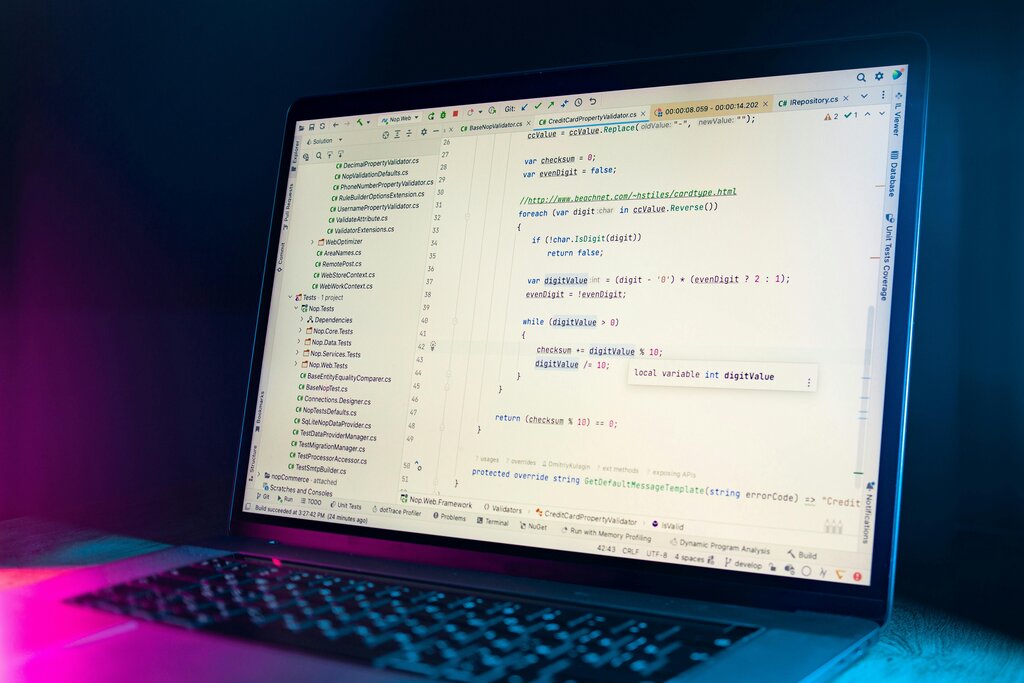
Most programmers use a tool called an Integrated Development Environment, or IDE. Think of it as a specialized text editor that understands code, offering helpful features like syntax highlighting and debugging tools. Cursor is an IDE, but it's built with a powerful AI assistant at its core.
Cursor is more than just a code editor, it’s your AI coding partner, built on top of VS Code but reimagined for the AI era.
Because Cursor is built on top of the popular Visual Studio Code (VS Code), its interface will feel familiar to many developers. You can even use your favorite VS Code extensions and themes. The key difference is the deep integration of AI, designed to help you write, understand, and fix code faster.
How It Works
Cursor's AI isn't just a simple chatbot. It reads and understands your entire project, allowing it to provide highly relevant help. You can ask it to generate new code, refactor existing functions, or explain a complex piece of logic in plain English. This is done right inside the editor, so you never have to break your focus by switching to a web browser.
Instead of just completing a single line, you can ask Cursor to generate entire functions or components based on a simple description.
The AI is context-aware. By using the @ symbol, you can direct its attention to specific files or functions. For example, you could ask, "Based on the logic in @ApiService.js, create a new React component to display user data."
This ability to understand relationships within your code is what makes Cursor so powerful. It can also perform multi-line edits across several files at once, a task that would be tedious to do manually.
Getting Started
Setting up Cursor is straightforward. You can download it directly from the official website. The installation process is similar to any other desktop application.
Once installed, you can open any existing code folder or start a new project. The main interface includes a chat panel where you can interact with the AI. You can open it with a keyboard shortcut (Cmd+K on Mac, Ctrl+K on Windows) and start giving instructions.
Write a python function that takes a list of numbers and returns the sum.
After you enter a prompt like the one above, the AI will generate the code and ask if you want to accept the changes. You can also highlight a block of code and press Cmd+K to ask questions or request modifications for that specific selection.
You can also access AI features by right-clicking in your editor. This brings up a menu with options like "Explain Code," "Suggest Refactoring," or "Find Problems," making it easy to get help without typing out a full query.
What is the primary difference between Cursor and a traditional IDE like Visual Studio Code?
True or False: To interact with Cursor's AI, you must always switch to a separate web browser window.
Now that you're familiar with the basics, you're ready to start exploring how this AI-powered IDE can streamline your workflow.