Mastering Computer Shortcuts for Peak Efficiency
Advanced OS Shortcuts
Beyond the Basics
You've already mastered the basics like copy, paste, and switching between apps. Now it's time to learn the shortcuts that will truly speed up your workflow. These aren't just about saving a second here or there; they're about navigating your computer with a new level of fluency, making complex actions feel effortless.
Mastering Windows keyboard shortcuts may seem like a small thing, but it can completely transform the way you use your PC.
Advanced Window Management
Juggling multiple windows is a daily reality. Instead of dragging and resizing windows with your mouse, you can snap them into place, move them between monitors, and manage entire workspaces with just a few keystrokes. This is especially powerful when working with virtual desktops, which are like having multiple monitors on a single screen.
| Action | Windows | macOS | Linux (GNOME/Ubuntu) |
|---|---|---|---|
| Snap window left/right | Win + ←/→ | Requires third-party app | Super + ←/→ |
| Maximize window | Win + ↑ | Ctrl + Cmd + F (Enter full screen) | Super + ↑ |
| Minimize window | Win + ↓ | Cmd + M | Super + H |
| View all desktops | Win + Tab | Ctrl + ↑ (Mission Control) | Super |
| Switch desktops | Ctrl + Win + ←/→ | Ctrl + ←/→ | Super + Page Up/Down |
| Add new desktop | Ctrl + Win + D | Ctrl + ↑, then + | Ctrl + Super + D (Varies) |
The key with the Windows logo is often called the Win key. On Linux systems, it's usually referred to as the Super key. For macOS, the Cmd key (⌘) is your go-to.
Quick System Navigation
Digging through menus to find system settings or the file manager is slow. These shortcuts give you instant access to the core parts of your operating system.
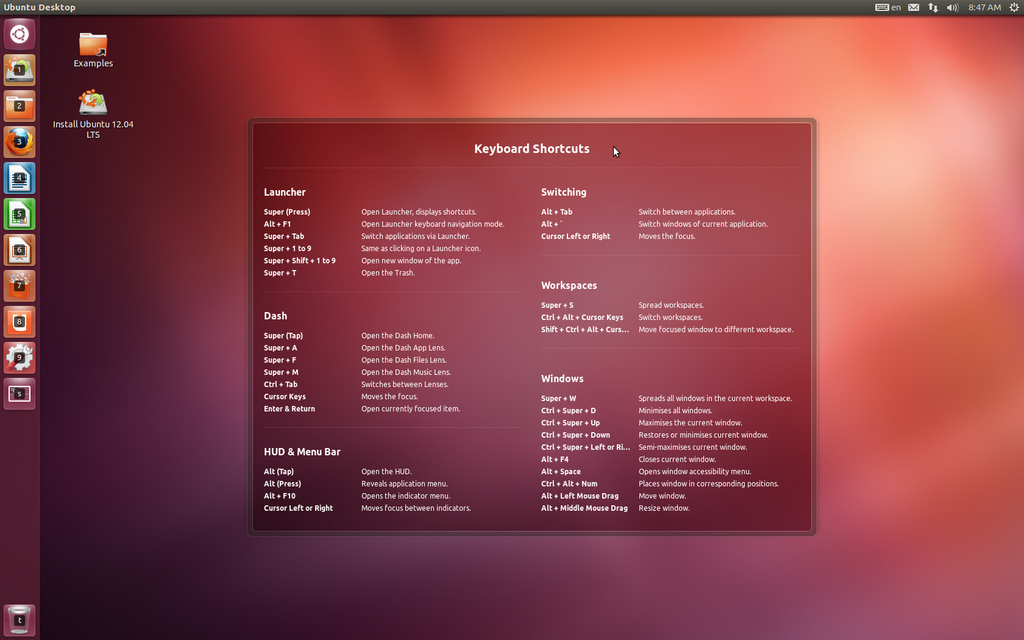
Memorizing the right combination can take you directly where you need to go.
| Action | Windows | macOS | Linux (GNOME/Ubuntu) |
|---|---|---|---|
| Open File Explorer | Win + E | Cmd + Shift + F (All My Files) | Super + E (Varies) |
| Open System Settings | Win + I | Cmd + , (App preferences) | Usually in top bar |
| Lock Screen | Win + L | Ctrl + Cmd + Q | Super + L |
| Quick Search | Win + S | Cmd + Space (Spotlight) | Super (Activities) |
| Open Command Line | Win + R, then cmd | Cmd + Space, then Terminal | Ctrl + Alt + T |
OS-Specific Power Moves
Beyond universal tasks, each operating system has unique features with their own powerful shortcuts. Mastering these can unlock capabilities you might not have even known existed.
Windows: The Game Bar (
Win+G) isn't just for gaming. It provides a quick overlay for screen recording, performance monitoring, and audio controls that's useful in any application. For managing notifications and quick settings, the Action Center (Win+A) is your best friend.
macOS users have a similarly powerful toolset at their fingertips.
macOS: Spotlight (
Cmd+Space) is more than an app launcher. You can use it to do calculations, define words, and find files instantly. The advanced screenshot tool (Cmd+Shift+5) gives you precise control over capturing your screen, including options for recording video of a selected area.
Linux, particularly with the GNOME desktop environment, offers its own efficiencies.
Linux (GNOME): The Activities overview (pressing the
Superkey) is the central hub for managing windows, virtual desktops, and launching applications. For running quick commands without opening a full terminal, the command launcher (Alt+F2) is incredibly useful for developers and system administrators.
Time to review what you've learned.
Ready to test your knowledge?
You have a web browser open on your Windows computer and want to quickly view it side-by-side with another application. Which keyboard shortcut snaps the browser window to the left half of your screen?
Virtual desktops are essentially multiple, separate workspaces on a single monitor.
Integrating these shortcuts into your daily habits will take a little practice, but the payoff in speed and efficiency is well worth the effort.