Mastering Claude for Software Development
Introduction to Claude Code
Meet Your AI Coding Partner
Claude Code is an AI-powered assistant from Anthropic designed to help you write code more efficiently. Think of it as a knowledgeable partner who can generate code snippets, help you debug problems, and understand the context of your entire project.
By simplifying the code writing process, Claude reduces the time spent on basic coding tasks and allows developers to focus on more complex, creative aspects of their projects.
Unlike a simple autocomplete, Claude Code understands natural language. You can describe what you want to build in plain English, and it will generate the necessary code. It can also analyze your existing code to find errors, suggest improvements, and explain complex sections.
Core Features
Claude Code is built around a few key capabilities that make it a powerful tool for both new and experienced developers.
Intelligent Code Generation You can give Claude a prompt describing a function, a class, or even a whole algorithm, and it will write the code for you. This is great for getting a first draft done quickly or for tackling a new library you're not familiar with.
Real-Time Debugging When you're stuck on a bug, Claude can be a lifesaver. It analyzes your code to identify potential errors and often suggests the exact fix. It can explain why the error is happening, which helps you learn and avoid similar mistakes in the future.
Broad Language Support Claude is multilingual. It supports over 50 programming languages, so you can use it across different projects and technology stacks.
| Category | Languages |
|---|---|
| Web Development | JavaScript, TypeScript, HTML, CSS |
| Backend | Python, Java, Go, Ruby, PHP |
| Mobile | Swift, Kotlin |
| Data Science | R, SQL, Python (with libraries) |
Getting Started
Setting up Claude Code usually involves integrating it into your favorite code editor or Integrated Development Environment (IDE). While the exact steps vary, the general process is straightforward.
- Find the Extension: Go to the marketplace or extensions tab in your code editor (like VS Code, JetBrains IDEs, etc.) and search for Claude Code or an official Anthropic extension.
- Install: Click the install button to add it to your editor.
- Get an API Key: You'll need an API key from Anthropic to connect the extension to Claude's AI models. You can get one by signing up on the official Anthropic website.
- Configure: Open the extension's settings and paste in your API key. Some tools may ask you to log in to your Anthropic account directly.
Once configured, you'll be ready to start coding with AI assistance.
Navigating the Interface
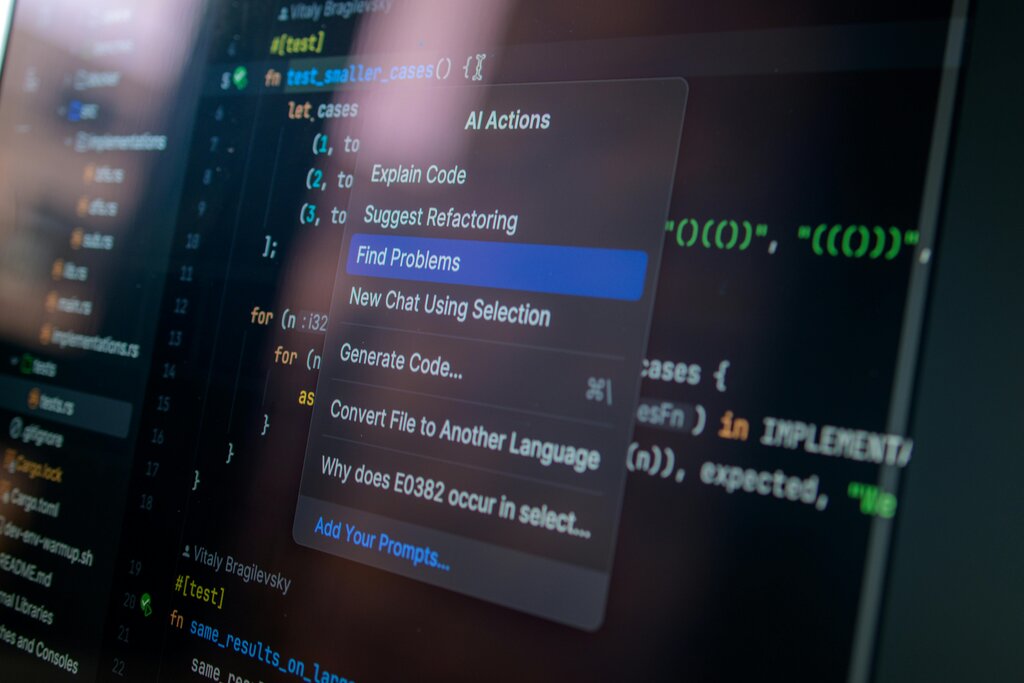
Interacting with Claude Code is designed to be conversational. Most integrations provide a chat panel or a command palette where you can communicate with the AI.
Typically, you can:
- Open a Chat Window: Look for a Claude icon in your editor's sidebar. This opens a dedicated chat panel where you can ask general programming questions or request code for a new file.
- Use In-line Commands: Highlight a block of code and right-click to bring up a context menu. You'll often see options like "Claude: Explain this code," "Claude: Find bugs," or "Claude: Refactor."
- Start a Conversation from Code: Many tools let you highlight code and start a chat session where the selected code is automatically included as context. This is useful for asking specific questions about a function or class.
The goal is to bring AI assistance directly into your workflow, so you don't have to switch between your editor and a web browser.
What is the primary function of Claude Code?
According to the setup guide, what do you typically need from the Anthropic website to connect the Claude Code extension in your IDE to the AI models?
With these basics, you're ready to start exploring how an AI coding assistant can enhance your development process.