Mastering Canva for Design
Getting Started with Canva
Welcome to Canva
Canva is a powerful design tool that makes it easy to create professional-looking graphics without needing a degree in design. It’s all done through a web browser or a mobile app, giving you access to templates, fonts, and images to get started quickly. Let's begin by setting up your account and getting familiar with the layout.
Setting Up Your Account
First things first, you'll need an account. You can sign up using an email address or by connecting your Google, Facebook, or Apple account. The process is straightforward and only takes a minute.
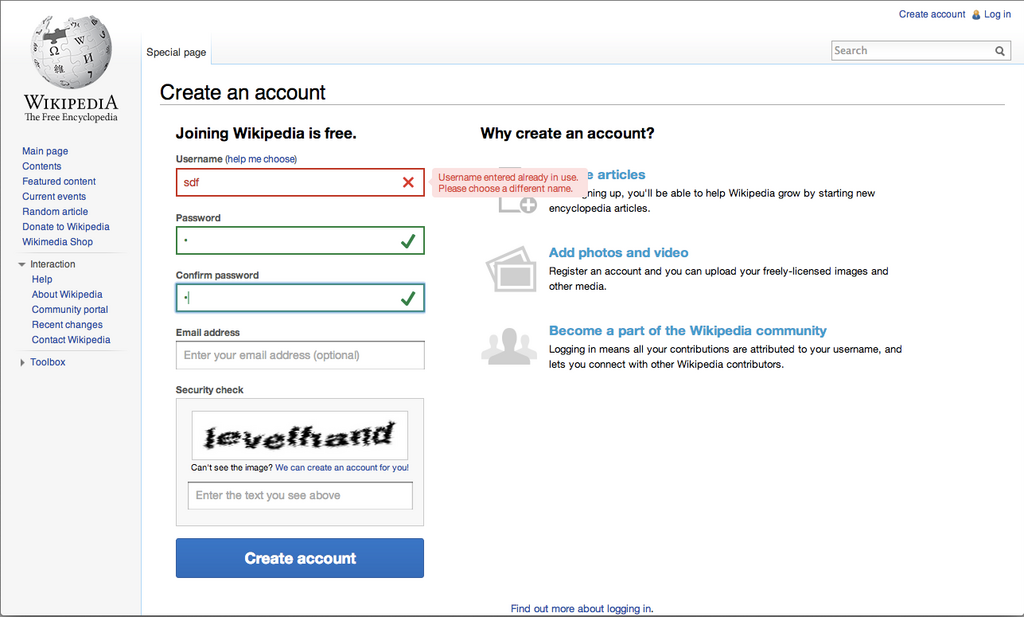
Once you’re signed in, Canva may ask you a few questions about what you plan to use it for. Answering these helps personalize your experience by suggesting relevant templates and design types, but you can also skip this if you prefer.
Exploring the Dashboard
After logging in, you'll land on the Canva dashboard. This is your mission control for starting new designs and managing your existing ones. Let's break down the main areas you'll see.
At the top, you'll find a search bar. This is your best friend for finding specific templates. If you need an Instagram post, a business card, or a presentation, just type it in here. To the right, you'll see a “Create a design” button, which lets you start a project from scratch or with custom dimensions.
The left-hand navigation panel helps you organize your work. Here you’ll find links to your projects, templates, and any brand assets you've set up, like logos or color palettes. The central part of the screen is filled with design suggestions and templates to inspire your next creation.
Think of the dashboard as your creative hub. Spend a few minutes clicking around to get a feel for where everything is.
The Design Editor
When you start a new design, you'll enter the Canva editor. This is where the magic happens. The editor is split into a few key areas.
| Area | Purpose |
|---|---|
| Canvas | The large central area where you build your design. |
| Side Panel | On the left, this panel holds all your creative assets. You'll find tabs for templates, elements (like shapes, icons, and photos), uploads, text, and more. |
| Top Bar | Above the canvas, this bar contains contextual tools. When you select an element like text or an image, this bar will show options to change its color, font, position, or transparency. |
| Share Button | Located in the top-right corner, this is how you'll download, print, or share your finished design. |
The best way to learn is by doing. Try adding a text box from the side panel or searching for a shape in the “Elements” tab. Click and drag items onto your canvas and see how the options in the top bar change. Don't worry about making it perfect; just explore the tools available.
What is the primary function of the search bar at the top of the Canva dashboard?
According to the text, answering Canva's initial questions about how you'll use the platform is mandatory.
Now you have a solid grasp of the Canva interface. You know how to find your way around the dashboard and where to find the essential tools in the editor.