Mastering Canva for Design
Getting Started with Canva
Your First Steps in Canva
Canva is a design platform that makes it easy to create visuals for just about anything, from social media posts to presentations. You don’t need any prior design experience to get started. The first step is creating an account.
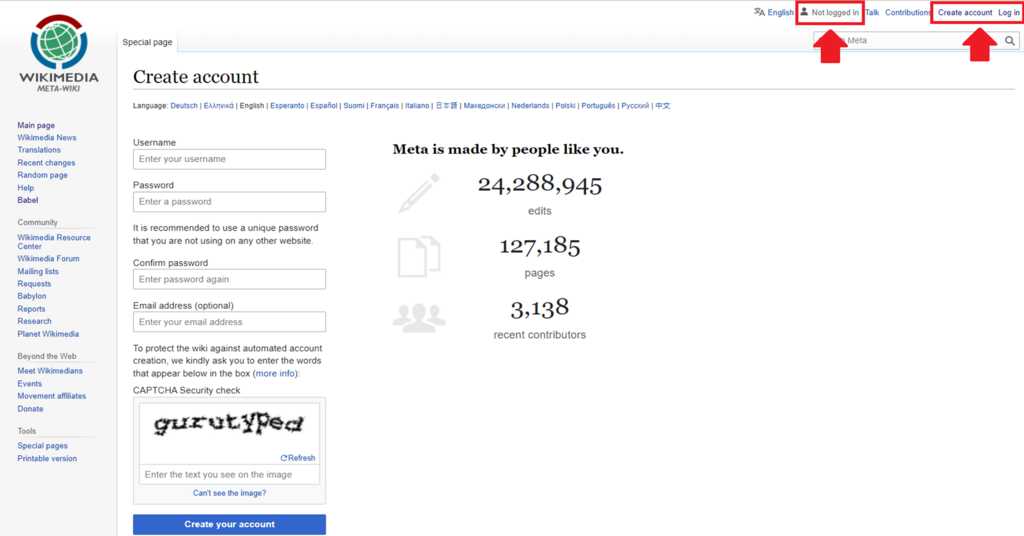
You can sign up using your email address or an existing Google, Facebook, or Apple account. The process is quick and just requires a few clicks. Once you're signed up, you’ll be taken to your dashboard, which is your mission control for all things design.
Finding Your Way Around
When you first log in, you'll land on the Canva homepage. It might seem like there's a lot going on, but the layout is quite intuitive. Think of it in four main sections.
The search bar at the top is your fastest route. If you know you need a business card, just type "business card" and Canva will show you relevant templates.
The "Create a design" button lets you start a project from scratch or choose a specific format with preset dimensions, like an Instagram Story or a standard A4 document.
The side panel helps you navigate. "Projects" is where all your saved designs live. "Templates" takes you to the full library of pre-made designs.
Finally, the main area shows you suggestions for what you might want to create and displays your recent designs for easy access.
A World of Templates
Canva’s greatest asset is its massive library of templates. A template is a pre-designed layout you can customize with your own text, images, and colors. This means you don't have to worry about layout, font pairings, or color schemes from a blank slate.
You can start from scratch on Canva, or you can pick one of the thousands of templates that the platform offers and modify it according to your needs.
Templates cover nearly every category imaginable. Whether you need a resume, a YouTube thumbnail, a wedding invitation, or a restaurant menu, there’s likely a template waiting for you. You can browse categories or use the search bar to find exactly what you're looking for.
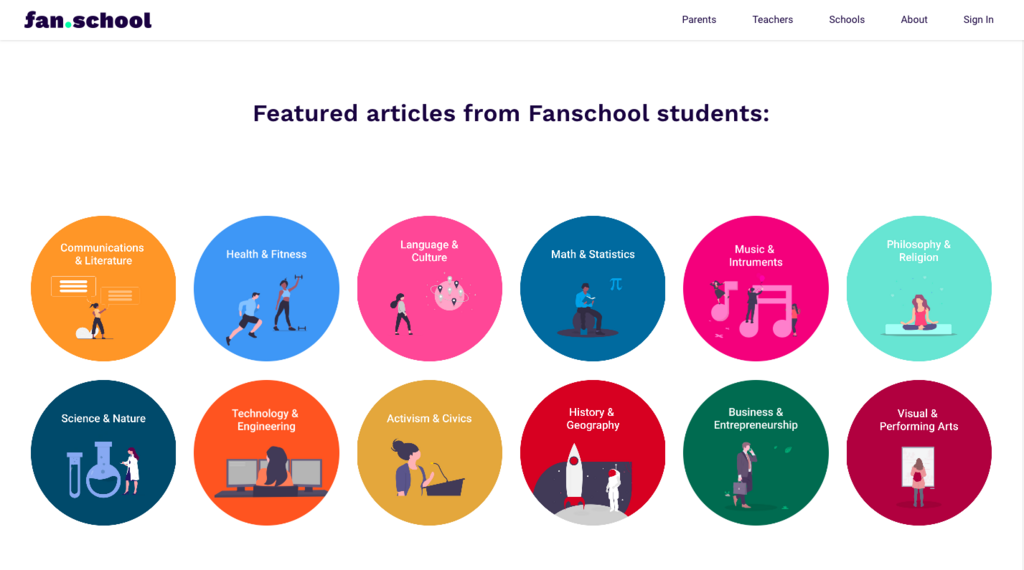
Once you select a template, it opens in the Canva editor, where you can click on any element—text, photos, icons—to change it. This is where the creative process really begins.
Free vs. Pro
Canva operates on a "freemium" model. This means you can use it for free forever, but there's also a paid subscription, Canva Pro, that unlocks more features. For many users, the free version is more than enough to create professional-looking designs.
The main difference comes down to the assets and tools available. Free users have access to a large but limited selection of templates, photos, and graphic elements. Pro users get access to everything. Elements available only to Pro users are marked with a small crown icon. Here’s a quick breakdown:
| Feature | Canva Free | Canva Pro |
|---|---|---|
| Templates | Thousands of free templates | Access to the entire library of premium templates |
| Photos & Elements | Hundreds of thousands of free photos and graphics | Millions of premium stock photos, videos, and graphics |
| Fonts | A large selection of free fonts | Ability to upload your own fonts |
| Storage | 5 GB of cloud storage | 1 TB of cloud storage |
| Advanced Tools | Basic editing tools | Tools like Magic Resize, Background Remover, and Brand Kit |
When you're just starting, the free plan is the perfect way to learn the platform and see if it meets your needs. You can always upgrade later if you find yourself needing more advanced features or a wider selection of assets.
What is the very first step to start using Canva?
On the Canva homepage, what is the fastest way to find a specific type of design, like a 'business card'?
Now you know the basics of getting around Canva. The best way to learn is by doing, so try creating a simple design from a template to get a feel for the editor.