Mastering Canva for Creative Design
Canva Interface
The Canva Dashboard
When you log into Canva, you land on your dashboard. Think of this as your mission control for all design projects. The layout is straightforward. At the top, you'll find the main navigation bar, which gives you access to your account settings and help resources. The most important feature here is the prominent "Create a design" button, which opens a dropdown of popular document types like presentations, social media posts, and videos.
The left sidebar is your main navigation tool. It links to your projects, templates, and any brand assets you've set up. The large central area of the dashboard is where you'll see template suggestions tailored to you and your recent designs for quick access. Use the search bar at the top of this central area to quickly find templates for any project you can imagine, from a business card to an Instagram story.
The Design Editor
Once you select a document type or template, you'll enter the design editor. This is where the creative work happens. The editor is split into three main sections.
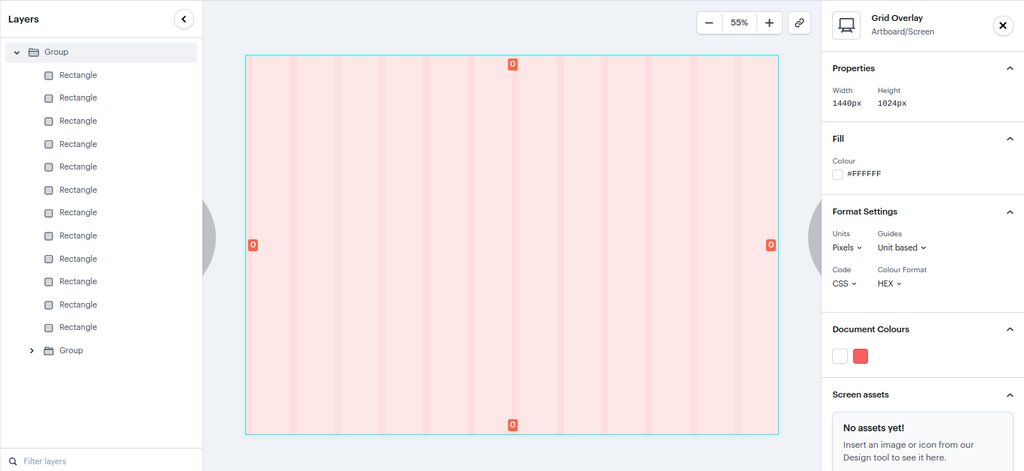
- The Canvas: This is the large, central part of the screen. It's your actual design, where you'll add and arrange all your visual elements.
- The Top Menu Bar: Above the canvas, this bar contains contextual tools that change depending on what element you have selected. It's where you'll find options for changing fonts, colors, spacing, and applying effects. It also holds the undo/redo buttons, the file name, and the "Share" button for exporting your work.
- The Side Toolbar: To the left of the canvas is the main toolbar. This is your library of assets.
Using the Toolbar
The side toolbar is the heart of Canva's functionality. It's where you'll find everything you need to build your design. It's organized into clear tabs:
| Tab | Function |
|---|---|
| Templates | Browse and apply pre-made layouts for your chosen document type. |
| Elements | Access shapes, lines, graphics, photos, videos, and charts. |
| Uploads | Add your own images, videos, or audio files. |
| Text | Add headings, subheadings, and body text. You can also use pre-designed font combinations. |
| Draw | Use various pens and highlighters to add freehand drawings to your design. |
| Projects | Access your past designs to reuse elements or maintain consistency. |
Each tab contains a search bar, allowing you to quickly find specific assets without endless scrolling. For example, typing "abstract background" in the Elements tab will pull up a collection of relevant photos and graphics.
Remember, the top menu bar is dynamic. If you select a text box, it shows font options. Select an image, and it shows tools for editing photos, like filters and cropping.
Managing Design Elements
Once you've added an element to your canvas from the toolbar, you can manipulate it in several ways. Clicking on an element brings up a bounding box with handles at the corners and sides. Drag these handles to resize the element. A rotation handle appears just below the box to let you change its angle.
Managing layers is also simple. When elements overlap, you might need to bring one forward or send another backward. Select an element, click on "Position" in the top menu bar, and choose "Forward," "Backward," "To front," or "To back." This same menu allows you to align elements precisely to the page or to each other.
To work with multiple elements as a single unit, you can group them. Hold down the Shift key and click on each element you want to include, then click the "Group" button that appears in the top menu. This locks them together, allowing you to move and resize them as one. You can ungroup them at any time to edit individual components.
When you log into Canva, what is the main purpose of the prominent 'Create a design' button on the dashboard?
In the Canva editor, you've added a photo and a text box. If you want to change the font of the text, where would you find the necessary tools?
With a solid grasp of the dashboard and design editor, you're ready to start creating. Familiarity with these core tools is the foundation for building any design you can envision.