Mastering AutoCAD for Rapid Production
Optimized Interface and Shortcuts
Your High-Speed Workspace
Using AutoCAD's default interface is like driving a sports car in first gear. You can get where you're going, but you're missing out on all the performance. To work like a professional, you need to create a high-speed production environment tailored to your specific needs. This means moving beyond the ribbon and creating a workflow where your right hand stays on the mouse and your left hand drives commands from the keyboard. It's about minimizing clicks, reducing mouse travel, and making the software an extension of your thoughts.
Keyboard Aliases
The fastest way to issue a command is to type an alias, a one or two-letter shortcut. While AutoCAD comes with standard aliases (like L for LINE or C for CIRCLE), the real power comes from customizing them. These aliases are stored in a simple text file called the Program Parameters file, or PGP file. By editing this file, you can change existing aliases or create new ones for your most-used commands.
; Example Custom Aliases
; Command Alias,  *Full Command Name

XX,      *EXPLODE
ZZ,      *ZOOM
RR,      *ROTATE
CC,      *COPY
To edit your aliases, you can find the acad.pgp file in your AutoCAD support folder or simply type ALIASEDIT into the command line to open the editor. After adding your custom aliases and saving the file, you need to tell AutoCAD to load the new settings. You can either restart the program or, for a faster update, type the REINIT command, check the box for "PGP File," and click OK. Now your new keyboard shortcuts are live and ready to use.
Mastering keyboard AutoCAD shortcuts is one of the quickest ways to dramatically boost your design speed and overall output.
Fine-Tuning the Interface
Beyond keyboard aliases, you can mold the entire graphical interface to your liking using the Customize User Interface (CUI) dialog. This is your command center for modifying the ribbon, creating custom toolbars, and, most importantly, optimizing the Quick Access Toolbar and Tool Palettes.
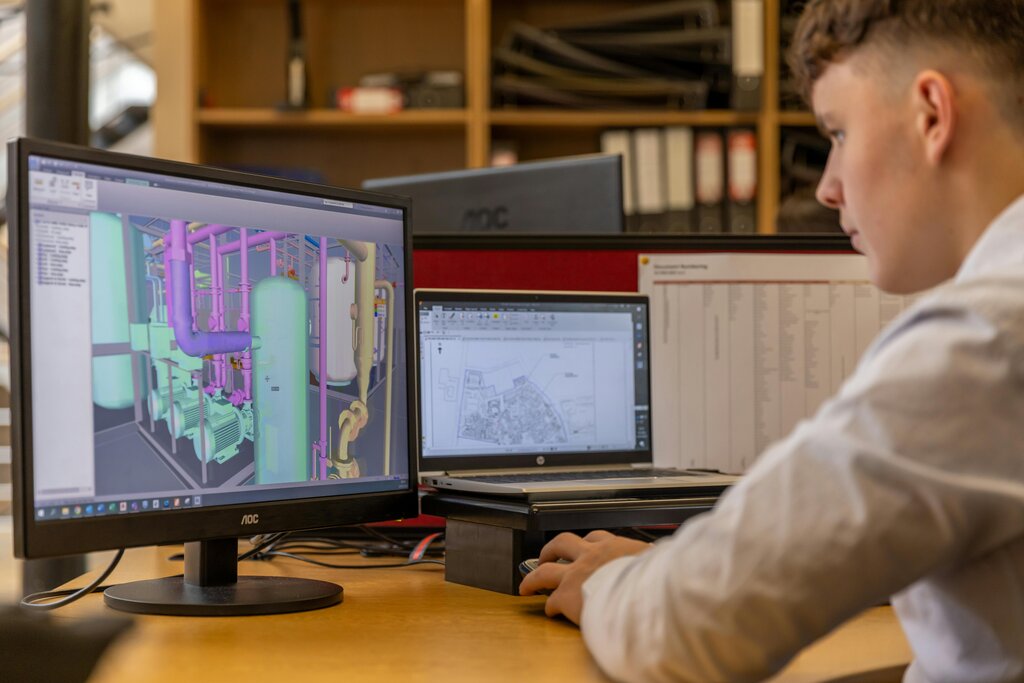
The Quick Access Toolbar (QAT) sits at the very top of your screen, next to the application menu. It's meant for your absolute most-used tools, the ones you need instantly without hunting through ribbon tabs. You can right-click almost any command on the ribbon and select "Add to Quick Access Toolbar."
Tool Palettes are even more powerful. They are floating panels where you can store not just commands, but also blocks, hatch patterns, and other assets. You can create palettes for different projects or tasks, like one for architectural symbols and another for mechanical fasteners. Simply drag and drop blocks from your drawing onto the palette to save them for reuse.
Automating Repetitive Tasks
Every project has those tedious, repetitive sequences of commands you perform over and over. Instead of doing them manually, you can use the Action Recorder. It works just like recording a video: you start the recorder, perform a series of actions, and then stop it. AutoCAD saves that sequence as a macro that you can play back with a single click.
For example, you could record a macro that creates a new layer named "Annotations," sets its color to red, and makes it the current layer. Once saved, you can run this macro in any drawing, saving you several clicks each time.
Finally, for managing complex drawings, master advanced selection tools. When multiple objects overlap, you can hold Shift + Spacebar to enable selection cycling, letting you tab through the objects under your cursor. For more complex needs, the QSELECT (Quick Select) command lets you filter objects by properties like layer, color, or object type, allowing you to select all circles on a specific layer, for example, without affecting anything else.
Now, let's test your knowledge on setting up an efficient workspace.
What is the primary file used by AutoCAD to store command aliases like 'L' for LINE?
After you've edited your PGP file to add a new command alias, what is the fastest way to activate your changes without closing and reopening AutoCAD?
By combining fast keyboard aliases, a tailored interface, and simple automation, you can transform your AutoCAD environment into a powerful and efficient design station.