Mastering AI Video Creation from Scratch
Quick AI Video
From Prompt to Video
Creating a video used to require cameras, microphones, and editing software. Now, you just need an idea and a few lines of text. AI tools can handle the entire production process, from generating visuals to composing a soundtrack. This is the core of text-to-video generation.
One of the most powerful tools for this is Google's Veo3, which you can access directly within the Google Gemini interface. Think of Gemini as the workspace and Veo3 as the specialised video director inside it. It doesn't just create silent clips; Veo3 generates video, background music, ambient sounds, and even character dialogue all from a single prompt. This integration simplifies the process immensely.
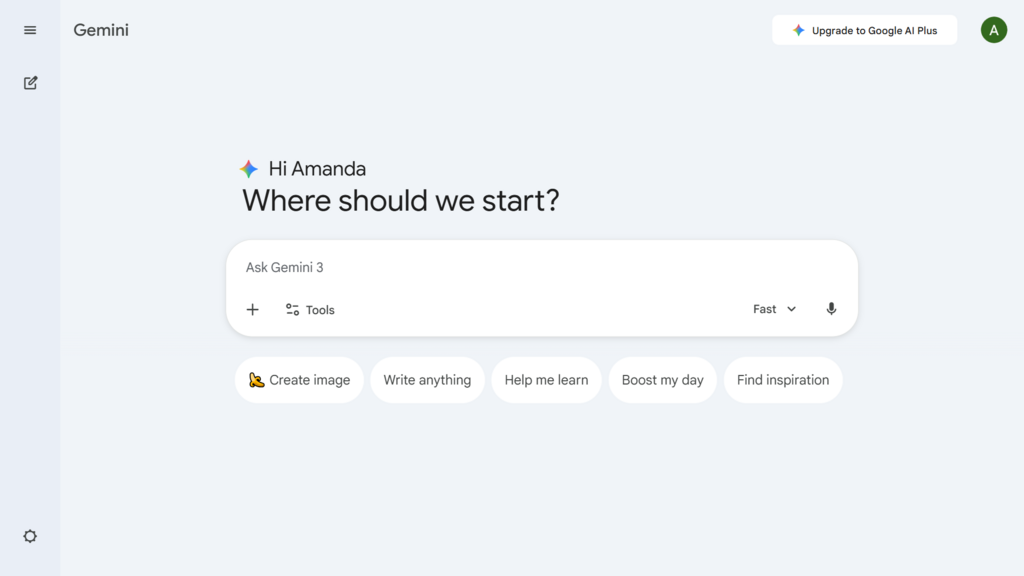
Let's start with a simple prompt. In the Gemini chat box, you could type:
A person riding a scooter on a busy street in Bangalore.
Veo3 will generate a short video based on this. It works, but the result might be generic. The real power comes from thinking like a director. Instead of just stating the subject, describe the scene, the mood, and the camera work.
Consider this director-style prompt: 'A young man on a vintage scooter navigates through the vibrant chaos of a Bangalore street market during golden hour. Cinematic slow motion, with the sounds of traffic, vendors calling out, and a gentle, ambient synth track.'
This detailed prompt gives the AI much more to work with. You've specified the time of day (), the camera style ('cinematic slow motion'), and the audio environment. This level of detail transforms a simple clip into a small story. Once the video is generated, you'll see an option to download it, typically as an MP4 file.
Crafting the Voice
While Veo3 can generate dialogue, you often need a separate, high-quality voiceover for narration. This is where AI speech synthesis tools come in. A leading platform for this is ElevenLabs, known for its incredibly realistic voices.
Leverage AI Tools: Use tools like ChatGPT for scriptwriting, ElevenLabs for voiceovers, and InVideo for editing to save time.
The main workspace in ElevenLabs is the Speech Synthesis page. Here, you'll find a text box to enter your script and a dropdown menu to select from a library of pre-made voices. Each voice, like 'Adam' or 'Rachel', has a distinct personality. You can listen to samples to find one that fits your video's tone.
Below the voice selection, you'll see a few simple sliders. The two most important for beginners are 'Stability' and 'Clarity + Similarity Enhancement'.
-
Stability: A higher setting makes the delivery more monotonous and stable, good for news reading. A lower setting adds more emotion and inflection, making it sound more conversational.
-
Clarity + Similarity Enhancement: This slider boosts the voice's clarity. Cranking it up makes the pronunciation very precise, but can sometimes sound less natural.
Play around with these settings. A good starting point for narration is often high clarity with medium stability. Once you're happy with the sound, click 'Generate' and then download the resulting audio file, usually an MP3.
With your MP4 video from Gemini and your MP3 audio from ElevenLabs, you have the core components for a complete video. The next step, which we'll cover later, is combining them in a simple video editor.
Let's check your understanding of these initial concepts.
What is the primary role of Google's Veo3 when used within the Gemini interface?
To create a more dynamic and emotional voiceover in ElevenLabs, how should you adjust the 'Stability' slider?
You've just taken your first step into a larger world of AI-powered media creation. By mastering these foundational tools, you can produce compelling content faster than ever before.