Mastering Advanced Microsoft Excel
Excel Interface
Finding Your Way Around
Opening a new Excel workbook can feel like stepping into a cockpit full of controls. But once you know what everything does, you'll navigate it with ease. Think of the Excel window as a well-organised workspace with a few key areas, each with a specific job.
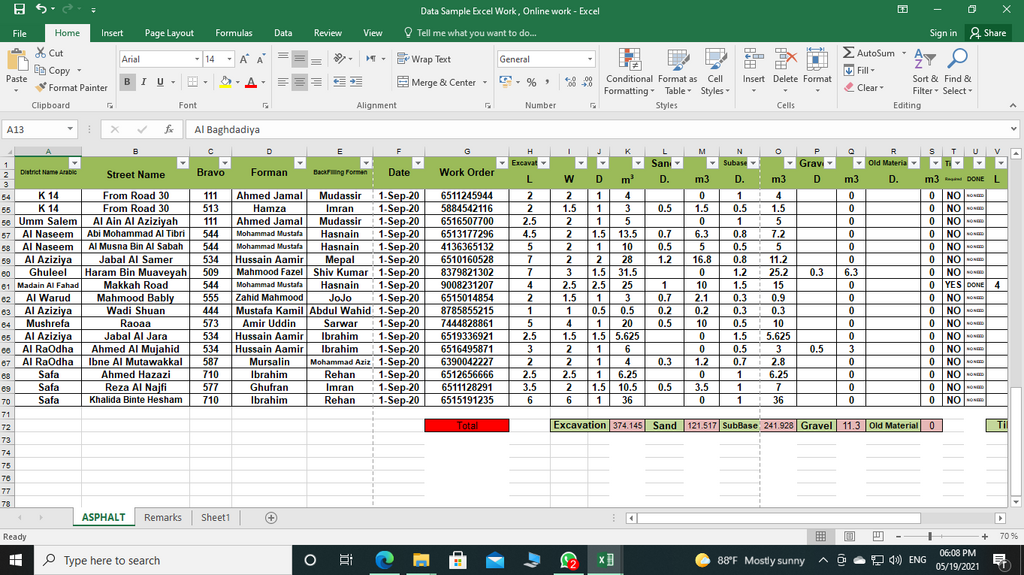
We'll walk through the main parts of this screen: the Ribbon at the top, the worksheet grid in the middle, and the toolbars that give you quick access to common actions and information.
The Ribbon: Your Command Centre
At the top of the Excel window is the Ribbon. It's designed to help you quickly find the commands you need to complete a task. The Ribbon is organised into a series of tabs, like 'Home', 'Insert', 'Page Layout', and 'Data'.
Each tab relates to a type of activity:
- Home: Contains the most frequently used commands, like formatting text (bold, italics), changing fonts, and aligning content in cells.
- Insert: This is where you go to add things to your worksheet, such as tables, charts, pictures, and shapes.
- Page Layout: Lets you control the look and feel of your worksheet when it's printed, including margins, orientation, and page breaks.
- Formulas: Provides access to Excel's vast library of functions for performing calculations.
- Data: Gives you tools for managing large sets of data, like sorting, filtering, and importing data from other sources.
Within each tab, related commands are clustered into groups. For example, on the 'Home' tab, you'll find the 'Font' group, which contains all the tools for changing the appearance of your text.
Quick Access and Status Bars
Two other important parts of the interface are the Quick Access Toolbar and the Status Bar. They sit at the very top and bottom of the window, respectively.
The Quick Access Toolbar is a small, customisable toolbar that sits above the Ribbon. By default, it holds three essential commands: Save, Undo, and Redo. Its purpose is to keep your most-used actions just a click away, no matter which tab you're on.
At the opposite end, the Status Bar runs along the bottom of the window. It displays useful information and offers different ways to view your workbook. On the left, it might show the status 'Ready'. If you select a group of cells containing numbers, it will automatically show you their Sum, Count, and Average without you needing to write a formula. On the right, you'll find the zoom slider and buttons to switch between different page views, like Normal, Page Layout, and Page Break Preview.
The Heart of the Worksheet
The main part of Excel is the worksheet area, which is a grid made up of columns and rows.
Cell
noun
The intersection of a column and a row. Each cell has a unique address, or reference, based on its column letter and row number (e.g., A1, C5, F12).
Just above the grid, you'll see two important components: the Name Box and the Formula Bar.
- The Name Box, on the left, displays the address of the currently selected cell.
- The Formula Bar, to the right, shows the actual contents of that cell. If the cell contains a value like 'Hello' or '123', you'll see that. If it contains a formula, like , the Formula Bar shows you the formula itself, while the cell displays the calculated result.
Making Excel Your Own
You can tailor the Excel interface to better suit your workflow. This helps you get to your favourite tools faster.
A great place to start is the Quick Access Toolbar. If you find yourself constantly using a command buried in a tab, you can add it to this toolbar. Simply right-click any command on the Ribbon and select 'Add to Quick Access Toolbar'.
To remove a command, just right-click it on the Quick Access Toolbar and choose 'Remove from Quick Access Toolbar'.
For more advanced customisation, you can even modify the Ribbon itself. You can create your own tabs and groups filled with the commands you use most often. To do this, go to File > Options > Customize Ribbon. Here you can add new tabs, rename existing ones, and organise commands into logical groups that make sense for your specific tasks.
Now that you know your way around the interface, let's test your knowledge.
Which Ribbon tab contains tools for managing large sets of data, such as sorting and filtering?
If you select several cells containing numbers, where can you quickly see their sum, count, and average without writing a formula?
Getting comfortable with the layout is the first step to mastering Excel. With these basics, you're ready to start working with data.