Mastering Adobe Photoshop Fundamentals
Photoshop Interface
Getting Around Photoshop
Opening Photoshop for the first time can feel like stepping into the cockpit of a spaceship. There are buttons, menus, and panels everywhere. But once you know what the main controls do, you'll find it's a well-organized space designed to help you create.
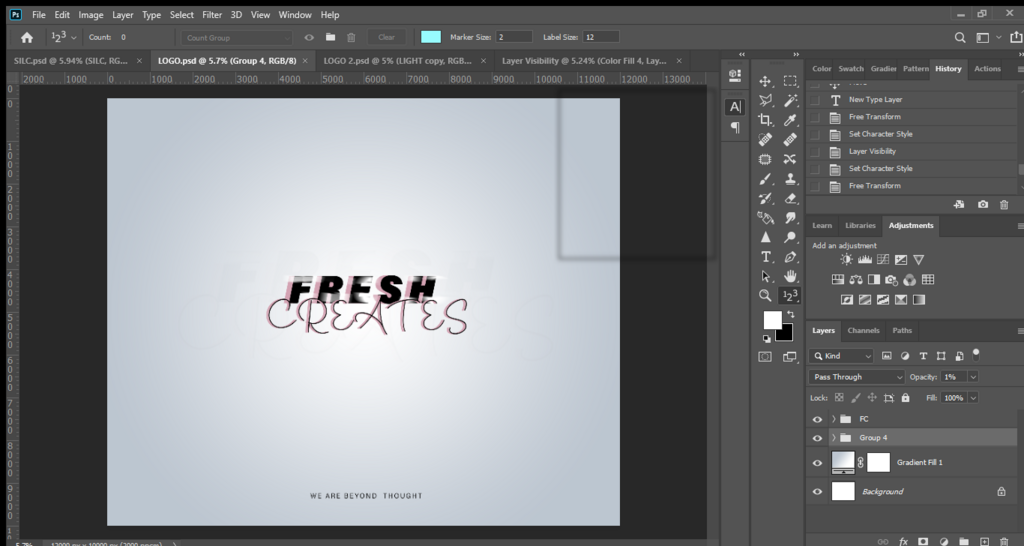
Think of the Photoshop workspace as an artist's studio. In the center is your canvas, where the image appears. Arranged around it are all your tools and supplies, neatly organized for easy access. The main parts of this digital studio are the Toolbar, the Options Bar, and various Panels.
Tools and Their Options
On the left side of the screen, you'll find the Toolbar. This vertical strip contains all of Photoshop's tools, like the Brush tool for painting, the Move tool for repositioning things, and selection tools for isolating parts of your image. Just click on a tool's icon to activate it. Some icons have a tiny triangle in the corner, which means you can click and hold to see more related tools hidden underneath.
For example, clicking and holding the Rectangle Marquee tool will reveal options for elliptical, single row, and single column selections.
Whenever you select a tool, the bar across the top of the screen changes. This is the Options Bar. It displays the specific settings for the tool you're currently using. If you have the Brush tool selected, the Options Bar will show controls for brush size, hardness, and blending mode. If you switch to the Type tool, the options will change to font, text size, and color.
Panels and Smart Helpers
On the right side of the workspace, you'll find a collection of Panels. These are like small windows that give you access to more complex controls and information. The most important one is the Layers panel, but you'll also find panels for Color, Swatches, Properties, and more. You can customize this area by dragging panels around, grouping them into tabs, or closing ones you don't need. If you ever close a panel by accident, you can always bring it back by going to the "Window" menu at the very top of the screen and selecting its name.
A more recent addition is the Contextual Task Bar. This is a small, floating bar that appears on your canvas to offer you the most likely next steps for what you're doing. For instance, if you make a selection, the bar will pop up with buttons to invert the selection, create a mask, or use Photoshop's AI to fill the area. It's designed to speed up your workflow by putting common actions right at your fingertips.
Basic Navigation
Getting an image into Photoshop is straightforward. You can go to File > Open to browse your computer for an image file. Once your image is open, you'll need to move around it.
To zoom in and out, you can select the Zoom tool (it looks like a magnifying glass) from the toolbar. Click to zoom in, and hold the Option (Mac) or Alt (Windows) key while clicking to zoom out. A faster way is to use keyboard shortcuts: Cmd + (Mac) or Ctrl + (Windows) to zoom in, and Cmd - or Ctrl - to zoom out.
To pan, or move the image around within your window, you can use the Hand tool. Click and drag on the canvas to push the image around. The quickest way to pan is to simply hold down the spacebar. This temporarily switches you to the Hand tool, regardless of what tool you currently have active. When you let go of the spacebar, you'll be back to your previous tool.
When you're ready to save your work, go to File > Save As. You'll have many format options. Saving as a Photoshop Document (.psd) is best for works-in-progress, as it preserves all your layers and editing information. For sharing online or in emails, you'll want to save a copy as a JPEG (.jpg) or PNG (.png).
Now that you're familiar with the key parts of the workspace, let's test your knowledge.
Which part of the Photoshop interface displays the specific settings, like size or font, for the currently active tool?
You have accidentally closed the Color panel. How can you get it back?
With these basics, you're ready to start exploring what Photoshop can do.