Mastering Adobe InDesign for Professional Communication
Introduction to InDesign
Getting Started with InDesign
Adobe InDesign is the industry-standard software for page design and layout. Think of it as the ultimate tool for putting together documents with a mix of text and images. If you've ever picked up a magazine, a glossy brochure, or read an e-book, chances are it was created in InDesign. It's built for creating everything from single-page flyers to complex multi-page publications for both print and digital viewing.
The InDesign Workspace
Opening InDesign for the first time reveals its workspace. It might look complex, but it's organized logically. The main components are the Document window in the center, the Tools panel on the left, the Menu Bar and Application Bar at the top, and various panels (usually docked on the right) for controlling different properties.
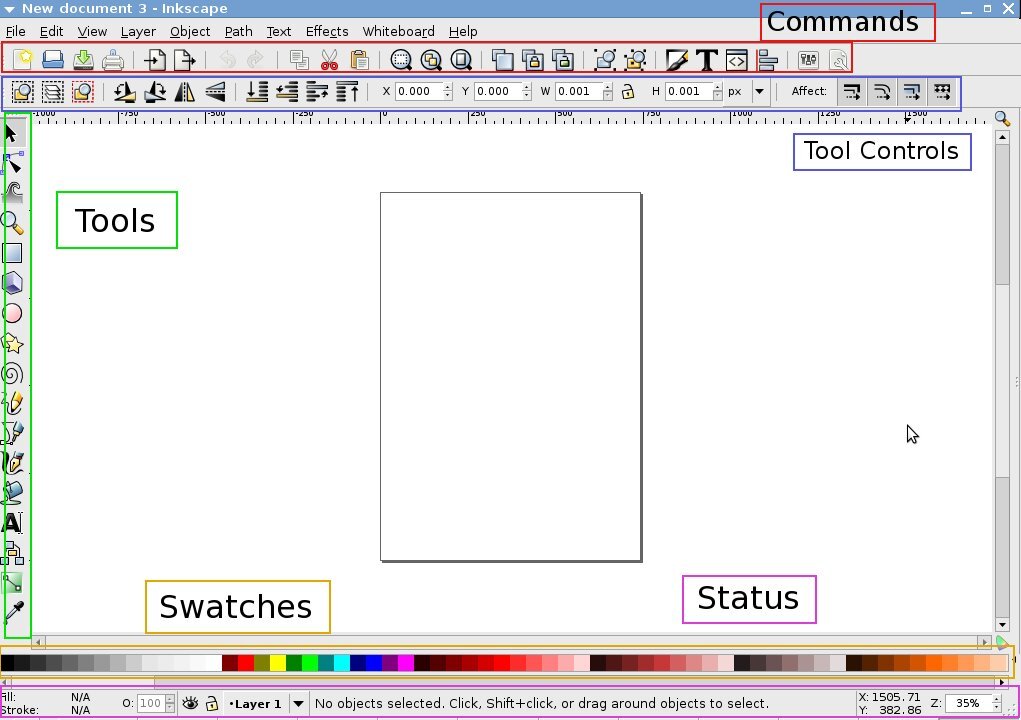
These elements work together to give you full control over your designs. You select a tool from the Tools panel, apply it in the Document window, and fine-tune the details using the panels on the right. Let's break down the key areas.
| Workspace Element | Purpose |
|---|---|
| Document Window | This is your canvas where you create and view your pages. |
| Tools Panel | Contains the tools for creating and editing text, shapes, and lines. |
| Panels | These are specialized windows for modifying objects. Common ones include Pages, Layers, and Properties. |
| Menu Bar | Provides access to nearly all of InDesign's commands and features. |
You can customize this workspace to fit your needs. Panels can be dragged out, grouped together, or hidden entirely. Once you find a layout you like, you can save it by going to Window > Workspace > New Workspace. This helps you work more efficiently by keeping your most-used tools handy.
Creating Your First Document
To start any project, you need to create a new document. You can do this by selecting File > New > Document. This opens the New Document dialog box, which presents a set of options to define your document's structure.
First, you'll choose an intent: Print, Web, or Mobile. This choice presets certain options, like color mode and units of measurement. For a printed flyer, you'd choose Print. For a digital PDF, you might choose Web.
Next, you'll set the page size, orientation (portrait or landscape), and the number of pages. You can also define margins, which are the blank spaces around the edges of your page, and columns, which help guide the placement of text and images.
A key setting is 'Facing Pages'. Check this box if you're creating a book or magazine with left and right pages. Uncheck it for single-page documents like posters or business cards.
Once you've configured these settings, click 'Create'. You'll see your new blank page or pages in the Document window, ready for you to start designing.
Navigating your document is straightforward. You can use the Hand tool (press and hold the spacebar) to pan around the page and the Zoom tool (Z) to zoom in and out. Getting comfortable with basic navigation is the first step to working quickly and efficiently in InDesign.
What is the primary purpose of Adobe InDesign?
In the default InDesign workspace, the Tools panel is typically located on which side of the screen?