Master the SHL Microsoft Excel Test
Excel Basics
Getting Started with Excel
At its core, Microsoft Excel is a powerful tool for organizing and calculating data. When you first open it, you're greeted by a grid of rectangles. This grid is called a worksheet, and it's where all the action happens. The entire file you're working in is called a workbook, which can hold multiple worksheets, like pages in a notebook.
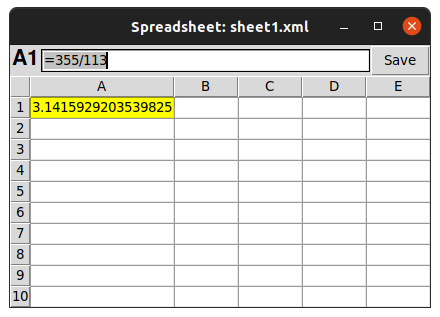
Think of each worksheet as a blank canvas for your data. You can enter numbers, text, or formulas into any of the small rectangles, which are called cells.
Navigating the Interface
Let's break down the main parts of the Excel screen.
At the very top, you'll see the Ribbon. This is the main toolbar, organized into tabs like 'Home', 'Insert', and 'Data'. Each tab contains groups of related commands. For example, the 'Home' tab has all your basic formatting tools.
Below the Ribbon is the Formula Bar. This bar shows the actual content of the selected cell. If a cell contains a formula, you'll see the formula here, while the cell itself shows the calculated result. It's also where you can edit a cell's contents.
The main part of the screen is the grid of cells, organized into columns (labeled with letters A, B, C...) and rows (labeled with numbers 1, 2, 3...). Each cell has a unique address, or reference, based on its column and row. The cell in the top-left corner is A1.
Every cell has a unique address, like B4 or C12, formed by its column letter and row number. This is how you'll refer to specific data points.
Workbooks and Worksheets
An Excel workbook is the file itself, usually ending with an .xlsx extension. A workbook can contain many worksheets. You can see your worksheets as tabs at the bottom-left of the screen, typically named 'Sheet1', 'Sheet2', and so on.
Managing these sheets is simple:
- Add a new sheet: Click the plus icon (+) next to the existing sheet tabs.
- Rename a sheet: Double-click the sheet tab, type a new name, and press Enter. This helps keep your workbook organized.
- Delete a sheet: Right-click the sheet tab you want to remove and select 'Delete' from the menu. Be careful, as you can't undo this action.
Entering and Formatting Data
To enter data, just click on a cell and start typing. When you're done, press Enter to move to the cell below, or Tab to move to the cell to the right. This makes entering rows or columns of data quick and easy.
Once you have data in your worksheet, you can format it to make it easier to read. Select the cell or range of cells you want to change. Then, on the 'Home' tab of the Ribbon, you'll find the 'Font' and 'Alignment' groups. From here, you can:
- Make text bold, italic, or underlined.
- Change the font type and size.
- Change the text color or the cell's background color (fill color).
- Adjust how text is aligned within the cell (left, center, or right).
Basic formatting isn't just about looks. It helps draw attention to important information, like headers or totals, making your spreadsheet much clearer.
Now let's review what we've covered.
In Excel, what is the correct term for the entire file, which typically has an .xlsx extension?
Which part of the Excel interface displays the actual contents of a selected cell, such as a formula, even if the cell itself shows a calculated result?
Mastering these fundamentals is the first step. With a solid understanding of the interface and basic data handling, you're ready to build more complex spreadsheets.