Master Outlook Desktop Productivity
Getting Started with Outlook
A Quick Tour of Your New Inbox
Welcome to Microsoft Outlook. While it's best known for email, it's really a central hub for your daily planning. Think of it as your command center for messages, appointments, contacts, and to-do lists, all in one place.
When you first open Outlook, you'll see a few key areas. Getting to know them will make everything else much easier.
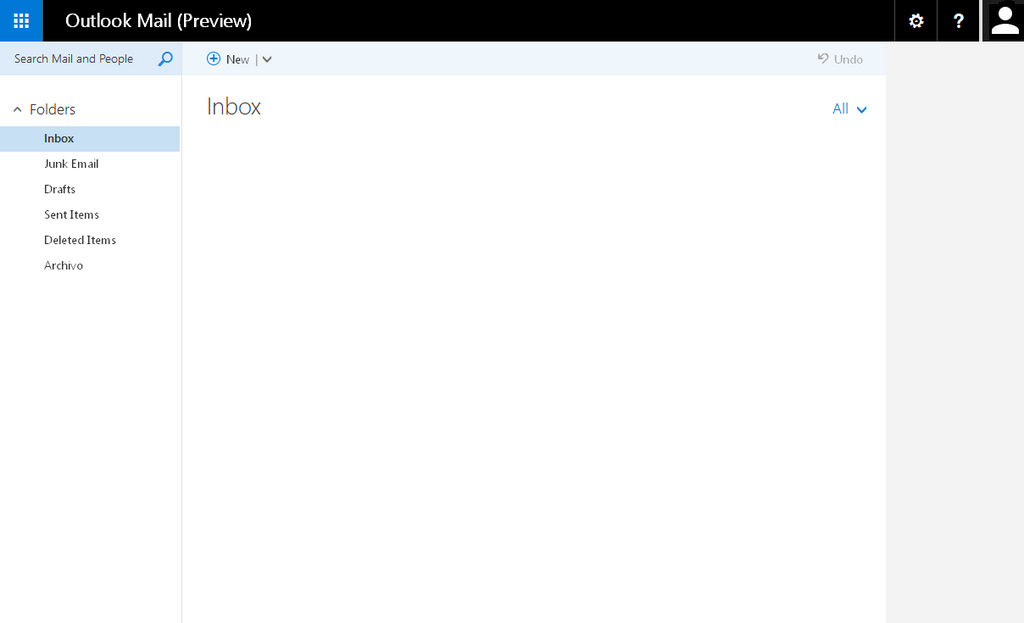
At the very top is the Ribbon. This is your main toolbar, organized into tabs like "Home," "Send / Receive," and "View." Each tab holds related commands. For example, the "Home" tab has buttons for creating a new email, replying, and deleting messages.
On the left is the Navigation Pane. This is how you move around. It shows your email folders (like Inbox, Sent Items, and Drafts) and also has icons at the bottom to switch between Mail, Calendar, People (your contacts), and Tasks.
To the right of your folder list is your message list, and next to that is the Reading Pane. This is where the content of a selected email appears, so you can read messages without having to open them in a new window.
Connecting Your Email
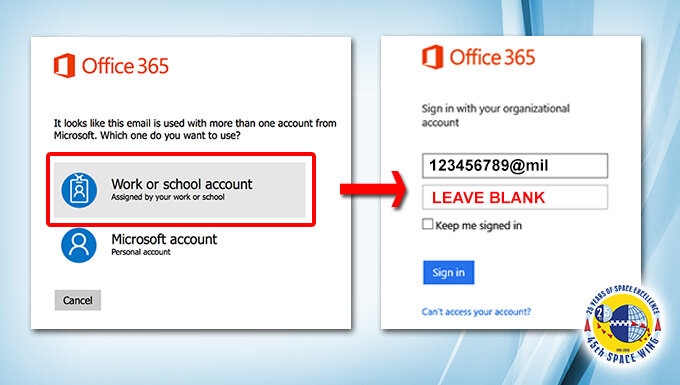
Before you can do anything, you need to connect your email account. Outlook guides you through this process the first time you open it. If you need to add another account later, it's just as simple.
You'll typically go to File > Add Account. From there, Outlook will ask for your email address. In most cases, it can automatically detect the correct server settings for popular services like Outlook.com, Gmail, or a work account through Microsoft 365. Just enter your email and password, and you'll be connected in a few moments.
Make It Your Own
The default Outlook layout works well, but you can tailor it to fit your workflow. Customizing the interface helps you access your most-used tools faster.
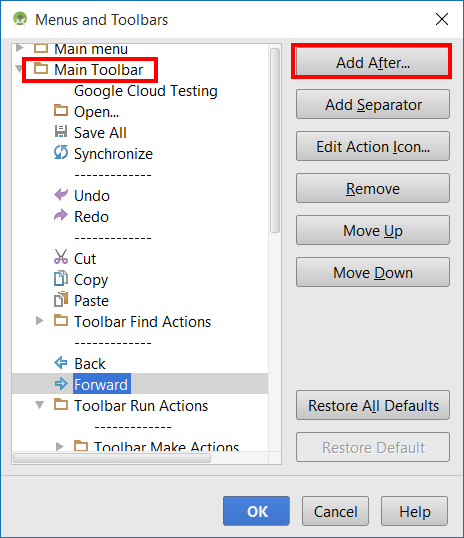
A great place to start is the Ribbon. If you find yourself using a specific command all the time, you can add it to the Quick Access Toolbar at the very top of the window. You can also customize the Ribbon itself by adding, removing, or rearranging tabs and buttons. To do this, right-click anywhere on the Ribbon and select "Customize the Ribbon..."
The Navigation Pane is also flexible. You can change the order of the Mail, Calendar, and other icons at the bottom by dragging them. If you prefer a more compact look, you can switch to a view that only shows the icons without the text labels.
More Than Just Mail
The real power of Outlook comes from juggling different parts of your day in one app. Switching between your core functions is done using the icons in the Navigation Pane.
Click the envelope icon for your Mail, the calendar for your Calendar, the two figures for People (contacts), and the checkmark for Tasks.
For instance, when you receive an email about a meeting, you can drag it directly onto the Calendar icon. Outlook will automatically create a new appointment with the email's subject as the title and its content in the notes. This seamless navigation helps you turn messages into actionable items without breaking your focus.
In Microsoft Outlook, what is the name of the main toolbar at the top of the window that contains tabs like 'Home' and 'View'?
To add a new email account to Outlook after the initial setup, you should start by going to the 'File' menu.
Now that you're familiar with the basic layout and setup, you're ready to start managing your day with Outlook.