Master Microsoft Excel
Excel Basics
Getting to Know the Grid
Microsoft Excel is a spreadsheet program. Think of it as a digital piece of graph paper, but with a powerful brain. It's built on a grid of cells, organized into rows (numbered 1, 2, 3...) and columns (lettered A, B, C...). Each cell has a unique address, like A1, B2, or C12. This simple grid is the foundation for organizing data, from a personal budget to a company's financial records.
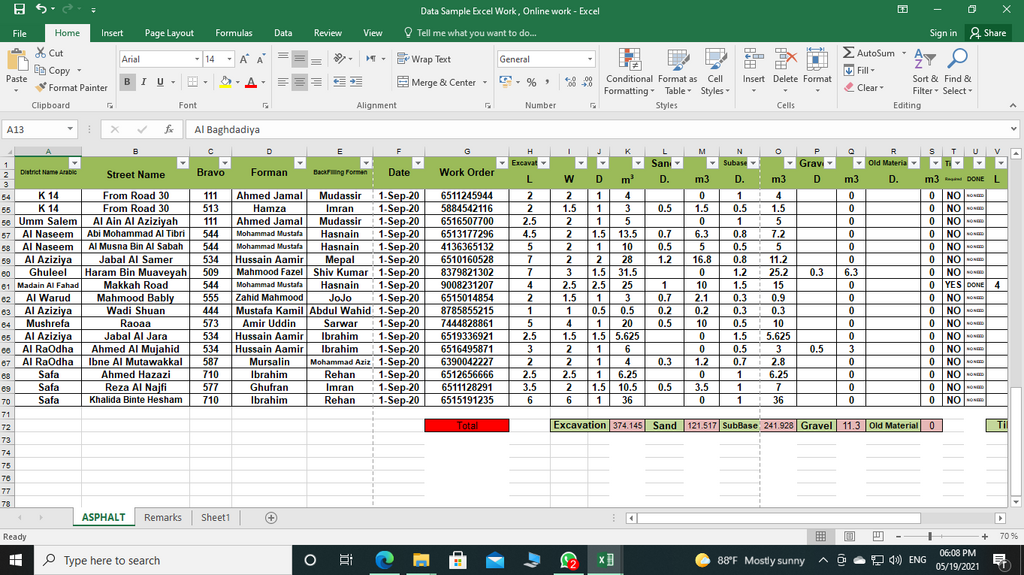
The entire file is called a workbook. A workbook can hold multiple pages, called worksheets or just sheets. You can switch between them using the tabs at the bottom of the screen. This is useful for keeping related information together in one file, like having separate sheets for monthly expenses in a single yearly budget workbook.
At the top of the window is the Ribbon. It's a collection of toolbars organized into tabs like 'Home', 'Insert', and 'Data'. The Home tab contains the most common tools for formatting and editing. Don't worry about memorizing everything. The key is knowing where to look when you need to do something specific, like make text bold or change a cell's color.
Entering and Formatting Data
Getting data into Excel is simple. Just click on a cell and start typing. What you type appears in the cell and in the Formula Bar above the grid. Press Enter to confirm the entry and move to the cell below, or Tab to move to the cell on the right.
You can enter three main types of data:
- Text: Words, names, or any combination of letters and numbers (like an address).
- Numbers: Digits you can use for calculations.
- Formulas: Equations that perform calculations on other cells.
Pro-tip: If you enter a number that should be treated as text (like a zip code '01234'), type an apostrophe (') before it. Excel will then store it as text and keep the leading zero.
Once you have data, you can format it to make it easier to read. Select a cell or a range of cells, then use the tools in the 'Home' tab of the Ribbon. You can change the font, size, and color of your text, or change the background color of a cell. For numbers, you can easily format them as currency, percentages, or dates.
| Formatting Type | Example | Ribbon Location (Home Tab) |
|---|---|---|
| Bold Text | Sales | Font group |
| Currency | $1,250.50 | Number group |
| Cell Color | (cell with yellow background) | Font group (Fill Color) |
| Center Align | (text centered in cell) | Alignment group |
Simple Calculations
Excel's real power comes from its ability to perform calculations. You can do math right inside a cell. Every formula in Excel starts with an equals sign (=). This tells Excel, "Time to calculate!"
This is the most fundamental use of Excel for beginners.
You can perform basic arithmetic using standard operators. Let's say you have the number 100 in cell A1 and the number 50 in cell B1. To add them, you could click on cell C1 and type the formula:
When you press Enter, cell C1 won't show the formula. Instead, it will display the result: 150. The best part is that if you change the value in A1 or B1, the result in C1 automatically updates. This is what makes spreadsheets so dynamic.
formula
noun
An expression which calculates the value of a cell. In Excel, formulas always begin with an equals sign (=).
Here are the common operators for simple math:
| Operation | Operator | Example Formula |
|---|---|---|
| Addition | + | =A1+A2 |
| Subtraction | - | =A1-A2 |
| Multiplication | * | =A1*A2 |
| Division | / | =A1/A2 |
Now that you know the essentials of the Excel interface, data entry, and basic formulas, it's time to check your understanding.
Let's test your new skills.
What is an entire Excel file called?
Which character must every formula in Excel begin with?
Practice is key. Try creating a simple personal budget or a list of your favorite movies with ratings. Using these basic tools is the first step toward mastering Excel.