Master Excel Shortcuts
Introduction to Excel Shortcuts
Work Faster in Excel
If you use Excel regularly, you probably spend a lot of time clicking through menus. There's a faster way. Keyboard shortcuts let you perform common tasks by pressing a combination of keys, which keeps your hands on the keyboard and your work flowing smoothly. Moving from the mouse to the keyboard might feel slower at first, but with a little practice, you'll navigate and edit spreadsheets much more quickly.
Think of it like learning to type. At first, hunting and pecking seems easier than finding the right keys without looking. But once you master touch-typing, you can write much faster. The same principle applies to Excel shortcuts.
The main benefit is efficiency. Actions that take multiple clicks, like formatting a cell or inserting a new row, can be done in an instant. This saves seconds on each task, which adds up to significant time savings over the course of a day or week. Using shortcuts also reduces the physical strain of constantly moving your hand between the keyboard and mouse.
How Shortcuts Work
Most shortcuts in Excel involve a modifier key like Ctrl, Alt, or Shift, paired with another key. For example, Ctrl+C copies selected cells, and Ctrl+V pastes them. These are common across many applications, so you might already know them.
Excel also has its own set of specific shortcuts. Pressing the Alt key is a powerful starting point. It reveals letters on the Ribbon menu at the top of the screen. You can then press the corresponding letter to access that tab, and then another letter to select a command. This lets you access almost any function without touching your mouse.
For instance, to access the Data tab and then sort your data, you would press
Alt, thenA, thenS,S.
Here are a few fundamental shortcuts that are incredibly useful for everyday tasks. Committing just a few of these to memory can make a big difference.
| Shortcut | Action |
|---|---|
| Ctrl + S | Save the workbook |
| Ctrl + Z | Undo the last action |
| Ctrl + Y | Redo the last action |
| Ctrl + B | Apply or remove bold formatting |
| Ctrl + 1 | Open the Format Cells dialog box |
| Ctrl + Arrow Key | Move to the edge of the current data region |
| F2 | Edit the active cell |
Make It Your Own
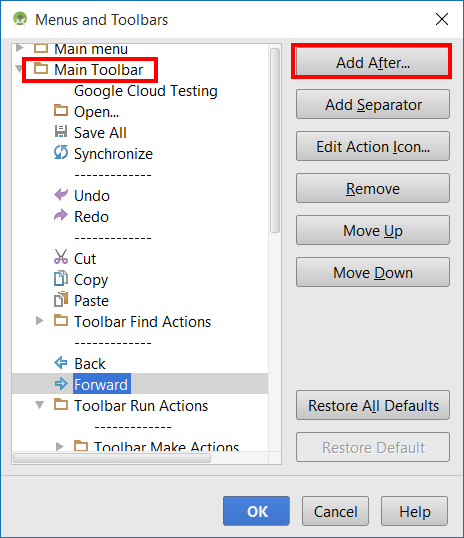
While Excel comes with a huge library of built-in shortcuts, you can also customize them to better suit your workflow. You can add your most-used commands to the Quick Access Toolbar, a small, customizable toolbar that sits above the Ribbon.
Here’s how to add a command to it:
- Find the command you use frequently in the Ribbon.
- Right-click the command's button.
- Select "Add to Quick Access Toolbar."
Once a command is on the toolbar, it gets its own shortcut. Press the Alt key, and you'll see a number appear over the icon. Pressing Alt plus that number will execute the command. You can arrange the icons on the toolbar to give your favorite commands the easiest numbers, like Alt+1 or Alt+2.
Learning and Remembering
Trying to memorize dozens of shortcuts at once is overwhelming. A better approach is to start small. Identify two or three tasks you do repeatedly and look up their shortcuts. Focus on using only those shortcuts for a week. Once they become second nature, pick a few more to learn.
Pay attention to the tooltips that appear when you hover over a button in the Ribbon. They often display the keyboard shortcut for that command, which is a great way to learn new ones organically as you work.
The use of keyboard shortcuts is one of the most effective ways of speeding up your workflow.
Another strategy is to use sticky notes. Write down a few shortcuts and place the note on your monitor. Seeing them constantly will help reinforce them in your memory. The goal is to build muscle memory, so the key presses become automatic.
Ready to check your understanding?
What is the primary benefit of using keyboard shortcuts in Excel?
Which key, when pressed alone, reveals shortcut letters on the Ribbon menu?
By integrating shortcuts into your daily routine, you'll transform the way you interact with Excel, making your work faster, easier, and more intuitive.