Master 60 Essential Linux Commands
Introduction to Linux and the Command Line
Meet Linux and the Command Line
Linux is an open-source operating system, which means its underlying code is free for anyone to use, inspect, and modify. It began in 1991 as a personal project by a Finnish student named Linus Torvalds. He wanted to create a free version of the powerful UNIX operating system.
Today, Linux is everywhere. It powers the vast majority of the world's web servers, the entire Android ecosystem, and countless other devices, from smart TVs to cars. Its stability and flexibility make it a favorite for developers and system administrators.
Why Use the Command Line?
Most of us interact with computers through a Graphical User Interface, or GUI. We click on icons, open windows, and drag files into folders. It’s visual and intuitive. Linux has GUIs, too, but its real power is often accessed through the Command-Line Interface, or CLI.
The CLI is a text-based way to talk to your computer. Instead of clicking, you type commands. Think of it like this: a GUI is like ordering from a restaurant menu with pictures. A CLI is like talking directly to the chef, telling them exactly what you want and how you want it. It's more direct, faster, and gives you much finer control.
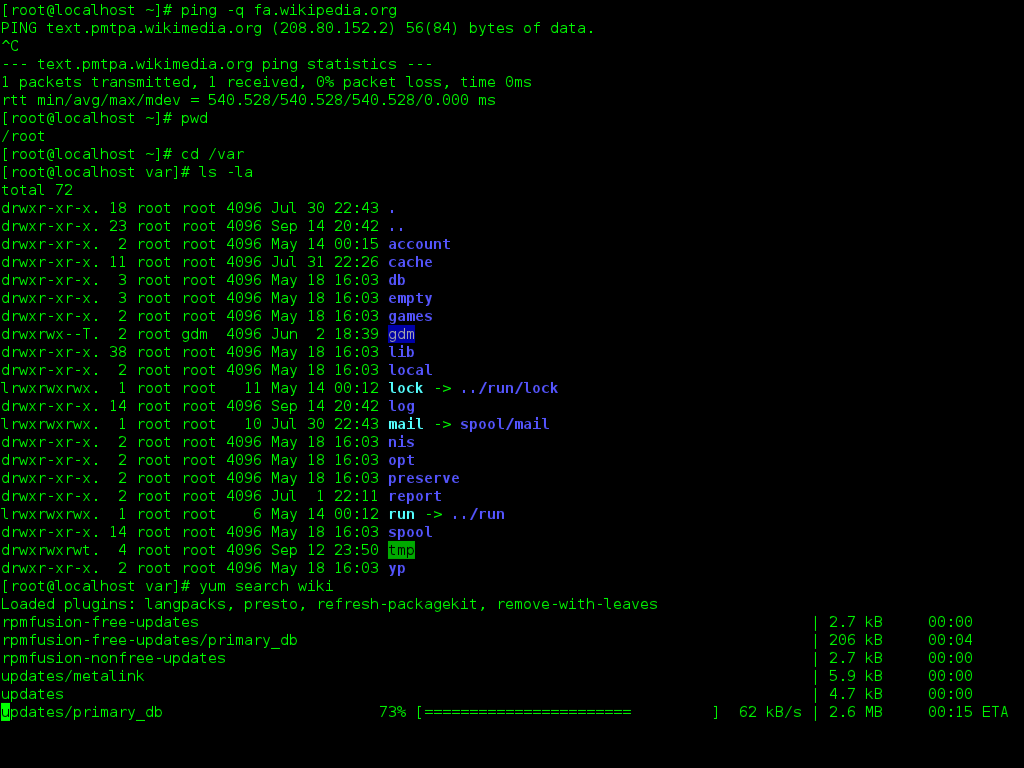
This text-based environment is often called the terminal or shell. It might look simple, but it's one of the most powerful tools at your disposal.
Navigating the File System
The Linux file system is organized like a tree. At the very top is the root directory, represented by a single forward slash (/). Everything on your computer, from programs to your personal documents, lives somewhere inside this root directory.
To get around, you need a few basic commands. Let’s start with finding out where you are.
pwdstands for "print working directory." It shows you your current location in the file system.
pwd
Running this command will output your current path, like /home/username.
Next, you'll want to see what files and folders are in your current directory. For that, you use the ls command, which stands for "list."
ls
This command lists the contents of your current location. You'll see any files and other directories (folders) that are there.
Finally, to move into one of those directories, you use cd, which means "change directory." Just type cd followed by the name of the directory you want to enter.
cd Documents
This command moves you from your current location into the Documents directory. If you ever get lost, just type cd by itself to return to your home directory.
What is the primary advantage of using the Command-Line Interface (CLI) compared to a Graphical User Interface (GUI)?
You are in a directory and want to see a list of all the files and folders it contains. Which command should you use?
These three simple commands are the foundation for navigating your entire system from the command line.