Mac Terminal Essentials
Introduction to Mac Terminal
Meet the Terminal
Beneath the polished graphical user interface (GUI) of macOS lies a powerful text-based environment. This is the Terminal, a command-line interface (CLI) that gives you direct access to the computer's UNIX-based core. While pointing and clicking is intuitive, the Terminal offers a more direct, and often faster, way to control your Mac.
Think of the GUI as a restaurant menu with pictures, while the Terminal is like talking directly to the chef. Both get you food, but the direct conversation allows for more specific and rapid requests.
Opening Terminal
Accessing the Terminal is simple. The quickest method is using Spotlight search:
- Press Command (⌘) + Spacebar to open Spotlight.
- Type "Terminal" and press Enter.
Alternatively, you can find it in your Applications folder:
- Open Finder.
- Go to the Applications folder.
- Open the Utilities folder.
- Double-click on Terminal.app.
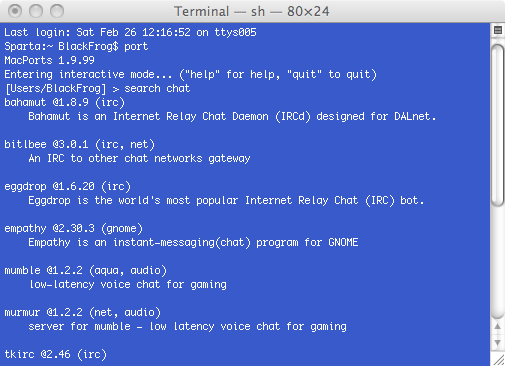
The Command Prompt
When you open Terminal, you'll see a line of text ending with a cursor. This is the command prompt, and it's where you'll type your commands. It typically displays a few pieces of information.
MyMacBook-Pro:~ jsmith$
Let's break that down:
- MyMacBook-Pro: This is the name of your computer (the hostname).
- ~: This tilde symbol is a shorthand for your home directory. Your home directory is the folder that contains your personal files like Desktop, Documents, and Downloads.
- jsmith: This is your username.
- $: This symbol, called the prompt, indicates that the shell is ready to accept a command from you.
Your First Commands
Let's run a couple of basic commands to get a feel for how it works. These commands help you figure out where you are and what's around you in the file system.
First, type
pwdand press Enter. Thepwdcommand stands for "print working directory." It tells you your current location in the file system's hierarchy.
$ pwd
/Users/jsmith
The output, /Users/jsmith, is the full path to your home directory. It starts from the root of the file system (/) and drills down.
Now, let's see what's in this directory. Type ls and press Enter. The ls command stands for "list."
$ ls
Applications   Desktop      Documents    Downloads    Movies       Music        Pictures     Public
This command lists the files and folders in your current directory. You should recognize these as the standard folders in your user's home folder. You've just performed the same action as opening your home folder in Finder, but with a simple text command.
The terminal is like a gateway to the inner workings of your computer, and once you understand how to use it, you'll find that you can do things faster, more efficiently, and with greater precision.
Why bother? For simple tasks, the GUI is fine. But for complex or repetitive actions, the Terminal is often much more efficient. Renaming a hundred files, searching for specific text within multiple documents, or connecting to a remote server can be done with a single line of text, saving you countless clicks.
What is the command-line interface (CLI) in macOS called?
In the command prompt MyMacBook-Pro:~ jsmith$, what does the ~ (tilde) symbol represent?
With these basics, you're ready to start exploring the command line.