Loan Processing Mastery with Empower LOS
Empower Interface Fundamentals
Your Workspace
When you first log into Empower, you'll see your main dashboard. Think of it as your command center. It's designed to give you a high-level overview of your work at a glance. You won't see every detail here, but you will see the most urgent items that need your attention. The dashboard is composed of widgets, which are small, customizable windows showing specific information like your active loans, pending tasks, or key performance indicators.
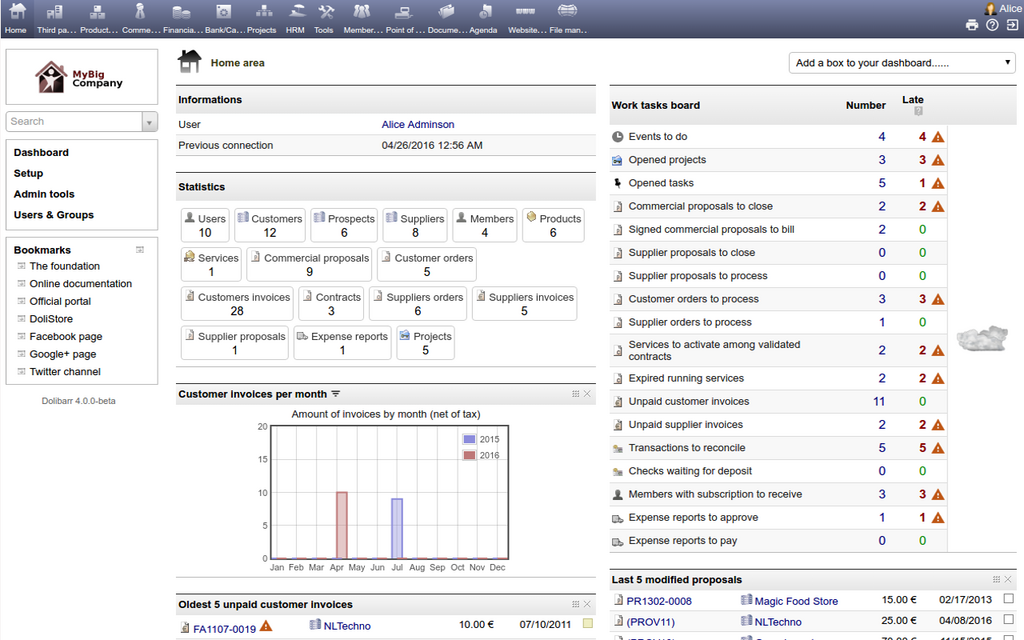
The layout is flexible. You can often drag and drop these widgets to arrange them in a way that makes sense for your workflow. Some users prefer to see their task list front and center, while others might prioritize a view of their loan pipeline. The goal is to create an environment that lets you find what you need without unnecessary clicks.
Managing the Pipeline
The Pipeline is the core of your daily work. It's a comprehensive list of all the loan files you are actively managing. Each row typically represents a single loan and displays key information like the borrower's name, loan number, loan type, status, and closing date. This view is where you'll spend most of your time tracking progress and managing your portfolio.
Pipeline
noun
In a Loan Origination System, the pipeline is the list of all active loan applications currently in process, from initial application to closing.
A powerful feature of the Pipeline is the ability to filter and sort your view. With dozens or even hundreds of loans in progress, you need a way to focus on what's important. You can apply filters to see only the loans that meet specific criteria. This is crucial for prioritizing your work.
| Filter By | Example Use |
|---|---|
| Loan Status | Show only loans in 'Underwriting' or 'Approved'. |
| Closing Date | Find all loans scheduled to close in the next 7 days. |
| Loan Officer | View the pipeline for a specific team member. |
| Loan Type | Isolate all FHA or VA loans. |
Using these filters allows you to create custom views. For example, you could create a view called "Urgent Closings" that only shows approved loans closing this week. This saves you from having to manually search for this information every time.
Search and Workflow
When you need to find a specific file quickly, the global search bar is your best tool. It's usually located at the top of the interface and is always accessible. You can typically search by a variety of identifiers, most commonly the borrower's last name or the loan number. As you type, Empower often suggests matching results, allowing you to jump directly to the correct file.
Instead of scrolling through your entire pipeline, use global search to pinpoint the exact loan file you need in seconds.
Once you're in a loan file, your work is guided by Empower's task-driven workflow engine. This is the system's automation core. Instead of manually remembering every step of the loan process, the system generates a 'To-Do List' for each file. As you complete a task, the system automatically triggers the next step and assigns tasks to the appropriate person, whether it's you, an underwriter, or a processor.
This orchestration ensures that nothing falls through the cracks. It standardizes the loan process, which is critical for maintaining compliance and efficiency. Your personal dashboard will often have a widget that aggregates all tasks assigned to you from all the different loan files you're working on.
Portals and Access
Empower isn't a single, monolithic application. It's often a hub that provides access to several specialized modules or 'portals'. Two common examples are the Loan Officer Portal and the Borrower Point of Sale (POS).
Client Portals: Implementing a client portal where clients can upload documents, track the progress of their application, and communicate with their broker can streamline the process and provide clients with a centralized place for all their mortgage-related information.
The Loan Officer Portal might be a streamlined interface designed for sales-focused activities, while the Borrower POS is the external-facing site where applicants fill out their 1003 and upload documents. You can usually access these directly from your main Empower dashboard.
Your ability to see and do things within the system is governed by role-based access controls. Your user profile is assigned a role, such as 'Loan Officer' or 'Processor', and this role dictates which menus, buttons, and loan files you can access. This is a security feature that ensures users only have access to the information and functions necessary for their job.
Now, let's test your understanding of these core interface concepts.
What is the primary purpose of the main dashboard in Empower?
Which feature is essential for managing a large portfolio in the Pipeline by creating focused lists, such as 'Urgent Closings'?
That covers the essential navigation and workflow features of Empower. Mastering these fundamentals will help you manage your loans efficiently.