Linux Systems Administration Essentials
Linux Fundamentals
A Quick History
Linux wasn't born in a corporate lab. It started as a personal project by a Finnish student named Linus Torvalds in 1991. He wanted to create a free and open-source version of the UNIX operating system. He posted about his project online, and a global community of developers started to contribute.

What started as a hobby grew into one of the most widely used operating systems in the world. Today, Linux powers everything from smartphones (Android is built on the Linux kernel) to supercomputers, web servers, and smart home devices. Its open-source nature means anyone can view, modify, and distribute its code, which has led to incredible innovation and a vast ecosystem of different versions, called distributions or "distros."
The Filesystem Hierarchy
Unlike Windows with its C: and D: drives, Linux organizes everything into a single, tree-like structure. This structure starts at the very top with a directory called "root," which is represented by a single forward slash (/). Every other file and directory on the system exists inside this root directory.
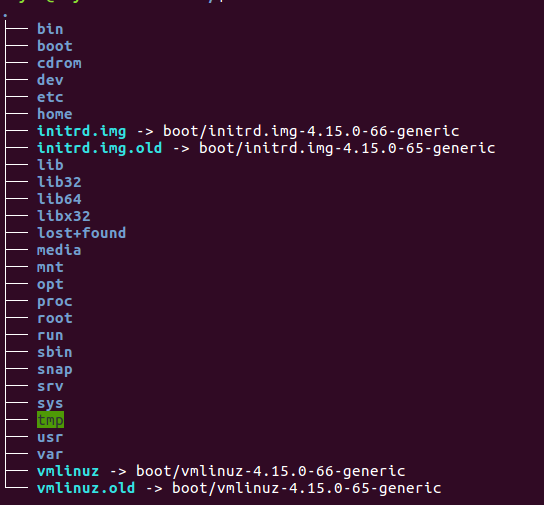
This organization is standardized across most Linux distributions. While it might seem confusing at first, it keeps things tidy and predictable. Here are some of the most important directories you'll encounter:
| Directory | Purpose |
|---|---|
/ | The root directory; where everything begins. |
/bin | Contains essential command-line programs (binaries). |
/etc | Stores system-wide configuration files (et cetera). |
/home | Contains personal directories for each user. |
/var | Holds variable data, like system logs (variable). |
/tmp | A place for temporary files. |
/usr | Contains user-installed software and utilities (user). |
Your First Commands
To interact with Linux, you'll use a command-line interface, often called the terminal or shell. This is where you type commands to tell the computer what to do. Let's start with the basics of navigating the filesystem.
To find out where you are, use
pwd(print working directory).
$ pwd
/home/username
To see what's inside your current directory, use ls (list).
$ ls
Documents  Downloads  Music  Pictures
To move into a different directory, use cd (change directory).
# Move into the Documents directory
$ cd Documents

# Go back up one level
$ cd ..

# Go straight to your home directory
$ cd
Now for commands that manage files. You can copy, move (which is also used for renaming), and remove files.
# Copy a file
$ cp report.txt report_backup.txt

# Rename a file (by moving it)
$ mv report.txt final_report.txt

# Move a file to another directory
$ mv final_report.txt Documents/

# Remove a file
$ rm report_backup.txt
Be very careful with
rm! Once a file is deleted with this command, it's gone for good. There is no recycle bin.
Who Owns What
Every file and directory in Linux has an owner and a set of permissions. This is a core security feature that controls who can do what. Permissions are broken down into three categories:
- Owner: The user who created the file.
- Group: A group of users who share permissions.
- Others: Everyone else.
For each of these categories, you can set three types of permissions:
| Permission | Symbol | What it means |
|---|---|---|
| Read | r | View the contents of a file or list the contents of a directory. |
| Write | w | Modify a file or add/remove files in a directory. |
| Execute | x | Run a file (if it's a script or program). |
You can see a file's permissions by using the -l (long format) flag with the ls command.
$ ls -l my_script.sh
-rwxr-x--x 1 username staff 1024 Oct 26 10:30 my_script.sh
That first block of characters, -rwxr-x--x, looks cryptic, but it's simple once you break it down. The first character indicates the file type (- for a regular file, d for a directory). The next nine characters are three sets of three, representing the permissions for the owner, group, and others, respectively.
So, for my_script.sh, the owner can read, write, and execute. Members of the staff group can read and execute. Everyone else can only execute it.
Editing Text Files
Sooner or later, you'll need to edit a configuration file or write a script. Linux has many command-line text editors, but two are extremely common: nano and vi (or its modern version, vim).
nanois beginner-friendly. It displays a list of commands at the bottom of the screen, like^X(Ctrl+X) to exit. To edit a file, you just typenano filename.txt.
vi is more powerful but has a steeper learning curve. It has different modes, like "insert mode" for typing text and "command mode" for operations like saving and quitting. While intimidating at first, many experienced administrators swear by its efficiency.
For now, starting with nano is a great way to get comfortable editing files directly in the terminal.
Now, let's test your knowledge on these core concepts.
What was the original motivation behind the creation of Linux by Linus Torvalds?
In the Linux filesystem, what does the single forward slash character (/) represent?
These building blocks—navigating the filesystem, managing files, and understanding permissions—are the foundation for everything you'll do in Linux.