Linux System Admin for SOC Environments
Command Line Basics
Meet the Command Line
Most people interact with computers using a graphical user interface, or GUI. You click on icons, open windows, and drag files around. But there's another way to control your computer: the command-line interface, or CLI. It's a powerful, text-based environment that's essential for many roles in tech, especially in security.
You access the CLI through an application called a terminal. When you open it, you'll see a blinking cursor next to some text. This is the shell prompt, and it's where the computer is waiting for you to type a command. The shell is the program that interprets your commands and tells the operating system what to do.
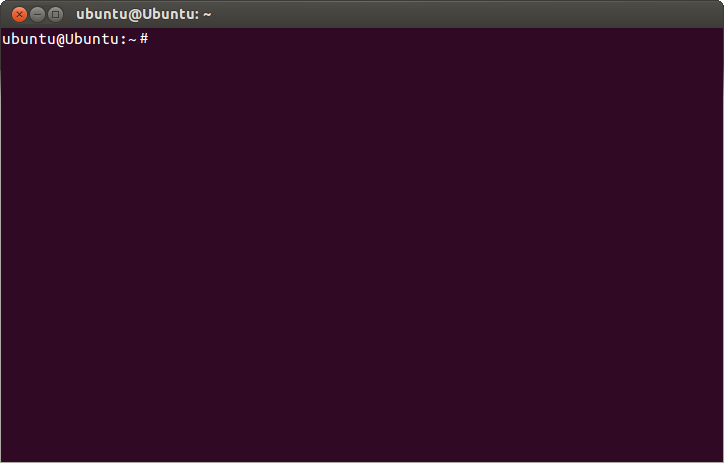
The prompt usually looks something like user@hostname:~$. Let's break that down:
user: Your username.hostname: The name of the computer you're working on.~: This tilde symbol is a shortcut for your home directory, the place where all your personal files are stored.$: This indicates that you're operating as a regular user. If you see a#, it means you have superuser (or root) privileges, which is like being an administrator.
The basic structure for most commands is:
command [options] [arguments]
command: The specific action you want to perform (e.g.,lsto list files).options: Modify the command's behavior (e.g.,-lfor a long list).arguments: The target of the command (e.g., a file or directory name).
Finding Your Way Around
When you first open a terminal, you start in your home directory. But how do you know where you are, what's around you, and how to get somewhere else? That's where navigation commands come in.
The file system is organized like a tree. The top level is the root directory, represented by a single slash /. Everything else branches out from there.
To see your current location, or "working directory," use the pwd command, which stands for "print working directory."
pwd
/home/user
To see what's inside your current directory, use ls (list).
ls
Documents  Downloads  Pictures
To move into another directory, use cd (change directory). Let's go into the Documents directory. After you move, your prompt will update to show your new location.
cd Documents

# The prompt now shows:
# user@hostname:~/Documents$
A few useful cd shortcuts:
cd ..moves you up one level in the directory tree.cd ~or justcdon its own takes you back to your home directory from anywhere.
Managing Files and Directories
Now that you can navigate, let's learn how to create, copy, move, and delete files and directories. First, let's create a new directory for our work using mkdir (make directory).
# Create a directory named 'reports'
mkdir reports
You can create a blank file with the touch command. This is useful for quickly creating a file you plan to edit later.
# Go into the new directory
cd reports

# Create a new file
touch weekly_log.txt
To copy a file, use cp. The structure is cp [source] [destination].
# Copy the file and name it 'backup_log.txt'
cp weekly_log.txt backup_log.txt
The mv command is used for two purposes: moving a file to a new directory or renaming it. The syntax is the same as cp: mv [source] [destination].
# Rename 'weekly_log.txt' to 'monday_log.txt'
mv weekly_log.txt monday_log.txt

# Move 'backup_log.txt' up to the home directory
mv backup_log.txt ..
Finally, to delete a file, use rm (remove). Be careful with this one, as there is no recycle bin on the command line. Once it's gone, it's gone.
rm monday_log.txt
To remove an empty directory, you can use rmdir. To remove a directory that contains files, you must use rm with the -r (recursive) option.
Permissions and Ownership
In a multi-user system like Linux, not everyone can read, change, or run every file. These actions are controlled by permissions. To see a file's permissions, use the -l (long format) option with ls.
ls -l
-rw-r--r-- 1 user user 0 Oct 26 13:37 some_file.txt
drwxr-xr-x 2 user user 4096 Oct 26 14:00 reports
That first block of ten characters (-rw-r--r--) looks confusing, but it's straightforward once you break it down.
- First character: The file type. A
-means it's a regular file, and admeans it's a directory. - Next nine characters: These are three sets of three permissions.
The three permissions are:
| Permission | Symbol | Meaning |
|---|---|---|
| Read | r | View the contents of a file or list a directory. |
| Write | w | Change a file's contents or add/remove files in a directory. |
| Execute | x | Run a file as a program or enter a directory. |
These permissions apply to three different sets of users:
- Owner: The user who created the file.
- Group: A collection of users who share permissions.
- Others: Everyone else on the system.
You can change permissions using the chmod command. It's a complex tool, but a simple way to use it is by adding (+) or removing (-) permissions for different user types (u for user/owner, g for group, o for others). For example, to make a script executable for yourself, you would do the following:
# Add the execute permission for the user/owner
chmod u+x my_script.sh
This command gives the owner (u) the ability to execute (+x) the file. Understanding permissions is key to securing files in a Linux environment.
What is the primary function of the shell in a command-line interface?
In a typical shell prompt like `user@hostname:~## ROLE
You write multiple-choice quizes for a general audience.
TASK
Write multiple choice quiz questions about [[LEARNING_OBJECTIVE]]. The number of questions should be based on the amount of content that needs to be reviewed. Minimum number of questions is [[MIN_NUMBER_OF_QUESTIONS]]. Max is [[MAX_NUMBER_OF_QUESTIONS]].
Use [[QUIZ_REFERENCES]] for inspiration on tone and depth, but create new questions in your own words.
Use latex for math and markdown for code where appropriate.
Mix formats (multiple choice, true/false, fill in the blank, etc) depending on what fits each concept.
CRITICAL: The text of the question must contain NOTHING but the question. Don't preface the question. Just jump into it.
Vary the number of answer options, but never more than 5. The ideal number of answer options for multiple choice questions is 4. For true/false questions it is obviously 2.
Vary difficulty and style — some recall, some application, some analysis.
Make distractors plausible and conceptually distinct.
Avoid bias, trick questions, or trivia.
The correct answer should be unambiguously correct.
DON'T MAKE IT OBVIOUS WHICH ANSWER IS CORRECT.
Vary the positioning of the correct answer amongst the incorrect ones.
ENSURE THAT THE CORRECT ANSWER IS NOT ALWAYS THE LONGEST. This makes it too obvious which one is correct.
ENSURE THAT EVERY SINGLE QUESTION HAS MORE THAN ONE OPTION FOR ANSWERS.
If a question is true/false, always list the True option first.
OUTPUT
Must adhere to the specified schema.
ONLY USE LATEX WHEN PRESENTING MATHEMATICS QUESITONS/OPTIONS. All LaTeX must be wrapped in $$ and be 100% valid syntax
INPUTS
- [[LEARNING_OBJECTIVE]]:
, what does the tilde character (~`) represent?
This is just the start of what you can do on the command line. With these basics, you have a solid foundation for navigating the system, managing files, and understanding one of the most fundamental aspects of Linux security.