Linux Shell Scripting Fundamentals
Introduction to Linux Shell
What is the Shell?
Most of the time, we interact with computers using a graphical user interface, or GUI. We click on icons, drag windows, and use menus. But there's another way to control a computer: the shell. The shell is a command-line interface (CLI) that lets you type commands directly to the operating system.
Think of it as having a direct conversation with your computer, telling it exactly what to do, step by step.
This direct control is incredibly powerful. While a GUI is great for everyday tasks, the shell excels at automation and performing complex operations with just a few lines of text. To start scripting, you first need to get comfortable in this environment.
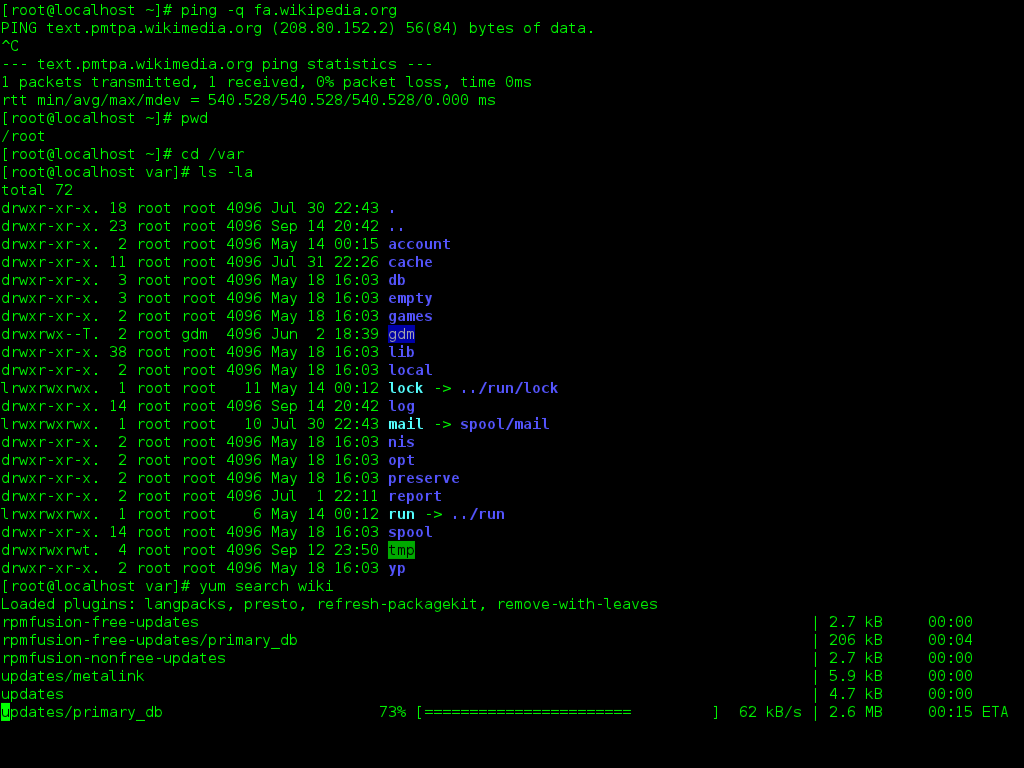
Types of Shells
Linux offers several different shells, each with slightly different features. Some popular ones include the Z Shell (Zsh), the Korn Shell (Ksh), and the Bourne Again Shell (Bash).
Bash is the most common and is the default shell on most Linux distributions. Because it's so widespread, we'll be focusing on Bash. The commands and concepts we cover are fundamental and will work in most other shells as well.
Navigating the File System
When you open a terminal, you're placed in a specific location within the computer's file system, called a directory. Let's learn the basic commands for finding your way around.
First, how do you know where you are? The pwd command, short for "print working directory," tells you your current location.
$ pwd
/home/username
To see what files and directories are in your current location, use the ls command, which stands for "list."
$ ls
Documents  Downloads  Music  Pictures  Videos
Now, let's move somewhere else. The cd command, for "change directory," allows you to navigate. To move into the Documents directory, you would type:
$ cd Documents
If you run pwd again, you'll see your location has changed. To go back up one level, you can use two dots (..) as the destination.
$ pwd
/home/username/Documents

$ cd ..

$ pwd
/home/username
You can also create and remove directories. The mkdir command makes a new directory, and rm removes files or directories. Be careful with rm! Once something is deleted with this command, it's usually gone for good.
# Create a new directory named 'Projects'
$ mkdir Projects

# Remove an empty directory
$ rmdir Projects

# Remove a file
$ rm old_file.txt
The File System Hierarchy
The Linux file system is organized like a tree, starting from a single root directory, represented by a forward slash (/). Every file and folder on the system is located somewhere under this root.
Here are a few important directories:
/: The root directory. Everything starts here./bin: Contains essential command-line programs./etc: Holds system configuration files./home: Where user directories are located. Your personal files are typically stored in/home/your_username./usr: Contains user-installed software and libraries.
File Permissions
Linux is a multi-user system, which means it needs rules about who can access what. These rules are called permissions. Every file and directory has permissions set for three types of users:
- Owner: The user who created the file.
- Group: A collection of users who share permissions.
- Others: Everyone else.
There are three basic permissions: read (r), write (w), and execute (x). You can view permissions using the -l option with the ls command.
$ ls -l
-rw-r--r-- 1 user user 1024 Oct 26 10:30 myfile.txt
drwxr-xr-x 2 user user 4096 Oct 26 10:32 MyFolder
The string of characters at the beginning, like -rw-r--r--, represents the permissions. The first character indicates the type (- for a file, d for a directory). The next nine characters are three sets of rwx permissions for the owner, group, and others, respectively.
| Permission | Owner | Group | Others |
|---|---|---|---|
drwxr-xr-x | rwx | r-x | r-x |
This means the owner can read, write, and execute. The group and others can only read and execute.
Understanding these basics of the shell, navigation, and permissions is the first step toward becoming proficient with the Linux command line and writing powerful scripts.