LFCS Exam Preparation
Essential Commands
Getting Around in Linux
The Linux filesystem is like a giant filing cabinet, organized as a hierarchy of directories (folders). Everything starts from the root directory, represented by a single forward slash /. From there, other directories branch out.
To find out where you currently are in this structure, use the pwd command, which stands for "print working directory."
pwd
# Output:
# /home/username
Once you know where you are, you'll want to see what's inside. The ls command lists the contents of a directory. By itself, it's simple, but adding options (or "flags") makes it more powerful. A common combination is ls -la, which lists all files (-a), including hidden ones, in a long format (-l) that shows permissions, owner, size, and modification date.
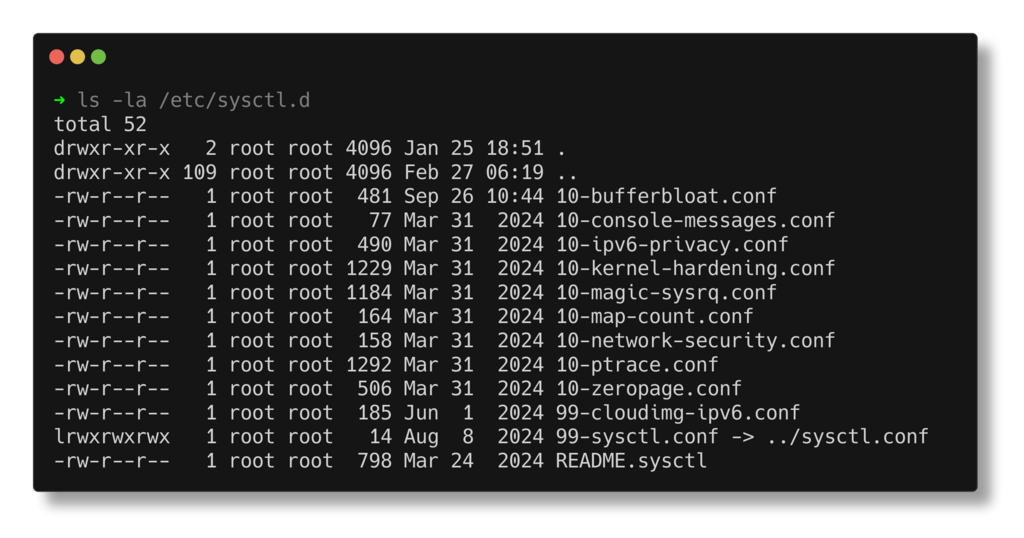
To move between directories, use cd, for "change directory." You can navigate using absolute paths (starting from the root /) or relative paths (starting from your current location).
Some shortcuts are very helpful: cd .. moves you up one level to the parent directory, and cd ~ (or just cd by itself) takes you directly to your home directory.
# Go to the system's log directory using an absolute path
cd /var/log

# Go to your personal documents folder from your home directory
cd ~/Documents

# Move up one directory
cd ..
Managing Files and Folders
Beyond just looking around, you'll need to create, copy, move, and delete files and directories. These are the fundamental tasks of system administration.
To create a new directory, use mkdir.
mkdir new_project
The cp command copies files. You specify the source file and the destination. To copy an entire directory and its contents, you need to add the -r flag for "recursive."
# Copy a file
cp report.txt report_backup.txt

# Copy a directory
cp -r new_project/ old_projects/
The mv command is used to either move a file to a different directory or to rename it. The syntax is similar to cp.
# Rename a file
mv report_draft.txt report_final.txt

# Move a file into another directory
mv report_final.txt new_project/
Finally, to delete files, use rm. To remove a directory, you must use the -r flag. Be careful with rm! Once a file is deleted this way, it's generally gone for good.
# Remove a file
rm report_backup.txt

# Remove a directory and all its contents
rm -r old_projects/
Viewing and Editing Text
A lot of system administration involves reading configuration files or writing scripts. There are many tools for this.
To quickly display the entire contents of a file, use cat (short for concatenate).
cat /etc/hosts
If a file is long, cat will just scroll past everything. For a more controlled view, less lets you scroll up and down through a file using your arrow keys. Press q to quit.
less /var/log/syslog
When you need to edit a file, there are several command-line text editors. nano is a simple, beginner-friendly editor. It displays helpful commands at the bottom of the screen. vim is an extremely powerful but less intuitive editor with a steep learning curve. For starting out, nano is a great choice.
# Edit a file with nano
nano my_script.sh
Processing and Finding Text
Sometimes you don't need to read a whole file, just find specific lines within it. Linux has powerful tools for this.
The grep command searches for a pattern of text within a file. This is incredibly useful for finding specific entries in long log files.
# Find all lines containing "error" in syslog
grep "error" /var/log/syslog
For more advanced text processing, there are sed and awk. sed (stream editor) is primarily used for finding and replacing text in a file. awk is a full-fledged programming language designed for processing text, especially data arranged in columns.
Here's a simple sed example that replaces the word "old" with "new" in a file.
sed 's/old/new/g' filename.txt
And here's an awk command that prints the first column of a text file.
awk '{print $1}' data.txt
Simple Shell Scripts
A shell script is simply a text file containing a series of commands. Instead of typing them one by one, you can run the script to execute them all. This is the foundation of automation in Linux.
A script should start with a "shebang" line, #!/bin/bash, which tells the system to execute the file with the Bash shell. After that, you just list the commands you want to run.
#!/bin/bash
# This is a simple script that creates a directory
# and then lists the contents of the current folder.

echo "Creating a backup directory..."
mkdir backup

echo "Directory created. Here are the current contents:"
ls -l
To run this script, you would save it as a file (e.g., setup.sh), make it executable with chmod +x setup.sh, and then run it with ./setup.sh.
Mastery of these basic commands is the first and most important step toward becoming proficient in Linux system administration. Practice them until they become second nature.
What is the primary purpose of the pwd command in Linux?
When using the ls -la command, what does the -a flag specifically do?
These commands form the bedrock of your Linux toolkit. With them, you can navigate the system, manage files, and automate simple tasks.