Launch Your YouTube Channel
Channel Setup
Your Digital Foundation
Every YouTube channel starts with a Google Account. If you have a Gmail address, you already have one. This account is your passport to YouTube and all of Google's other services, like Drive and Calendar.
If you don't have a Google Account, you'll need to create one first. Simply go to Google's sign-up page and follow the prompts. It’s a quick process that asks for basic information. This single login will be what you use to manage your new channel.
Your Google Account is the master key. Create it once, and you unlock access to YouTube, Gmail, Google Drive, and more.
Creating Your Channel
Once you're logged into your Google Account, head over to YouTube. In the top-right corner, you'll see your profile icon. Click it, and a menu will appear. Select "Create a channel."
You'll be presented with two choices: create a personal channel or create a channel using a business or other name. A personal channel is tied directly to your Google Account's name and photo. A Brand Account is a separate identity.
It's almost always better to choose a Brand Account. Here's why:
- Flexibility: You can pick any name you want for your channel; it doesn't have to be your own name.
- Collaboration: You can grant other people access to manage the channel without giving them your personal Google password.
- Scalability: If your channel grows into a business, the Brand Account structure is already in place.
Think of it as building a storefront instead of just putting a sign on your house. The storefront can be run by a team and have its own unique brand.
Brand Your Space
An empty channel feels abandoned. The first step to making it look professional is adding your branding. This involves two key elements: your profile picture and your channel banner.
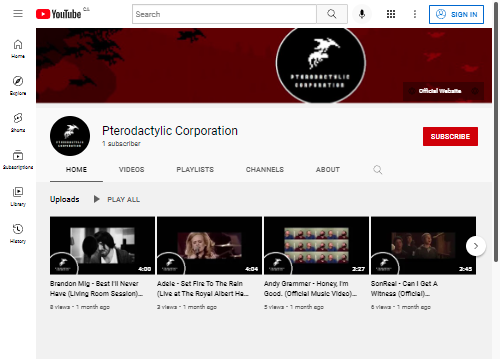
Your profile picture, or channel icon, is the small, square image that appears next to your videos and comments. It should be simple, high-resolution, and recognizable even when small. For a personal brand, a clear headshot works well. For a business or themed channel, a logo is a great choice.
The channel banner is the large rectangular image at the top of your channel's homepage. This is your digital billboard. Use it to convey your channel's theme, personality, and what viewers can expect. Keep in mind that it will look different on desktops, mobile devices, and TVs, so place your most important information (like your channel name and tagline) in the center to avoid it being cropped.
Investing time in designing eye-catching banners, channel trailers, and custom thumbnails can significantly enhance your channel's professionalism and appeal, setting you apart in the competitive YouTube landscape.
Unlock Advanced Features
Out of the box, your new channel has some limitations. To unlock essential features, you need to verify your account. This is a simple but critical step that proves to YouTube you're a real person, not a bot.
The verification process requires a phone number. YouTube will send you a code via text message or an automated voice call. Once you enter the code, you're verified. This one-time step unlocks several key abilities:
- Upload videos longer than 15 minutes.
- Add custom thumbnails. This is huge. Thumbnails are the movie posters for your videos and have a massive impact on whether someone clicks to watch.
- Live stream.
- Appeal Content ID claims.
Without verification, you're missing out on fundamental tools for growing a channel. Make it a priority to complete this step as soon as you set up your channel.
What is the foundational requirement for creating any YouTube channel?
Which of the following is presented as a major advantage of creating a Brand Account instead of a personal channel?
With your channel created, branded, and verified, you have a solid foundation to start building your presence on YouTube.