Large Format Printing Preparation
Understanding Image Resolution
What is Image Resolution?
Every digital image is made of tiny squares called pixels. Think of it like a mosaic, where thousands of colored tiles come together to form a picture. Image resolution is simply the number of these pixels packed into a certain area. We usually measure this in Pixels Per Inch, or PPI.
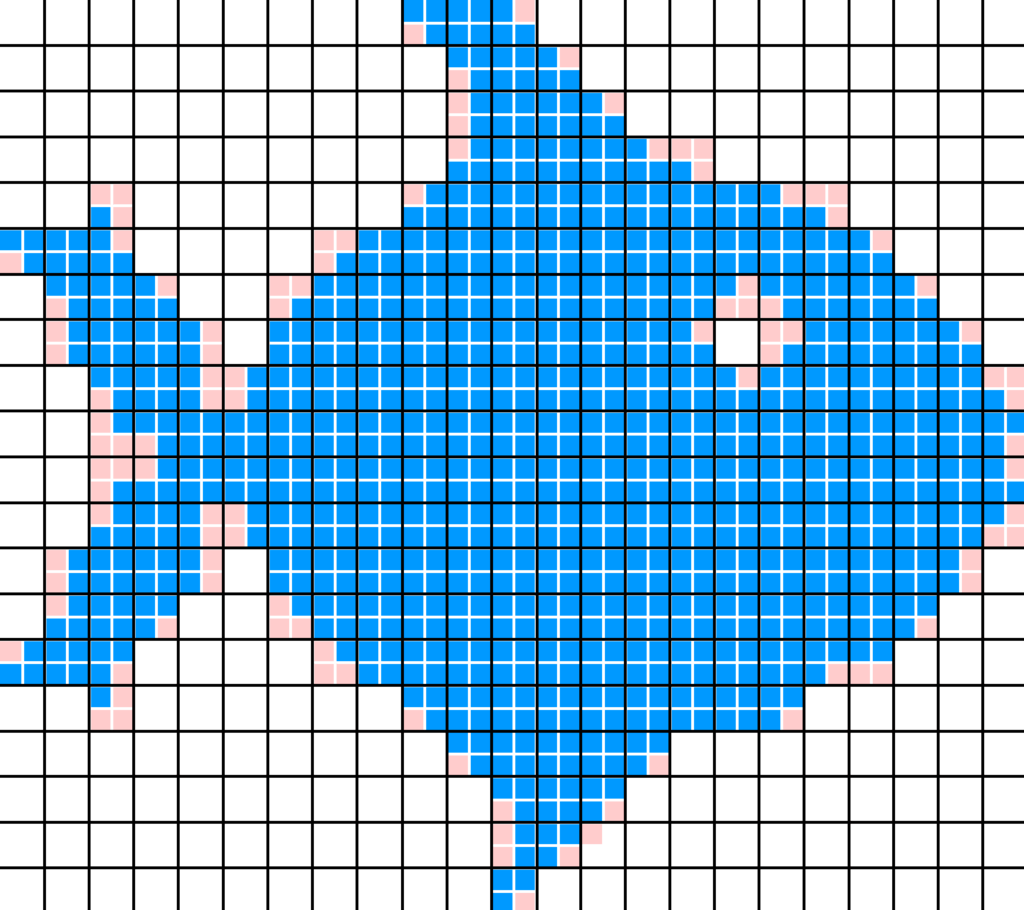
A higher PPI means more pixels are squeezed into every inch, creating a sharper, more detailed image. A lower PPI means fewer pixels per inch, which can make an image look blocky or blurry, especially when printed.
You might also hear the term DPI, or Dots Per Inch. While often used interchangeably with PPI, DPI technically refers to the number of ink dots a physical printer places on an inch of paper. For our purposes, when preparing a digital file, we'll focus on PPI. Just know that a high PPI file allows a printer to create a high DPI print.
Resolution for Printing
When you view an image on a screen, it can look perfectly sharp. But printing is a different story. A printer needs much more information, or more pixels, to create a smooth, clear image on paper. If your image doesn't have enough pixels for its intended print size, the printer has to stretch the existing pixels to fill the space. This is what causes blurriness and jagged edges.
Imagine stretching a small rubber stamp to cover a large piece of paper. The ink would spread thin and the design would become distorted. Printing a low-resolution image works the same way.
For high-quality prints that are viewed up close, like a photograph or a page in a book, the industry standard is 300 PPI. For large-format prints like posters or banners that are seen from a distance, you can often get away with a lower resolution, such as 150 PPI. The further away the viewer is, the less detail their eyes can perceive, so a lower PPI can still look great.
Calculating Your Needs
So, how do you know if your image is large enough for your desired print? You can calculate the required pixel dimensions with some simple multiplication.
The formulas are:
Print Width (inches) × PPI = Required Image Width (pixels)Print Height (inches) × PPI = Required Image Height (pixels)
Let's walk through an example. Suppose you want to print a large 24 x 36 inch poster. Since it will be viewed from a bit of a distance, a resolution of 150 PPI will be sufficient.
To print a quality 24 x 36 inch poster at 150 PPI, your digital image needs to be at least 3600 pixels wide by 5400 pixels tall.
You can check the pixel dimensions of your image using any basic photo viewing or editing software. Look for "Image Size" or "Properties" in the menu.
When Your Image Is Too Small
What happens if your calculation shows that your image doesn't have enough pixels? For instance, what if your image is only 1200 x 1800 pixels, but you need 3600 x 5400? If you print it as is, the result will be very blurry and pixelated.
In this situation, you can try upscaling the image. Upscaling, or resampling, is a process where software attempts to intelligently add new pixels to increase the image's resolution. It analyzes the existing pixels and makes educated guesses about what the new ones should look like to create a larger version of the image.
Increasing the resolution to 300 dpi ensures that the printed image maintains sharpness, crisp edges, and fine details.
Modern software can do a remarkable job of upscaling, but it's not magic. It's always best to start with an image that is as close to the required resolution as possible. Upscaling a very small image to a very large size will usually result in a soft or slightly artificial look. However, for moderate increases, it can be a very effective tool to get your file ready for a large-format print.