JavaScript Fundamentals
Introduction to JavaScript
Making Web Pages Come Alive
Think of a website as a person. HTML provides the basic skeleton, the structure. CSS is the skin, hair, and clothing that gives it a unique look. But what makes a person move, talk, and react? That's the nervous system and muscles. For a website, that's JavaScript.
JavaScript, often abbreviated as JS, is a programming language that allows you to implement complex features on web pages. Every time you see a pop-up alert, an auto-completing search bar, or a news feed that updates without you reloading the page, you're seeing JavaScript in action. It transforms static pages into dynamic, interactive experiences.
It works hand-in-hand with HTML and CSS. You use JavaScript to manipulate the HTML elements and change their CSS styles in response to user actions like clicks, mouse movements, or keyboard presses.
Your First JavaScript Environment
The best part about JavaScript is that you don't need any special software to get started. You already have everything you need: a web browser.
Every modern browser, like Chrome, Firefox, or Safari, comes with a built-in set of developer tools. One of these tools is the JavaScript console, a place where you can write and test JavaScript code directly. To open it in most browsers, you can right-click anywhere on a webpage, select "Inspect," and then click on the "Console" tab.
Try it now! Open the console and type the following line of code, then press Enter. You should see a small pop-up window in your browser.
alert('Hello, World!');
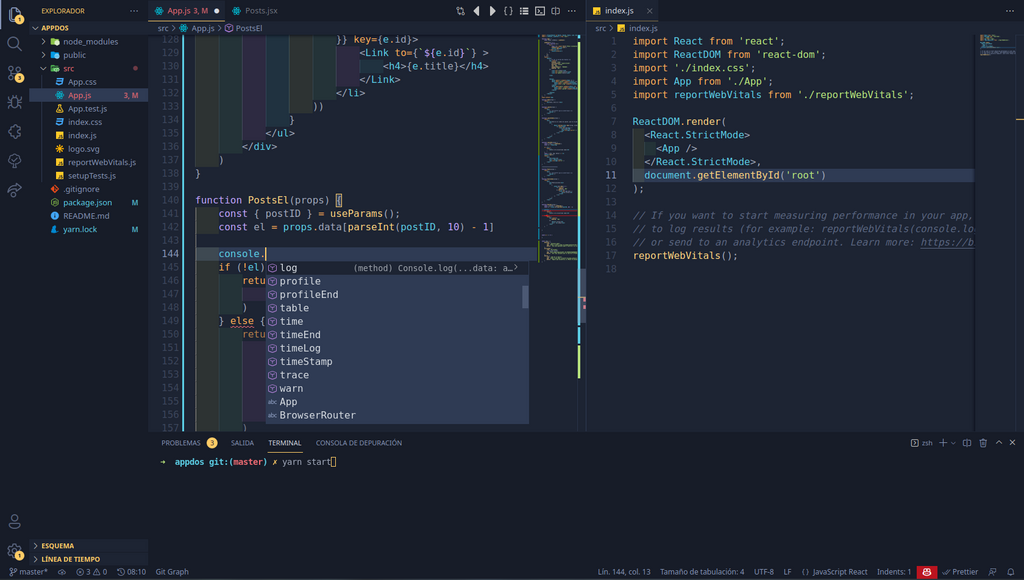
For writing more than a few lines of code, you'll want to use a text editor and an HTML file. A good, free text editor like Visual Studio Code, Sublime Text, or Atom is perfect for this. They offer features like syntax highlighting which makes your code much easier to read.
Embedding JavaScript in HTML
There are two primary ways to add JavaScript to an HTML document. You can write it directly within the HTML file or link to an external JavaScript file.
Method 1: The
<script>Tag
You can place JavaScript code inside <script> tags, directly within your HTML file. It's common practice to put the <script> tag just before the closing </body> tag. This ensures that the HTML content has loaded before the script runs, preventing errors.
<!DOCTYPE html>
<html>
<head>
  <title>My First JS Page</title>
</head>
<body>

  <h1>Welcome!</h1>
  <p>This is a static paragraph.</p>

  <script>
    // This JavaScript code will run when the page loads
    alert('This alert comes from JavaScript!');
  </script>

</body>
</html>
Method 2: External File
A cleaner and more common approach is to keep your JavaScript in a separate file with a .js extension (e.g., script.js). You then link to this file from your HTML using the src (source) attribute in the <script> tag.
This method is preferred because it separates your website's structure (HTML) from its interactivity (JS), making your code easier to manage, reuse, and debug. The browser can also cache the external file, which can make your site load faster for repeat visitors.
<!-- In your index.html file -->
<!DOCTYPE html>
<html>
<head>
  <title>External JS</title>
</head>
<body>

  <h1>Look, an external script!</h1>

  <script src="script.js"></script>

</body>
</html>
// In a new file named script.js
// This is the only line in this file.
alert('This alert comes from an external file!');
Now that you know what JavaScript is for and how to include it in a project, you're ready to start learning the fundamentals of the language.
If HTML provides the skeleton of a webpage and CSS provides its appearance, what role does JavaScript play?
Where is the most common place to put the <script> tag when linking an external JavaScript file?