JavaScript Fundamentals Mastery
Introduction to JavaScript
Making Web Pages Come Alive
If HTML provides the skeleton of a webpage and CSS adds the skin and clothes, JavaScript is the nervous system. It’s the programming language that lets a static page become interactive. When you click a button that reveals more text, see a slideshow of images, or get a notification on a website, you're seeing JavaScript at work.
JavaScript turns a document into a dynamic application. It’s one of the three core technologies of the web, alongside HTML and CSS.
While it was born in the web browser, JavaScript is now used everywhere. Developers use it to build servers, mobile apps, and even desktop software. Learning it opens up a huge world of programming possibilities.
Adding JavaScript to a Page
To add JavaScript to an HTML document, you use the <script> tag. There are two main ways to do this: embedding the code directly in the HTML or linking to an external file.
Embedding code is fine for a quick test, but linking to an external file is the standard for real projects. It keeps your code organized and easier to manage.
Here's how you'd embed JavaScript. The code sits between the opening <script> and closing </script> tags, usually right before the closing </body> tag.
<!DOCTYPE html>
<html>
<head>
  <title>My First JS Page</title>
</head>
<body>

  <h1>Welcome!</h1>

  <script>
    alert('Hello from inside the HTML!');
  </script>

</body>
</html>
The better way is to create a separate file for your script (for example, main.js) and link to it. This keeps your HTML clean and allows you to reuse the same script on multiple pages. You use the src attribute in the <script> tag to point to your file.
<!-- In your index.html file -->
<script src="main.js"></script>
Then, your main.js file would just contain the JavaScript code itself.
// In your main.js file
alert('Hello from an external file!');
Writing Your First Script
You don’t need any fancy software to get started. All you need is a plain text editor (like Notepad on Windows or TextEdit on Mac, though VS Code is a great free option) and a web browser like Chrome or Firefox.
Let's create two files and put them in the same folder.
index.html: This will be our webpage.script.js: This will hold our JavaScript.
In index.html, put this basic structure:
<!DOCTYPE html>
<html>
<head>
  <title>Testing JavaScript</title>
</head>
<body>
  <h1>Check the Console!</h1>
  <script src="script.js"></script>
</body>
</html>
Now, in your script.js file, add this single line:
console.log('Hello, World!');
The console.log() command is a simple way to print information to the browser's developer console. It's incredibly useful for checking your work and debugging problems.
To see it in action, open the index.html file in your web browser. Then, open the developer console. You can usually do this by right-clicking on the page and selecting "Inspect," then clicking the "Console" tab. You should see your "Hello, World!" message printed there.
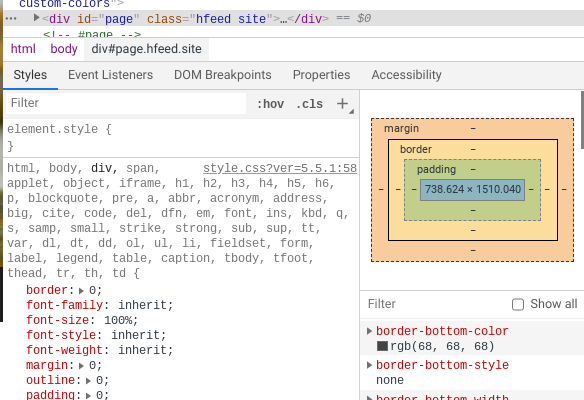
That's it! You've successfully written and run your first piece of JavaScript. You now have a basic setup for building any web project.
If HTML provides the skeleton of a webpage and CSS provides the skin, what is JavaScript analogous to?
Which HTML snippet correctly links an external JavaScript file named main.js?