Java Fundamentals for Beginners
Setting Up Java
Your Java Toolkit
Before you can write a single line of Java, you need to set up your workshop. Think of it like a kitchen. You can't cook a meal without an oven, knives, and a cutting board. For a programmer, this workshop is called a development environment, and it has two essential parts: the Java Development Kit (JDK) and an Integrated Development Environment (IDE).
The JDK is the engine that runs your code, and the IDE is the vehicle you use to write and manage it.
Let's get these tools set up so you can start building.
The Java Development Kit
The Java Development Kit, or JDK, is the core foundation for building Java applications. It contains all the essential software you need to turn your code into a running program. This includes a compiler, which translates your human-readable code into instructions a computer can understand, and the Java Virtual Machine (JVM), which actually runs the program.
To get started, you'll need to download and install the JDK. A quick web search for "OpenJDK download" or "Oracle JDK download" will lead you to the right place. Be sure to download a recent Long-Term Support (LTS) version, as these are the most stable and widely used.
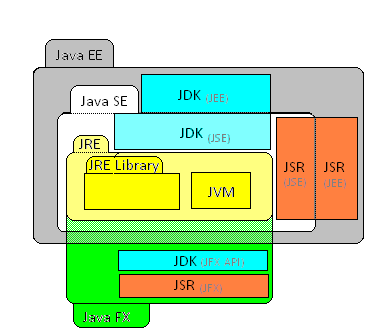
The installation is usually straightforward, much like installing any other application. Just follow the steps in the installation wizard.
Configuring Your System
After installing the JDK, you need to tell your computer where to find it. This is done by setting up environment variables. Think of them as signposts that your operating system uses to locate important programs. If your command line can't find the Java compiler, it's because these signposts aren't set up correctly.
The two most important variables are JAVA_HOME and PATH.
JAVA_HOME: This variable should point to the main directory where you installed the JDK.PATH: You need to add the JDK'sbindirectory to your system'sPATH. Thebindirectory contains the actual tools like the compiler (javac). Adding it to thePATHallows you to run these tools from any folder on your computer.
Setting environment variables correctly is a one-time step that prevents countless future headaches.
The exact steps vary by operating system, but a quick search for "set JAVA_HOME on Windows 11" or "set JAVA_HOME on macOS" will give you a detailed guide. To check if you've succeeded, open a new terminal or command prompt and type java -version. If it prints the version of the JDK you just installed, you're all set.
Choosing Your IDE
An Integrated Development Environment (IDE) is a software application that makes writing code much easier. While you could write Java in a simple text editor, an IDE is like a high-tech workshop. It provides a powerful editor with code completion, a debugger for finding mistakes, and tools for organizing and managing your projects, all in one place.
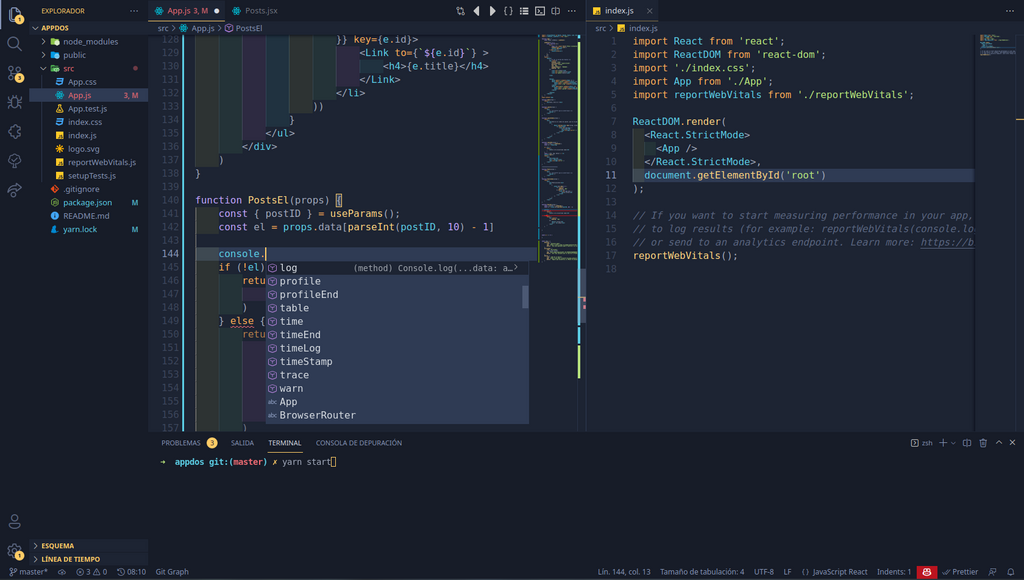
For Java, the three most popular choices are IntelliJ IDEA, Eclipse, and Visual Studio Code (with Java extensions). Any of these is an excellent choice for a beginner.
| IDE | Best For | Cost |
|---|---|---|
| IntelliJ IDEA | Powerful features and a smooth user experience | Community Edition is free |
| Eclipse | A classic, highly customizable, and open-source | Free |
| Visual Studio Code | Lightweight, fast, and great for multiple languages | Free |
Download the one that appeals to you, install it, and you're ready to go. Most IDEs will automatically detect your installed JDK. If not, you may need to point it to your JAVA_HOME directory in the settings.
With your JDK installed and IDE configured, your Java development environment is complete. You now have everything you need to start writing and running your first Java programs.