iPhone Repair Basics
iPhone Basics
The Lay of the Land
Let's start with the physical device. The front is dominated by the touchscreen, your main window into the iPhone. But around the edges, you'll find several important buttons and ports.
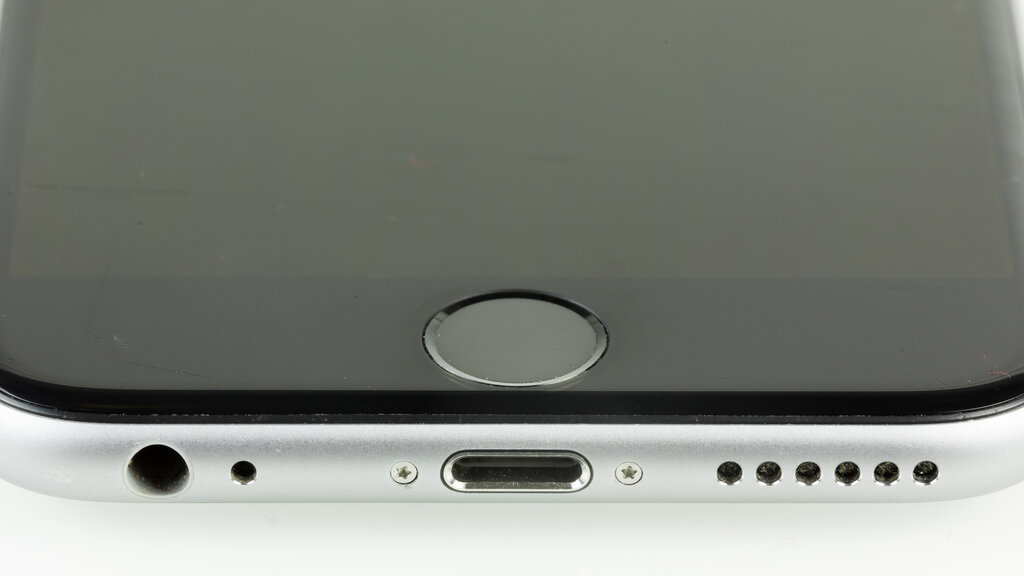
On the side, you have volume up and down buttons. Above them sits the Ring/Silent switch, a quick way to mute all sounds. The button on the opposite side is the Side button. You'll use it to wake the screen, put it to sleep, and access Siri or Apple Pay. Holding it down allows you to power the phone off.
The port at the bottom is for charging and data transfer. On most models, it's a Lightning port, though newer ones use USB-C. Older models also had a standard 3.5mm headphone jack, but this has been removed from recent iPhones in favor of wireless headphones or adapters.
The iPhone is also packed with sensors. Housed near the front camera are sensors for Face ID, which securely unlocks your phone with a glance, and others that detect ambient light to adjust screen brightness or know when you're holding the phone to your ear.
Your Digital Home
When you turn on your iPhone, you're greeted by iOS, the operating system. The main interface is the Home Screen, a grid of icons representing your apps. You can have multiple pages of apps by swiping left or right.
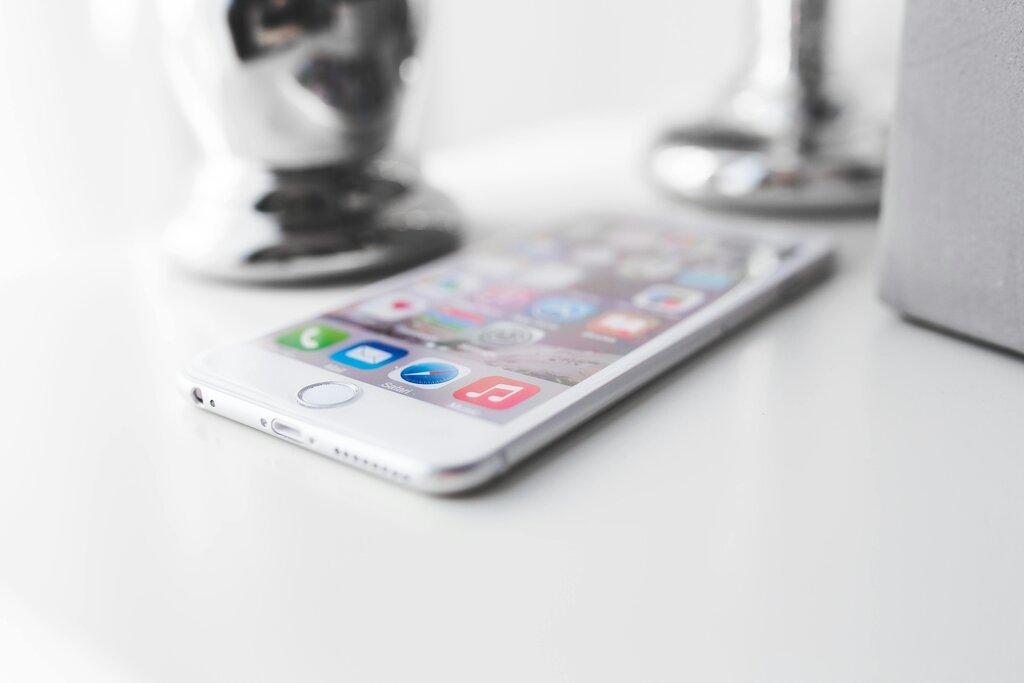
At the bottom of the screen is the Dock, which holds a few of your most-used apps for easy access from any Home Screen page.
Two key areas are hidden just off-screen. Swiping down from the top-right corner opens Control Center. This is your dashboard for quick adjustments like screen brightness, volume, Wi-Fi, and Bluetooth. Swiping down from the top-center or top-left reveals the Notification Center, where you'll find alerts from your apps, like new messages or emails.
The main hub for customizing your phone is the Settings app. It's the icon that looks like a set of gears.
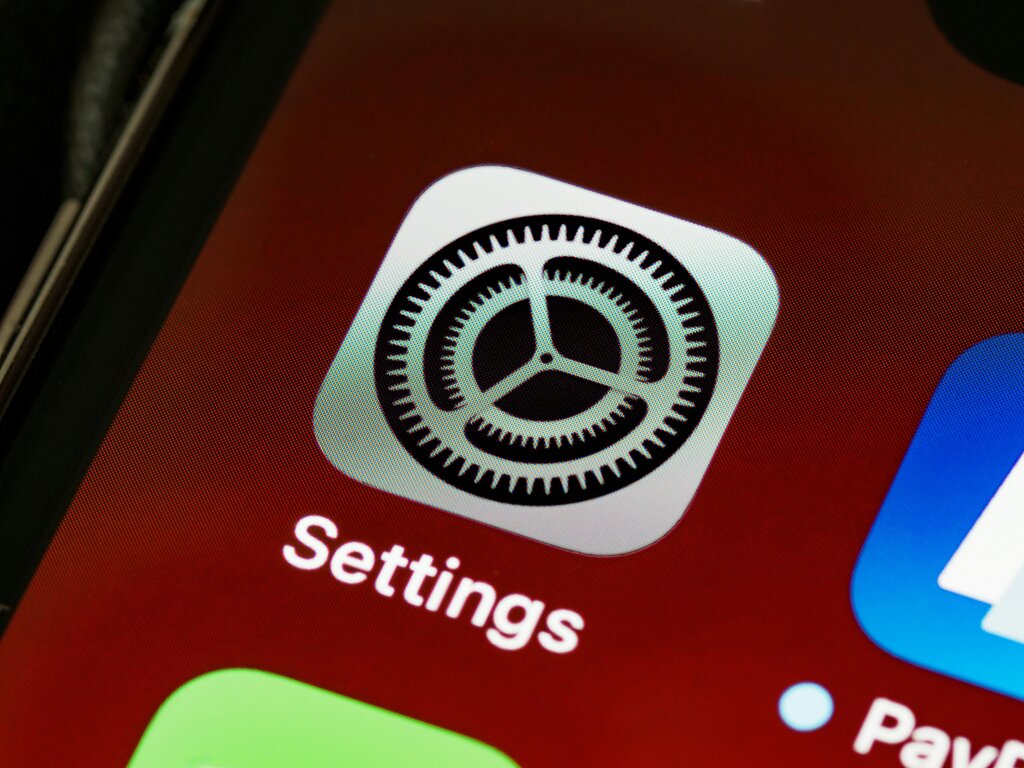
Inside, you can connect to Wi-Fi networks, manage notifications, change your wallpaper, and adjust privacy settings. You don't need to master every option, but it's good to know where to go to make basic changes.
Essential Features
Beyond the basics, a few core functionalities make an iPhone what it is. The App Store is where you'll find and download all of your applications, from social media and games to productivity tools.
iPhone comes with a suite of built-in apps. Messages is for texting, FaceTime handles video and audio calls with other Apple users, and Mail connects to your email accounts. Safari is the web browser for surfing the internet.
Another key feature is iCloud, Apple's cloud service. It automatically backs up your photos, contacts, and other data, and it syncs this information across your Apple devices. This means a photo you take on your iPhone will also appear on your iPad or Mac. It's a seamless way to keep your digital life in sync.
Ready to check your knowledge?
What is the primary function of the Side button on a modern iPhone?
How do you open the Control Center on a recent iPhone model?
Understanding these fundamental hardware and software elements is the first step to getting the most out of your iPhone. With this foundation, you can explore its deeper features with confidence.