iPhone Power User Guide
iPhone Basics
Your Home Base
When you unlock your iPhone, you land on the Home Screen. Think of it as your main menu or desktop. It’s where all your apps live as a grid of icons. You can have multiple pages of apps, and you can swipe left or right to move between them.
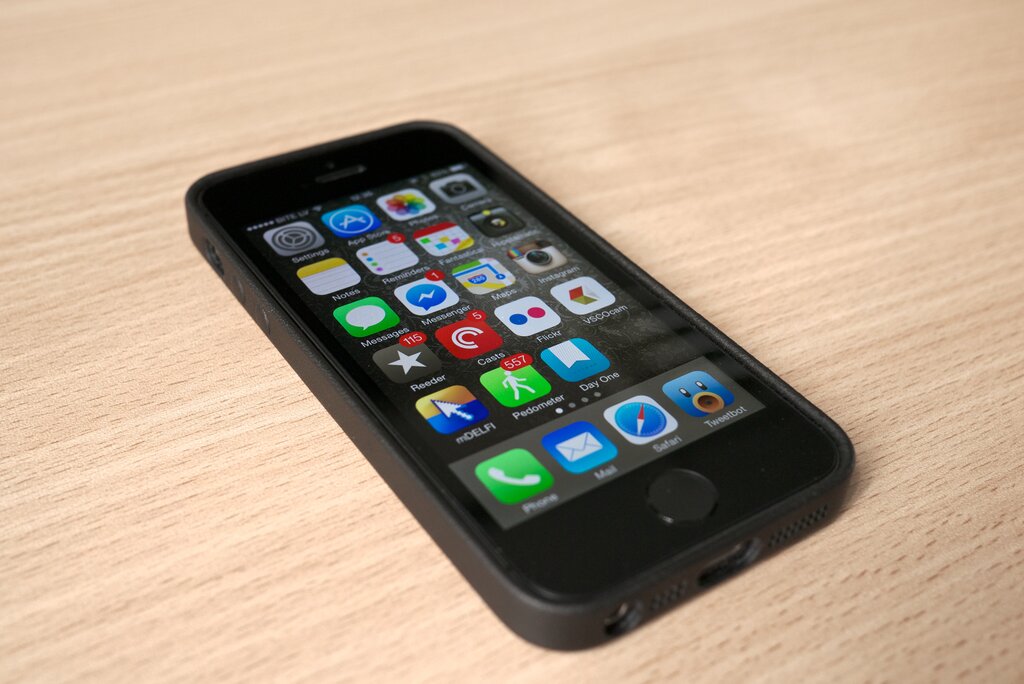
At the bottom of the screen is the Dock, which holds your most-used apps. These apps stay in place even when you swipe between different Home Screen pages. At the very top, you'll find the status bar. This area shows you important info at a glance, like the time, your Wi-Fi signal, cellular connection, and battery life.
Essential Gestures
Interacting with your iPhone is all about swipes and taps. There's no physical home button on modern iPhones, so gestures are key. Here are the most important ones to master.
| Gesture | Action |
|---|---|
| Swipe up from the bottom edge | Go to the Home Screen from anywhere. |
| Swipe down from the top-right corner | Open the Control Center. |
| Swipe down from the top-center | See your recent notifications. |
| Tap an app icon | Open the app. |
| Swipe left or right at the bottom edge | Quickly switch between recent apps. |
These few gestures will let you navigate almost the entire phone. Practice them a few times until they feel natural.
The Control Center
The Control Center is your shortcut panel for essential functions. Instead of digging through settings, you can quickly manage common tasks here. To open it, just swipe down from the top-right corner of your screen.
From the Control Center, you can toggle Wi-Fi and Bluetooth, adjust screen brightness and volume, and access tools like the flashlight and calculator with a single tap.
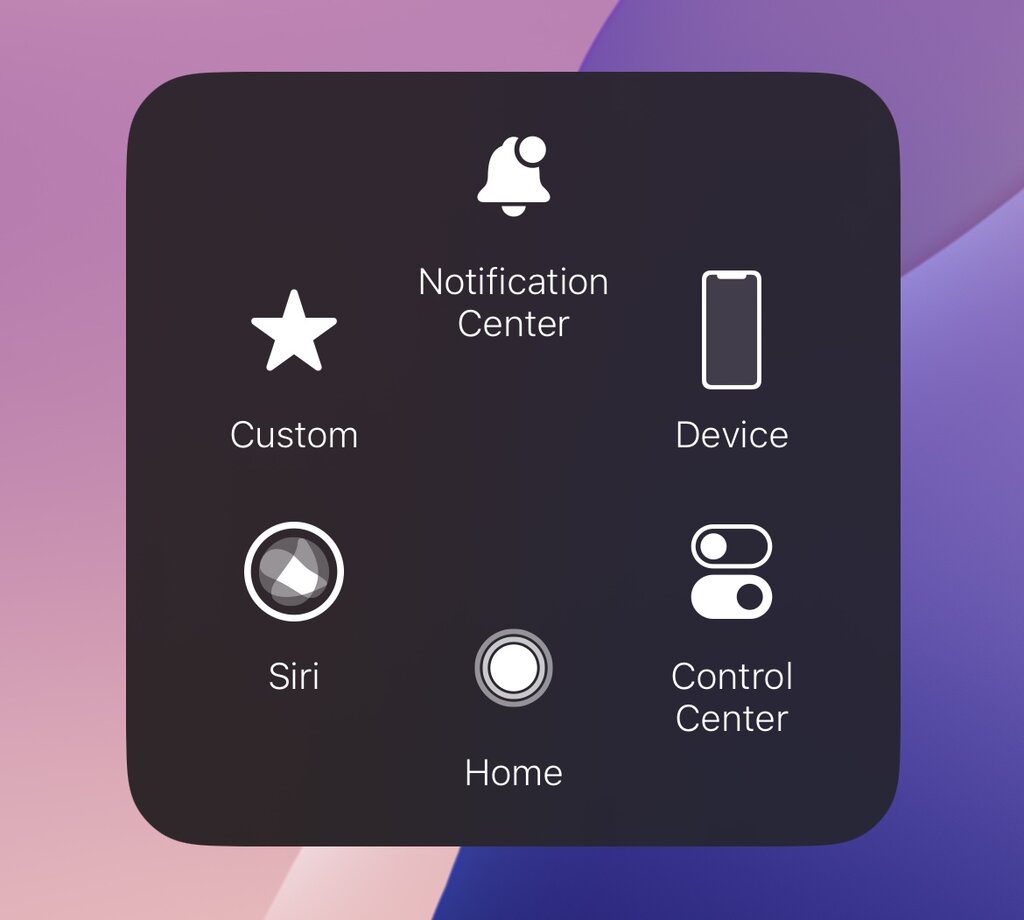
You can use the Control Center without leaving the app you're in, which makes it incredibly convenient. For example, if a video is too loud, you can swipe down, adjust the volume slider, and swipe up to dismiss the panel and get right back to your video.
The Settings App
For anything beyond the basics in the Control Center, you'll need the Settings app. It's the command hub for your entire phone. Look for the gray icon with gears on it.
Inside, you'll find a list of options for managing everything from your network connections to your screen's appearance.
- Wi-Fi: Tap this to see available wireless networks. Select your network and enter the password to get online.
- Bluetooth: This is where you connect wireless headphones, speakers, and other accessories. Turn it on, and your iPhone will search for nearby devices to pair with.
- Display & Brightness: Here, you can adjust the screen's brightness. You can also switch between Light and Dark modes. Dark mode uses a darker color scheme that's easier on the eyes, especially at night.
Take time to familiarize yourself with your device’s settings.
Getting comfortable with the Home Screen, basic gestures, and the main settings will make using your iPhone feel like second nature. Now, let's test what you've learned.
What is the main purpose of the Dock at the bottom of the iPhone's Home Screen?
How do you open the Control Center on a modern iPhone without a physical home button?
Mastering these fundamentals is the first step to getting the most out of your device.