Introduction to Visual Basic
Introduction to Visual Basic
What Is Visual Basic?
Visual Basic, often just called VB, is a programming language created by Microsoft. Its roots go back to a much older language called BASIC (Beginner's All-Purpose Symbolic Instruction Code), which was designed to be easy for newcomers to learn. Microsoft took that friendly approach and adapted it for building applications on their Windows operating system.
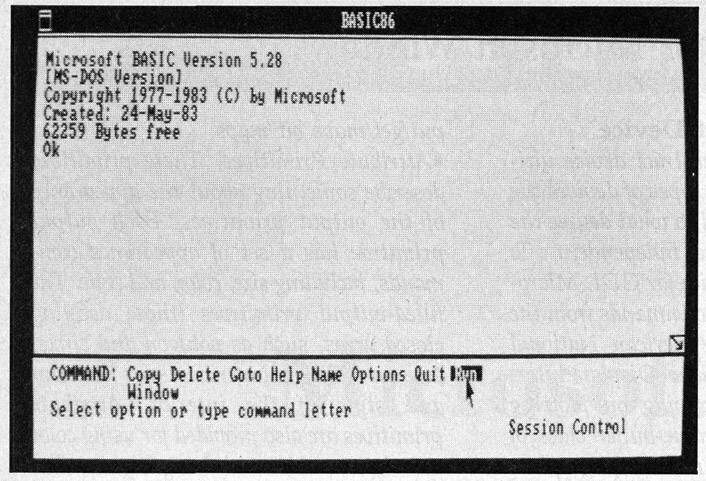
The key feature of Visual Basic is in its name: it's visual. Instead of writing code for every button, window, and menu from scratch, VB lets you drag and drop these elements onto a form. It's like building an app with digital LEGO blocks. You design the user interface visually, then write small snippets of code to control what happens when a user interacts with it, like clicking a button.
This approach makes it one of the fastest ways to create simple, functional Windows applications with graphical user interfaces (GUIs).
Setting Up Your Workspace
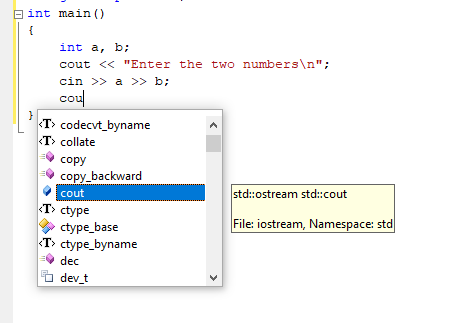
To start writing Visual Basic programs, you need a special kind of software called an Integrated Development Environment, or IDE. An IDE brings together all the tools a programmer needs into one application: a text editor for writing code, tools for debugging, and a way to compile and run your program.
The standard IDE for Visual Basic is Microsoft's Visual Studio. It’s a powerful, feature-rich environment that supports many programming languages, but it has excellent support for VB. You'll need to download and install Visual Studio Community, which is free for individual developers and students. The installation process lets you choose which workloads to install; make sure to select the one for ".NET desktop development" to get all the tools for Visual Basic.
Your First Application
The best way to learn is by doing. Let's create the classic first program for any language: "Hello, World!". This simple application will show a message on the screen when you click a button.
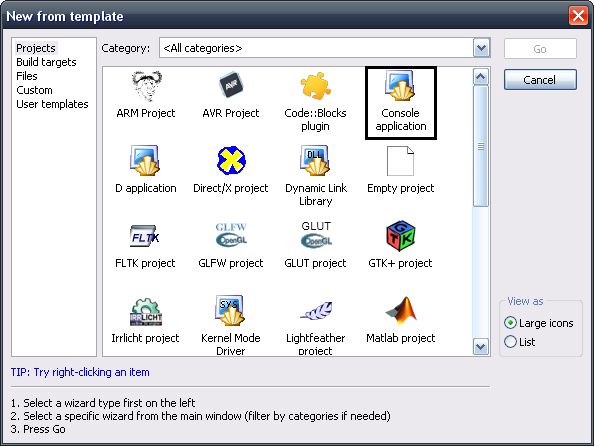
First, open Visual Studio and create a new project. You'll see a list of templates. Search for and select the Windows Forms App (.NET Framework) template, making sure to choose the one that lists Visual Basic as the language. Give your project a name, like "HelloWorldVB", and click Create.
Visual Studio will open up your new project. You'll see a blank window titled "Form1". This is the main window of your application. On the left side, you should see a tab for the Toolbox. Click it, find the Button control, and drag one onto your form.
With the button selected, look for the Properties window, usually in the bottom right. Find the Text property and change its value from "Button1" to "Click Me!". You'll see the text on the button update immediately.
Now, let's make the button do something. Double-click the button on your form. This will switch you from the visual designer to the code editor and automatically create a block of code to handle the button's click event. Inside that block, type the following line:
MsgBox("Hello, World!")
This simple command tells Visual Basic to pop up a message box (MsgBox) containing the text "Hello, World!". Your full code for the button click should look like this:
Private Sub Button1_Click(sender As Object, e As EventArgs) Handles Button1.Click
    MsgBox("Hello, World!")
End Sub
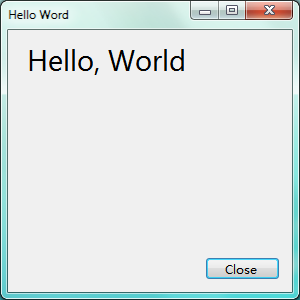
To see your program in action, press the green "Start" button at the top of Visual Studio (it looks like a play button). Your application will compile and run, showing the window you designed. Click the button, and a message box will appear. You've just built your first interactive Windows application!
Time to check your understanding of these first steps.
Visual Basic is a programming language developed by Microsoft, which evolved from an earlier language called...?
The 'Visual' aspect of Visual Basic primarily refers to its ability to...
Congratulations on building your first program. You've taken a big step into the world of application development.