Introduction to Scratch Programming
Introduction to Scratch
What is Scratch?
Scratch is a creative way to start programming. Instead of typing out lines of complex code, you snap together colorful blocks, a bit like digital LEGOs. Each block is an instruction, and by combining them, you can create your own interactive stories, games, and animations.
Scratch turns coding into a visual, creative, and playful experience.
It was developed by the MIT Media Lab to make programming accessible to everyone. The visual, block-based approach helps you focus on the logic and creativity of your project without getting stuck on typos or complex syntax. Let's explore the workspace where all this magic happens.
The Scratch Workspace
When you open a new Scratch project, you'll see an interface divided into a few key areas. It might look like a lot at first, but each part has a specific job. Think of it as an artist's studio with a canvas, a palette of paints, and a place to mix them.
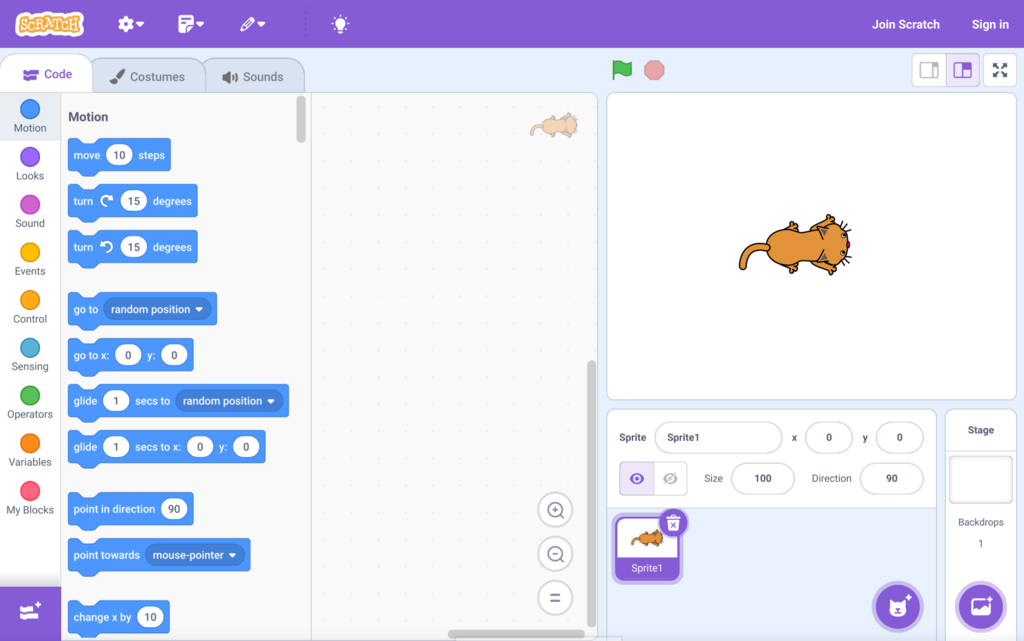
The three most important parts are the Stage, the Block Palette, and the Coding Area. Understanding these three sections is the first step to building anything you can imagine.
Exploring the Interface
The Stage is the white rectangle on the right side of the screen. This is where your project comes to life. Any characters or objects you program, called "sprites," will appear and interact here. By default, you'll see the Scratch Cat, the platform's friendly mascot, waiting for instructions.
The Stage is your canvas. It's where you see the results of your code in action.
On the left, you'll find the Block Palette. This is your toolkit, containing all the code blocks you can use. The blocks are organized into categories by color and function, like Motion (blue), Looks (purple), and Sound (magenta). To find a command, you just click on the category and scroll through the available blocks.
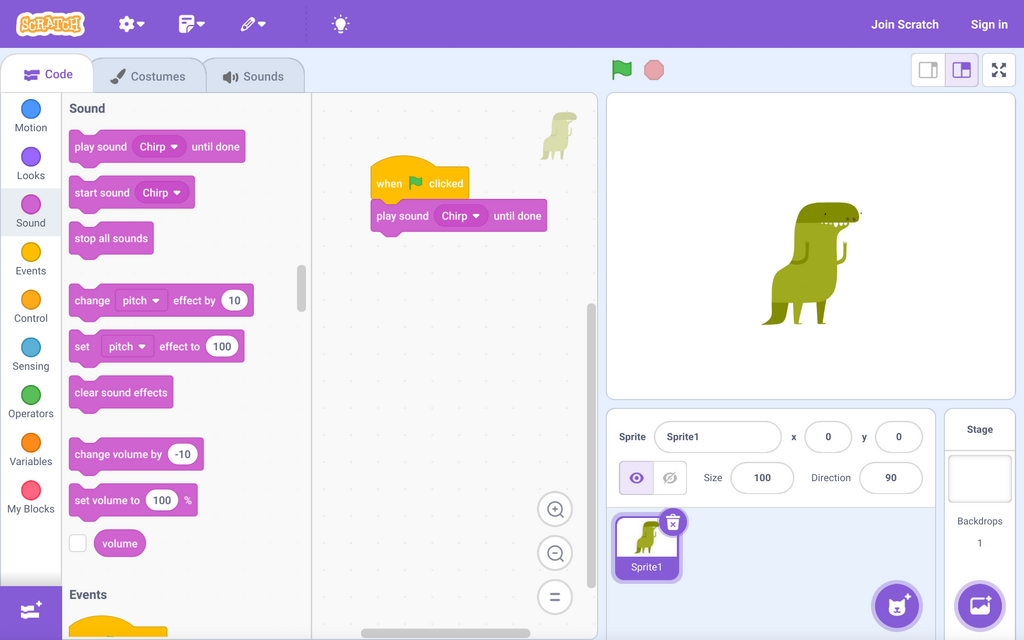
The large, empty space in the center is the Coding Area. This is where you build your scripts. You simply drag blocks from the palette and drop them here. The blocks are shaped to snap together, forming stacks of commands that tell your sprites what to do.
That's the basic layout. You grab blocks from the palette, assemble them into scripts in the coding area, and watch your creation unfold on the stage. Now you're ready to start exploring and see what you can build.