Introduction to Scratch Coding
Introduction to Scratch
What is Scratch?
Scratch is a visual programming language created for beginners. Instead of typing out complex code, you snap together colorful blocks, a bit like digital LEGOs. It’s a fun, creative way to build your own interactive stories, games, and animations.
Scratch has become one of the best platforms for young learners with its intuitive, visual programming language and its ability to engage kids in creating interactive stories, animations, and games.
The block-based system removes the frustration of typos and syntax errors, which are common hurdles when learning traditional programming. This lets you focus on the logic and creativity of your project right from the start. You get to see your ideas come to life almost instantly.
The Scratch Interface
When you open a new Scratch project, you'll see a clean, organized workspace. Let's break down the main areas.
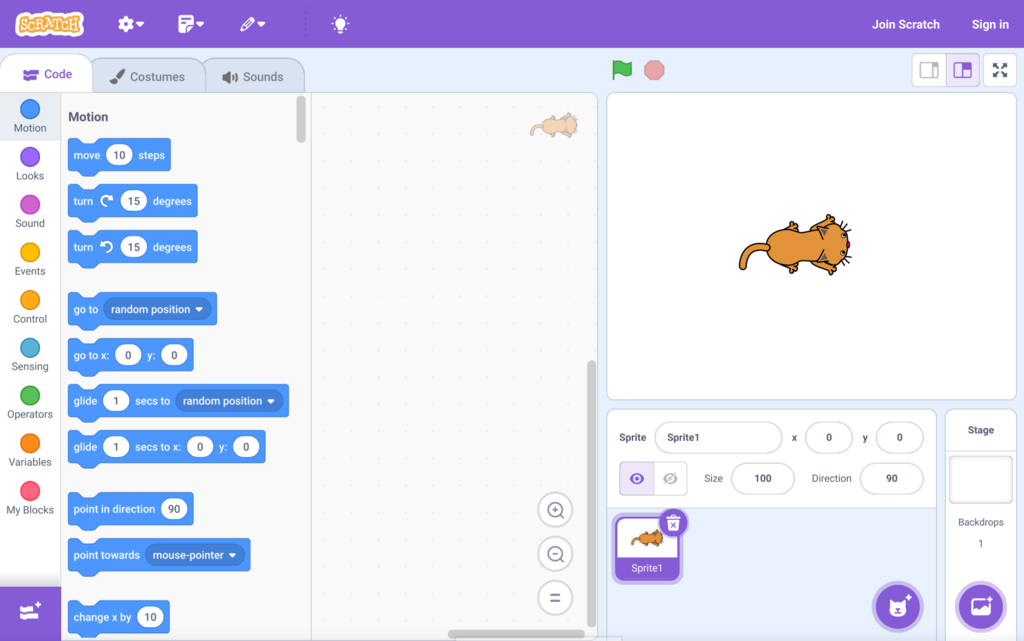
The interface is divided into a few key sections:
- Code Blocks Palette: On the left, you'll find all the code blocks, organized by color and category (like
Motion,Looks,Sound, andEvents). - Scripting Area: The large empty space in the middle is where you build your programs. You drag blocks from the palette and snap them together here.
- Stage: The top-right area is the Stage. This is where your project comes to life. You'll see your characters and animations play out here.
- Sprite and Backdrop Pane: Below the stage, you can manage all the characters (called Sprites) and backgrounds (called Backdrops) in your project.
Sprites and Backdrops
Every Scratch project is made of two basic elements: sprites and backdrops.
Sprite
noun
An object or character in a Scratch project that you can program to move, talk, and interact with other sprites.
Think of sprites as the actors in your play. By default, every new project starts with the Scratch Cat sprite, but you can add more from Scratch's built-in library, draw your own, or upload an image.
Backdrop
noun
The background image for the Stage, which provides the setting for your story or game.
The backdrop is the scenery. Is your story set in a castle, on a basketball court, or in space? You can choose from a library of backdrops or create your own to set the scene.
Your First Scratch Project
Let's make our first project. We'll get the Scratch Cat to say "Hello, world!" when we click the green flag.
The green flag above the stage is the universal "Go" button in Scratch. It starts the main scripts in your project.
First, we need an event to start our code. Go to the yellow Events category in the Code Blocks Palette and find the when green flag clicked block. Drag it into the Scripting Area.
// This is the starting block for many programs.
when green flag clicked
Next, we want the sprite to do something. Go to the purple Looks category and find the say "Hello!" for 2 seconds block. Drag it under the first block until you see a gray shadow, then release. It will snap into place.
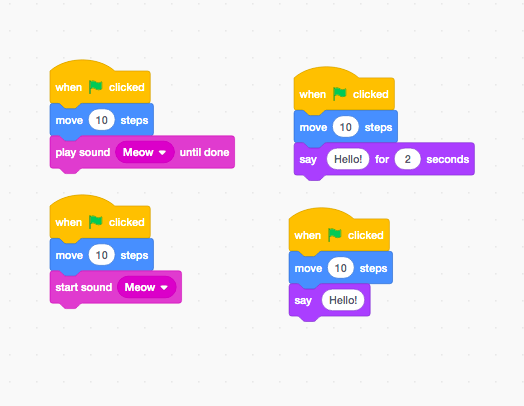
Finally, click inside the word "Hello!" and change the text to "Hello, world!". Your complete script should look like this:
when green flag clicked
say "Hello, world!" for 2 seconds
Now, click the green flag above the Stage. Watch the cat! A speech bubble with your message will appear for two seconds. Congratulations, you've just written your first Scratch program.
What is the primary advantage of Scratch's block-based programming for beginners?
In the Scratch interface, where do your animations and games actually play out for you to see?
This is just the beginning. From here, you can explore other blocks to make your sprite move, play sounds, and react to your commands.