Introduction to R Programming
Introduction to R
What is R?
R is a programming language created specifically for statistical computing and data graphics. Think of it like a specialized calculator, but instead of just numbers, it works with entire datasets. It's designed to help you explore data, run statistical tests, and create visualizations to understand what the data is telling you. R is also free and open-source, which means anyone can use it and a global community of developers is constantly improving it.
R is a language specifically designed for statistical computing and data analysis, making it a preferred choice for data professionals.
It was created in the early 1990s by Ross Ihaka and Robert Gentleman at the University of Auckland, New Zealand. They wanted a better tool for their statistics classes, and R was the result. Today, it’s used everywhere from academic research to major corporations for tasks like analyzing customer behavior, forecasting sales, or modeling financial markets.
Why Choose R?
While there are many programming languages, R has some key advantages for data analysis. Its biggest strength is its ecosystem. There are thousands of free, user-contributed packages available that extend R’s capabilities. Need to analyze genetic data or map geographic information? There's a package for that. This vast library makes it incredibly versatile.
Another benefit is the community. Because R is so widely used in statistics and data science, it’s easy to find help, tutorials, and examples online. This support network is invaluable when you're learning.
At its core, R is built to handle data. Its structures and functions are designed for statistical operations, which often makes complex analysis more straightforward than in general-purpose languages.
Getting Set Up
To start using R, you need two things: the R language itself and an Integrated Development Environment (IDE) called RStudio. Think of R as the engine of a car and RStudio as the dashboard, steering wheel, and pedals. R does the actual work, while RStudio provides a user-friendly interface to control it. You must install R first, then RStudio.
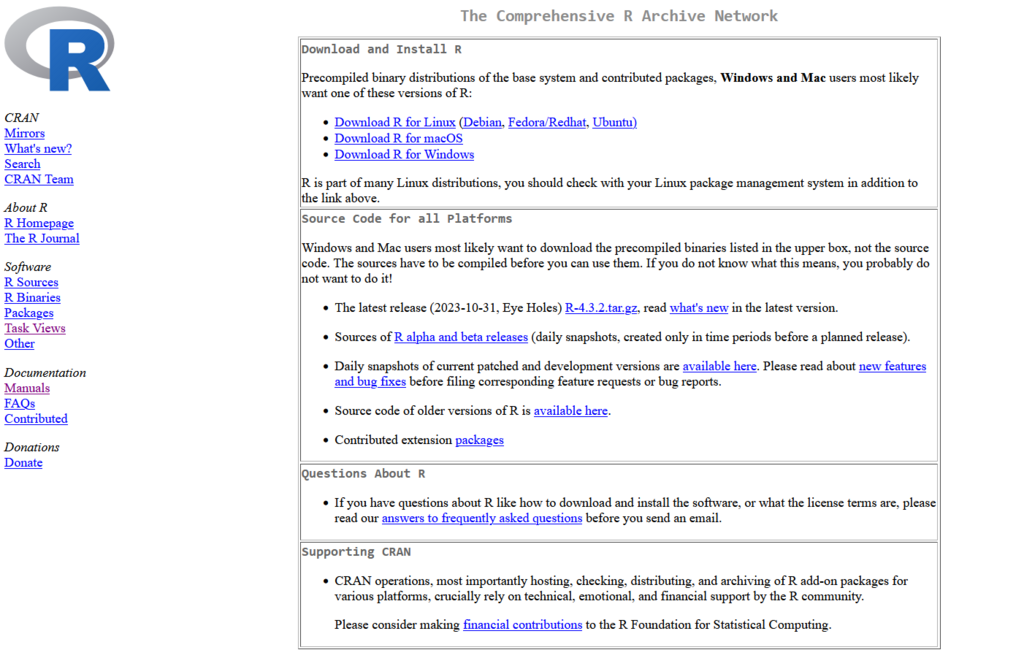
1. Install R Start by downloading R from the Comprehensive R Archive Network (CRAN). This is the official repository for R and its packages. On the CRAN website, you'll see options to download R for Linux, macOS, and Windows. Choose your operating system and follow the instructions to run the installer.
2. Install RStudio Next, download RStudio Desktop. Go to the Posit website (the company that makes RStudio) and download the free version. Once downloaded, run the installer. RStudio will automatically detect your R installation, so you'll be ready to go once it’s finished.
We strongly encourage using RStudio as the integrated development environment (IDE) in the first individual steps of preparing simple R scripts [https://posit.co/download/rstudio-desktop].
Exploring RStudio
When you open RStudio for the first time, you'll see a screen divided into several panes. This layout is designed to make your workflow smooth and organized. A fresh installation usually starts with three panes, but you'll almost always work with four, so open a new script file (File > New File > R Script) to see the full layout.
Here’s a quick breakdown of each pane:
-
Source Editor (top left): This is a text editor where you write your R code. You can save this code as a script file (with a
.Rextension) to run later. This is where you'll do most of your work. -
Console (bottom left): This is where R actually executes commands. You can type code directly here for quick calculations, or you can send code from the Source Editor to be run. The results and any error messages will appear here.
-
Environment/History (top right): The Environment tab shows all the objects, like variables and datasets, that you've created in your current R session. The History tab keeps a record of all the commands you've run.
-
Files/Plots/Packages (bottom right): This pane has multiple tabs. Files lets you browse the files on your computer. Plots will display any graphs you create. Packages shows all the packages you have installed and allows you to load them.
Now that you have R and RStudio installed and know your way around the interface, you're all set to start writing code.
What is the primary purpose of the R programming language?
What is the correct order for setting up the R programming environment on a new computer?