Introduction to R Programming
Introduction to R
What is R?
R is a programming language designed specifically for statistical computing and graphics. Think of it as a super-powered calculator that’s especially good at handling, cleaning, analyzing, and visualizing data. Researchers, data analysts, and scientists love R because it’s powerful, flexible, and free.
While other languages can do data analysis, R was built for it from the ground up. This focus makes it one of the best tools for the job.
Setting Up Your Workspace
To get started, you'll need two things: R itself and RStudio. It's a common point of confusion, so let's clarify.
- R is the underlying programming language, the engine that runs your code.
- RStudio is an Integrated Development Environment (IDE). It's a workbench that makes writing and managing your R code much easier. It gives you a code editor, a console, and tools for viewing plots, files, and variables all in one place.
You need to install R first, then RStudio. You can download R from the Comprehensive R Archive Network (CRAN) and RStudio from its official website. The installation is straightforward—just follow the on-screen prompts.
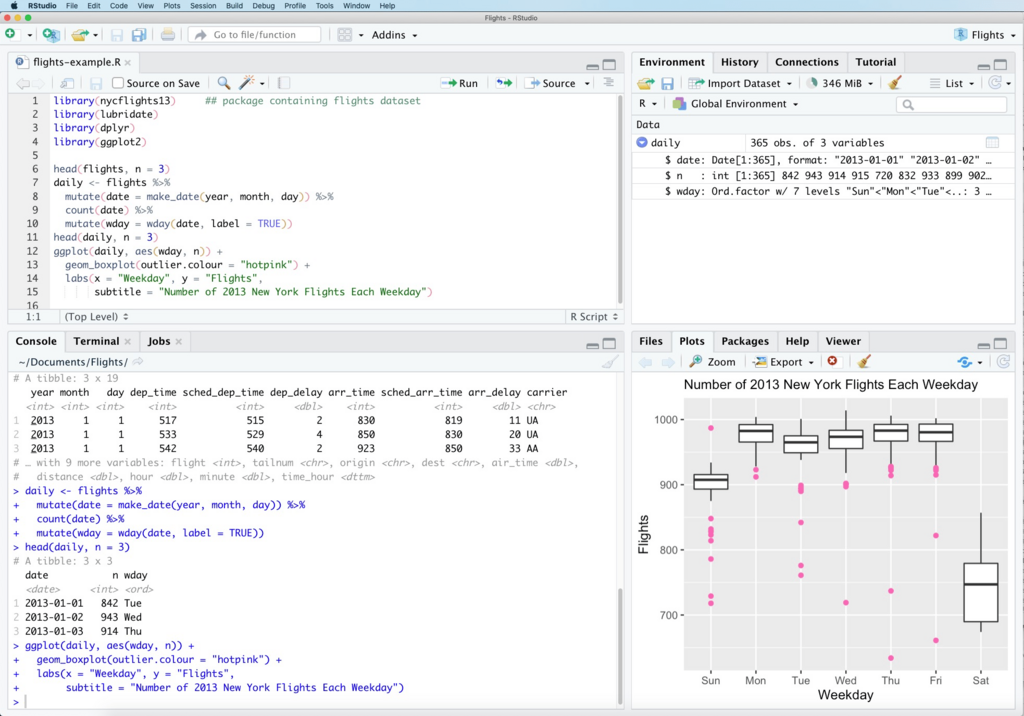
Once you open RStudio, you'll see a few different panels, or panes. Here’s a quick tour:
- Source Editor (Top-Left): This is where you'll write and save your R scripts. A script is just a text file containing your code.
- Console (Bottom-Left): This is where R actually runs your code. You can type commands directly here, or run code from your script, and the output will appear in the console.
- Environment & History (Top-Right): The Environment tab shows all the variables and objects you’ve created in your session. The History tab keeps a record of all the commands you've run.
- Files, Plots, Packages (Bottom-Right): This multi-purpose pane lets you browse files, view plots you create, install and manage packages (collections of code), and get help.
Your First R Script
Let’s write some code. In RStudio, go to File > New File > R Script to open a blank script in the source editor.
The simplest way to use R is as a calculator. Type the following into your script:
5 + 3
10 - 4
6 * 7
100 / 2
To run a line of code, place your cursor on that line and press Ctrl+Enter (on Windows/Linux) or Cmd+Return (on Mac). The command is sent to the console below, and you'll see the result.
You can also highlight multiple lines of code and press the same key combination to run them all at once.
Writing commands one by one is fine, but the real power comes from storing values in variables. A variable is like a labeled box where you can keep a piece of information. To assign a value to a variable in R, we use the <- operator.
# Assign the value 15 to a variable named 'a'
a <- 15

# Assign the value 10 to 'b'
b <- 10

# Now we can use the variables in calculations
c <- a + b
After running this code, you'll see the variables a, b, and c appear in your Environment pane. To see the value of a variable, just type its name in the script or console and run it.
c
The console will display [1] 25. The [1] just indicates that this is the first element of the output.
Variables can hold different types of data, such as numbers, text (called strings), or logical values (TRUE or FALSE).
# A number
my_age <- 30

# A string of text (must be in quotes)
my_name <- "Alex"

# A logical value
is_learning <- TRUE
Another fundamental concept is the function. Functions are pre-written commands that perform a specific action. You call a function by writing its name followed by parentheses. For example, the print() function displays a value or message.
print("Hello, R world!")

# You can also print the value of a variable
print(my_name)
You've now set up your environment and run your first few lines of R code. You've learned how to do basic math, create variables, and use a simple function. These are the essential building blocks for everything else you'll do in R.
What is the primary difference between R and RStudio?
It is necessary to install the R language before installing the RStudio IDE.