Introduction to Python Scripting
Python Installation
Getting Python on Your Machine
Before you can start writing Python code, you need to install the Python interpreter on your computer. This program reads your Python files and carries out their instructions. The best place to get it is from the official source, python.org, which is managed by the Python Software Foundation.
The installation process is slightly different depending on your operating system. Let's walk through it.
Installing on Windows
First, open your web browser and go to python.org. You'll see a "Downloads" menu. Hover over it, and a button to download the latest version for Windows should appear. Click it to download the installer file.
Once downloaded, run the installer. You'll see a window with a few options. The most important step is to check the box at the bottom that says “Add python.exe to PATH.”
Checking “Add python.exe to PATH” lets you run Python from your computer’s command line, which is a powerful tool you'll use later. Forgetting this step is a common headache, so make sure you check the box before clicking “Install Now.”
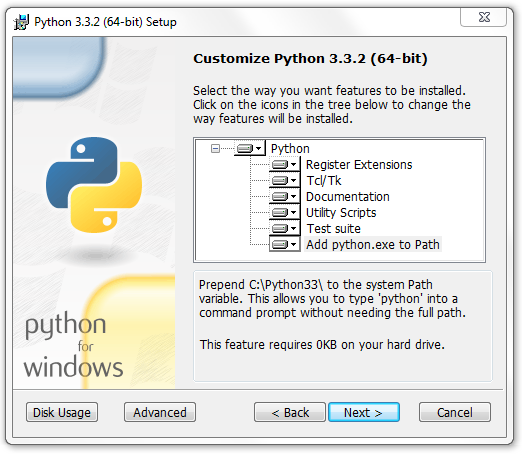
After you click “Install Now” and approve any security prompts, the installer will do its work. Once it's finished, you're all set.
Installing on macOS and Linux
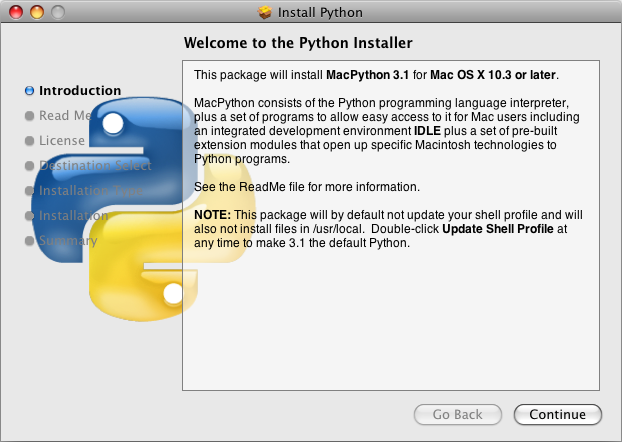
For macOS, the process is very similar. Go to python.org, find the Downloads section, and get the latest version for macOS. It will download a .pkg file. Open it and follow the on-screen instructions. The installer handles everything for you, including setting up the PATH.
For Linux users, Python is often already installed. Open your terminal and type python3 --version. If you see a version number, you're good to go. If not, you can usually install it with your distribution's package manager, like sudo apt install python3 for Debian-based systems or sudo dnf install python3 for Fedora-based systems.
Your First Coding Environment
Now that Python is installed, you need a place to write your code. While you could use a simple text editor, an Integrated Development Environment (IDE) makes the job much easier. An IDE is software that combines a text editor with other helpful tools for programmers.
For beginners, Thonny is an excellent choice. It was built specifically for learning Python, so it keeps things simple and provides helpful feedback.
IDE
noun
Stands for Integrated Development Environment. It's a software application that provides comprehensive facilities to computer programmers for software development. An IDE normally consists of at least a source code editor, build automation tools, and a debugger.
To get Thonny, visit its website at thonny.org. Download the version for your operating system and run the installer. The setup is straightforward, just like any other application.
When you open Thonny for the first time, you'll see a clean, simple interface. The main area is where you'll write your code. Below that is the "Shell," which is where you'll see the output of your programs. Thonny automatically detects your Python installation, so there's no complex configuration needed.

You now have a complete Python development environment. You're ready to write and run your first piece of code.