Introduction to Python Programming
Python Setup
Setting Up Your Workspace
Before you can start writing Python code, you need a place to write it and a way to run it. This setup is called your development environment. It consists of two main parts: the Python interpreter, which understands and executes your code, and a code editor, where you'll actually type your scripts.
Installing Python
First, you need to install Python itself. The best place to get it is from the official source, python.org.
- Windows: Download the latest installer. During installation, make sure to check the box that says "Add Python to PATH." This crucial step allows you to run Python from your command prompt.
- macOS: Download the installer from the website. The installation process is straightforward.
- Linux: Most Linux distributions come with Python pre-installed. However, it might be an older version.
Once installed, you can verify it's working by opening your terminal (or Command Prompt on Windows) and typing one of the following commands.
python3 --version
# Or for some systems:
python --version
This should print the Python version number you just installed, confirming that everything is set up correctly.
Choosing a Code Editor
While you could write Python in a basic text editor like Notepad, it's much easier to use an Integrated Development Environment (IDE). An IDE is a specialized editor built for programming that provides helpful features like syntax highlighting (coloring your code to make it readable), error checking, and code completion.
Two of the most popular IDEs for Python are Visual Studio Code and PyCharm.
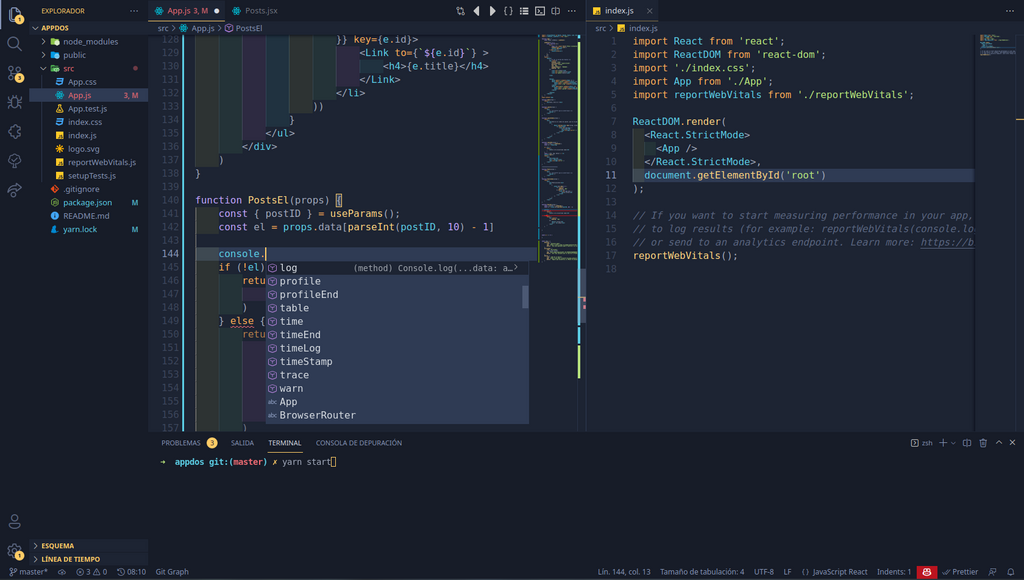
Visual Studio Code (VS Code) is a free, lightweight, and highly customizable editor from Microsoft. It supports hundreds of languages through a vast library of extensions. To use it for Python, you simply install the official Python extension from its marketplace.
PyCharm is an IDE created specifically for Python development. It comes with many Python-specific features built-in. There's a free Community edition that's perfect for beginners and a paid Professional edition with more advanced tools.
For a beginner, either choice is excellent. Don't spend too much time deciding. Just pick one, install it, and start coding.
Running Your Code
There are two primary ways you'll run Python code: through the interactive shell for quick experiments, and by executing script files for longer programs.
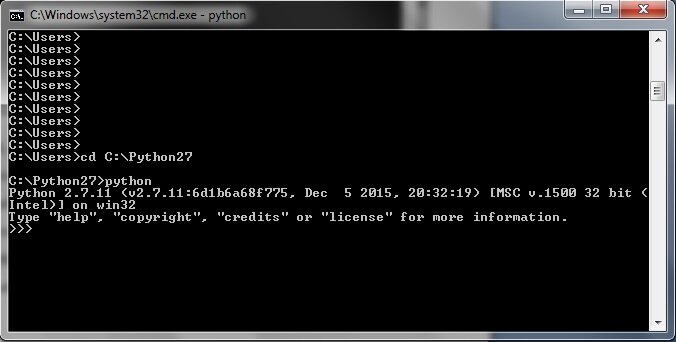
The interactive shell, also known as the REPL (Read-Eval-Print Loop), lets you type Python commands one at a time and see the results instantly. It's fantastic for testing small snippets of code without creating a file.
To start it, just open your terminal and type python or python3.
python3
You'll see a >>> prompt, indicating that Python is ready for your commands. You can type exit() or press Ctrl+D to leave the shell.
For anything more than a few lines, you'll want to save your code in a script file. Python files always end with the .py extension. For example, you could create a file named hello.py in your IDE.
Once you've saved your file, you can run it from the terminal. Navigate to the directory where you saved the file and then run it using the python command followed by the filename.
# Assuming you are in the same directory as your file
python3 hello.py
Most IDEs, including VS Code and PyCharm, also have a "Run" button (often a green triangle) that lets you execute your script directly from the editor, which is much more convenient.
When installing Python on Windows from the official installer, which option is crucial to select to make Python easily accessible from the command prompt?
What is the primary purpose of an Integrated Development Environment (IDE) like VS Code or PyCharm?
That's it! With Python installed and an editor ready, you have a complete development environment for building anything you can imagine.