Introduction to Python Programming
Introduction to Python
What is Python?
Python is a programming language, which is a way for us to give instructions to a computer. Think of it like a recipe. You write the steps, and the computer follows them to create something.
What makes Python special is its readability. The code often looks a lot like plain English, which makes it one of the easiest languages for beginners to learn. But don't let its simplicity fool you. Python is incredibly powerful and versatile.
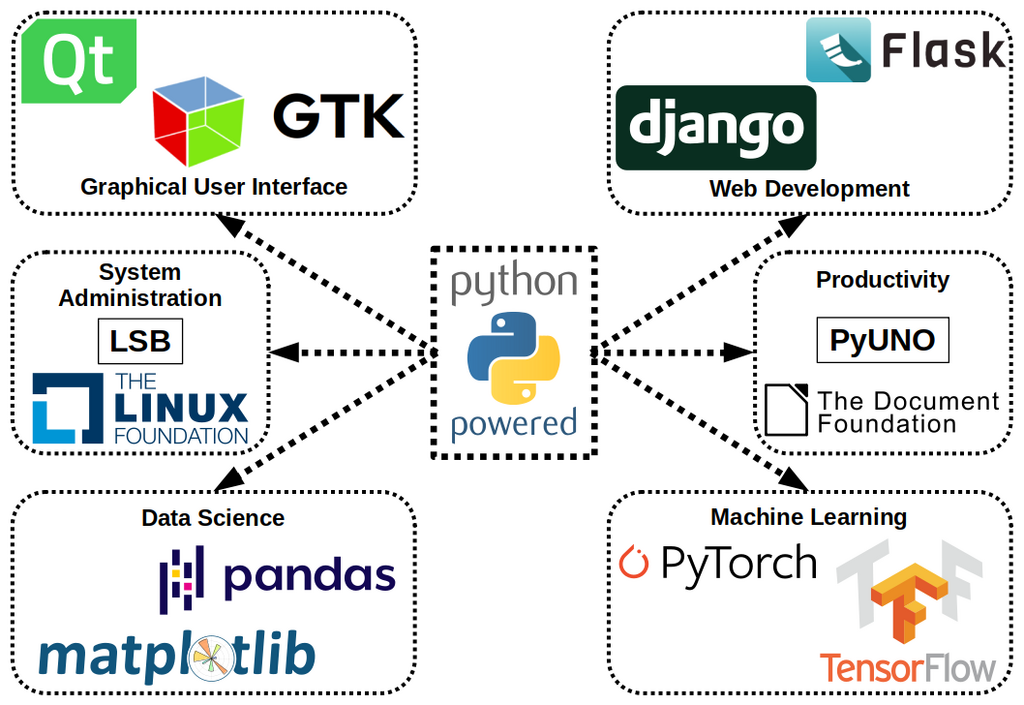
Professionals use it for all sorts of tasks: building websites, analyzing data, automating repetitive jobs, and even creating artificial intelligence. Its large collection of pre-written code, called libraries, makes it easy to accomplish complex tasks without starting from scratch.
Getting Python on Your Computer
Before you can start writing Python code, you need to install it on your computer. It's a free and straightforward process.
- Windows: Go to the official Python website, download the latest installer, and run it. During installation, make sure to check the box that says "Add Python to PATH." This makes it easier for your computer to find and run Python.
- macOS: macOS usually comes with an older version of Python already installed. However, it's best to install the latest version from the Python website, just like on Windows.
- Linux: Most Linux distributions come with Python. You can typically install or update it using your system's package manager, like
aptoryum.

Your Coding Workspace
While you can write code in a simple text editor, most programmers use an Integrated Development Environment, or IDE. An IDE is a special application that makes writing code much easier. It often includes features like syntax highlighting (coloring your code to make it more readable), error checking, and tools to run your code easily.
For beginners, a great choice is Thonny. It's an IDE designed specifically for learning Python. It has a simple, clean interface and comes with Python built-in, so you don't have to worry about complex setup.

Once you have Python installed, download and install Thonny from its official website. When you open it, you'll see a main area for writing code and a section at the bottom called the "Shell," where you'll see the output of your programs.
Your First Program
It's a tradition in programming to make your first program display the text "Hello, World!" on the screen. Let's do that now in Thonny.
In the main editor window, type the following line of code:
print("Hello, World!")
This line tells the computer to use the print function to display whatever text is inside the parentheses and quotation marks.
Now, click the green "Run" button in the toolbar. Thonny will ask you to save the file first. Save it with a name like hello.py. The .py extension is important because it tells the computer that this is a Python file.
After you save it, you should see the text Hello, World! appear in the Shell at the bottom of the window.
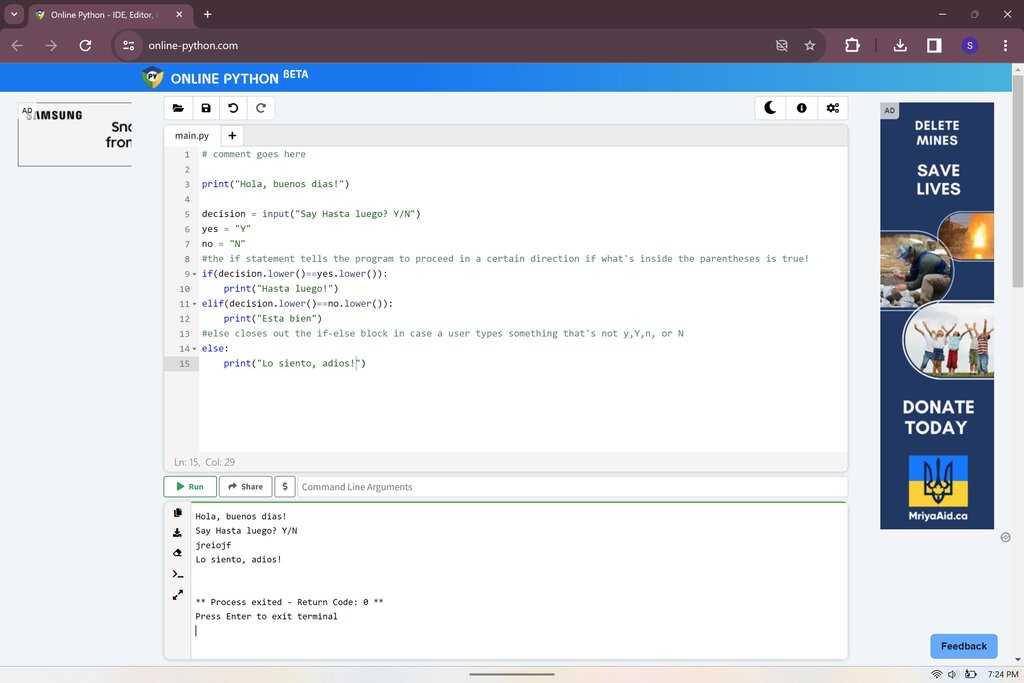
Congratulations! You've just written and executed your first Python program. Let's review what you've learned.
What is the primary purpose of a programming language like Python?
Which feature of Python makes it particularly well-suited for beginners?
You now have a basic setup for writing Python code and you've already run a simple script. You're ready to start exploring the fundamental building blocks of the language.