Introduction to Python Programming
Introduction to Python
What Is Python?
Python is a programming language, which is a way to give instructions to a computer. Think of it like a recipe. You write a series of steps, and the computer follows them to get something done. What makes Python special is its readability. The code looks a lot like plain English, which makes it one of the best languages for beginners to learn.
But don't let its simplicity fool you. Python is incredibly powerful and versatile. It’s used by companies like Google, Netflix, and NASA for all sorts of tasks.
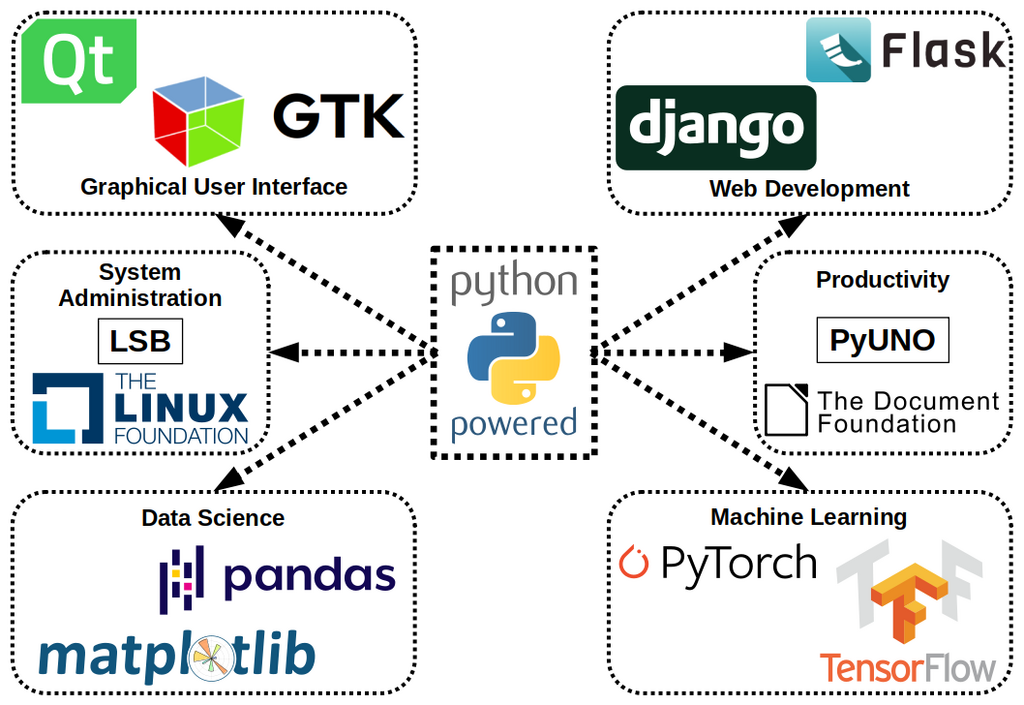
Web development, data analysis, artificial intelligence, and automating repetitive tasks are just a few of Python's many applications.
Getting Python On Your Computer
Before you can write Python code, you need to install it. This involves downloading the Python interpreter, which is the program that understands and executes your Python scripts. The process is straightforward.
First, go to the official Python website at python.org. You'll find installers for Windows, macOS, and Linux. Download the latest stable version for your operating system and run the installer file.

Here's a critical tip for Windows users: During the installation process, you'll see a checkbox that says "Add python.exe to PATH". Make sure you check this box. It allows you to run Python from your computer's command line, which is a useful skill to have.
Your First Coding Environment
You can write Python code in a simple text editor, but most programmers use an Integrated Development Environment, or IDE. An IDE is software that combines a code editor with other helpful tools, like features that highlight your code in different colors to make it easier to read.
For beginners, a great choice is Thonny. It's an IDE designed specifically for learning Python. It has a clean, simple interface and comes with Python already built-in, so you don't have to configure anything. To get it, just visit thonny.org and download the installer.

Once Thonny is installed, open it up. You'll see a large white area at the top, which is the code editor. Below that is a section called the "Shell," where you'll see the output of your programs.
Writing Your First Script
Let's write a classic first program: one that simply prints the words "Hello, World!" to the screen. It's a tradition when learning any new programming language.
In Thonny's code editor (the top part), type the following line of code:
print("Hello, World!")
That's it. This line tells Python to use the built-in print function to display the text inside the parentheses. The text itself is wrapped in double quotes to tell Python that it's a string of characters.
Now, let's run it. Click the green "Run" button at the top of the Thonny window (it looks like a play symbol). Thonny will first ask you to save the file. Save it anywhere you like, and name it something like hello.py. The .py extension is important, as it tells the computer this is a Python file.
After saving, the script will run. In the Shell at the bottom of the window, you should see the output:
Hello, World!
Congratulations! You've just written and executed your first Python program. You've installed the necessary tools and confirmed that everything is working correctly.
What is the primary characteristic that makes Python a good programming language for beginners?
When installing Python on a Windows computer, which checkbox is it critical to select to make running Python from the command line easier?
You're now set up and ready to start exploring the fundamentals of Python.