Introduction to Python Programming
Python Installation
Getting Python
Before you can write any Python code, you need to install the Python interpreter on your computer. This program is what reads your Python code and carries out its instructions. The best place to get it is from the official source: python.org.
Head to the downloads page, and you'll see options for different operating systems. You should download the latest stable version of Python 3. Don't worry about the minor version numbers; anything like 3.10, 3.11, or 3.12 is perfect for getting started.

When you run the installer on Windows, you'll see a setup window. There's one crucial step here that will save you a lot of trouble later.
Make sure you check the box that says "Add Python to PATH" at the bottom of the installer window. This lets you run Python easily from your computer's command line.
For macOS and Linux, Python might already be installed. To check, open your terminal and type python3 --version. If it's installed, you'll see a version number. If not, the installer from python.org is the way to go.
Choosing Your Tools
Now that Python is installed, you need a place to write your code. While you could use a simple text editor like Notepad, it's much easier to use a tool designed for programming. These tools help you with features like syntax highlighting, which colors your code to make it easier to read.
You have two main options: a text editor or an Integrated Development Environment (IDE).
Text Editors like Visual Studio Code, Sublime Text, or Atom are lightweight and highly customizable. They're great for all kinds of programming, not just Python.
IDEs like PyCharm or Spyder are built specifically for Python. They come with more built-in features like debuggers and testing tools, which can be very helpful for larger projects.
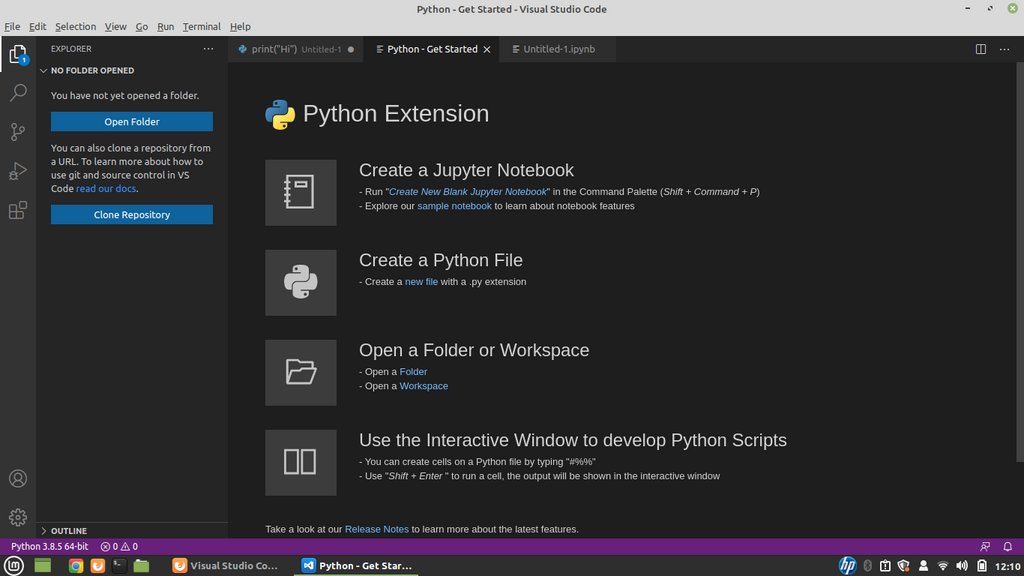
For a beginner, Visual Studio Code (VS Code) is a fantastic starting point. It's free, popular, and has a huge library of extensions, including one that adds great Python support. Go ahead and install one of these tools now.
Running Your Code
There are two primary ways to run Python code: interactively using the interpreter, or by running a script file.
The interactive interpreter (also called a REPL) is like a live conversation with Python. You type one line of code, press Enter, and Python runs it immediately. To start it, open your command prompt or terminal and type python (or python3 on macOS/Linux).
# On Windows
python

# On macOS or Linux
python3
You'll see a >>> prompt. This means Python is waiting for your command. Try typing print('Hello, world!') and see what happens. This is great for testing small snippets of code. To exit, type exit() and press Enter.
For anything more than a line or two, you'll want to save your code in a file. This is called a script. Open your text editor or IDE and create a new file. Type your Python code into it, for example:
name = 'Alice'
print(f'Hello, {name}!')
Save the file with a .py extension, like hello.py. The .py is important—it tells your computer this is a Python script.
To run the script, navigate to the folder where you saved it using your command prompt or terminal. Then, run the file by typing python (or python3) followed by the filename.
# Make sure you are in the same directory as your file!
python hello.py
The terminal will print Hello, Alice!. You've just installed Python, set up your environment, and run your first script.
Let's check your understanding of these initial setup steps.
What is the official and recommended website for downloading the Python interpreter?
On macOS or Linux, which command should you type into the terminal to check if Python 3 is installed and see its version number?