Introduction to Python Programming
Python Setup
Getting Started with Python
Before you can start writing Python code, you need to have the Python interpreter installed on your computer. The interpreter is a program that reads your Python code and runs the commands. For many macOS and Linux systems, Python comes pre-installed. For Windows, you'll likely need to install it yourself.

You can download the latest version from the official Python website, python.org. The installation is straightforward; just follow the on-screen instructions. Make sure to check the box that says "Add Python to PATH" during the Windows installation. This allows you to run Python from your computer's command line.
To check if you already have Python, open your command line tool (Terminal on Mac, Command Prompt or PowerShell on Windows) and type one of the following commands.
python --version
# If that doesn't work, try:
python3 --version
If Python is installed, you'll see a version number like Python 3.11.4. If you get an error, it means Python isn't installed or isn't in your system's PATH.
Your Coding Workspace
You can write Python code in any plain text editor, but most developers use an Integrated Development Environment (IDE). An IDE is like a specialized workshop for programmers. It combines a text editor with other helpful tools, like syntax highlighting (which colors your code to make it easier to read) and debugging aids to help you find errors.
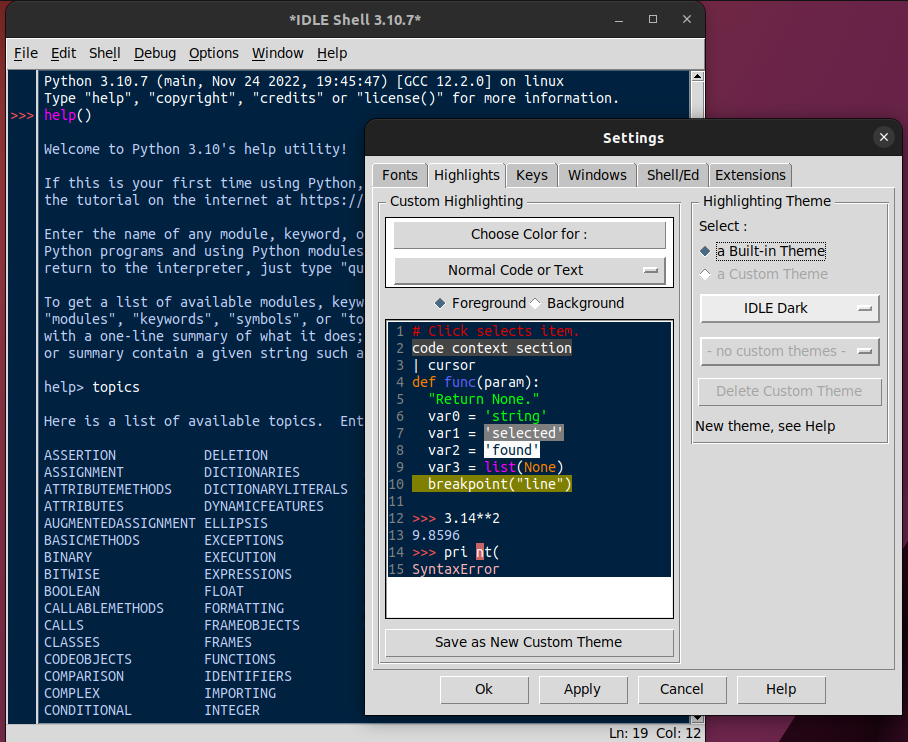
When you install Python, it comes with a simple, built-in IDE called IDLE (Integrated Development and Learning Environment). It's a great place to start because it's lightweight and easy to use. As you advance, you might explore more powerful IDEs like Visual Studio Code or PyCharm, but for now, IDLE has everything you need.
Writing Your First Program
It's a long-standing tradition for programmers to write a "Hello, World!" program as their first piece of code in a new language. It's a simple way to confirm that your setup is working correctly.
Let's create one. Open IDLE from your applications or start menu. You'll first see the Shell window, which lets you run single lines of code. For a full script, you need to create a new file.
- In IDLE, go to
File > New File. - A new, blank editor window will open. Type the following line of code into this window.
print("Hello, World!")
This code uses the built-in print() function to display the text inside the parentheses on the screen. The text itself, called a string, must be enclosed in quotes.
Now, let's run it.
- Go to
File > Saveand save the file somewhere you'll remember, like your Desktop. Name ithello.py. The.pyextension is important—it tells the computer this is a Python file. - With the editor window still open, go to
Run > Run Module(or just press F5).
The output, Hello, World!, will appear back in the original Shell window.
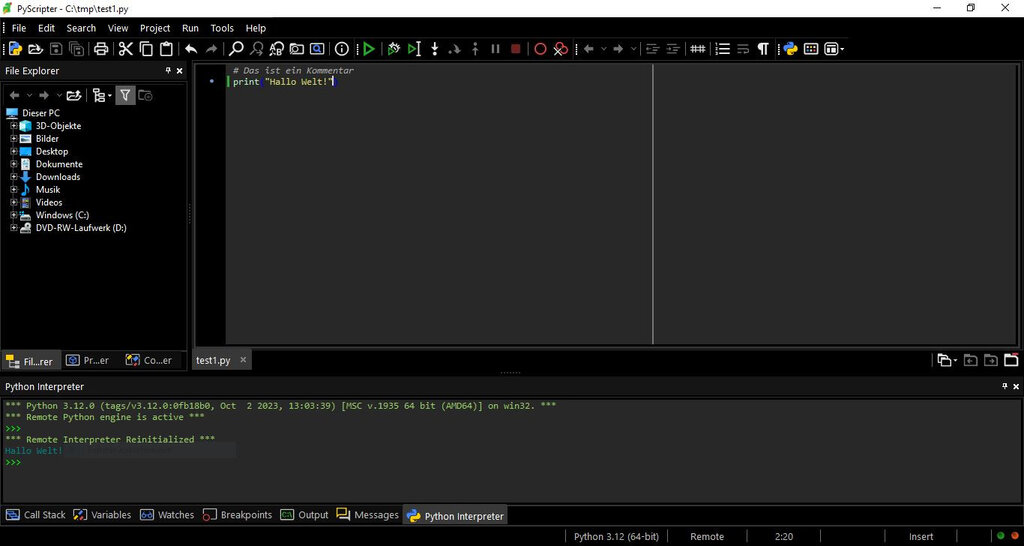
Congratulations! You've just installed Python, set up your environment, and successfully written and executed your first program.
Time to check your understanding.
What is the primary role of the Python interpreter?
When installing Python on Windows, which step is crucial for being able to run Python from the command line?