Introduction to Python Programming
Setting Up Python
Getting Python on Your Machine
Before you can start writing Python code, you need to install it on your computer. Python is a programming language, and the installer gives your computer the ability to understand and execute Python commands.
Head over to the official Python website, python.org, and go to the downloads page. The site will usually suggest the best version for your operating system.
Here’s how to install it on different systems:
- Windows: Run the installer you downloaded. On the first screen, make sure to check the box that says “Add Python to PATH.” This small step makes it much easier to run Python from the command line later. Then, just click “Install Now.”
- macOS: Open the downloaded package file and follow the installation prompts. It's a standard macOS installation process, similar to other applications.
- Linux: Most Linux distributions come with Python pre-installed. If not, or if you need a newer version, you can usually install it through your system’s package manager. For example, on Debian-based systems like Ubuntu, you would use
sudo apt-get install python3.
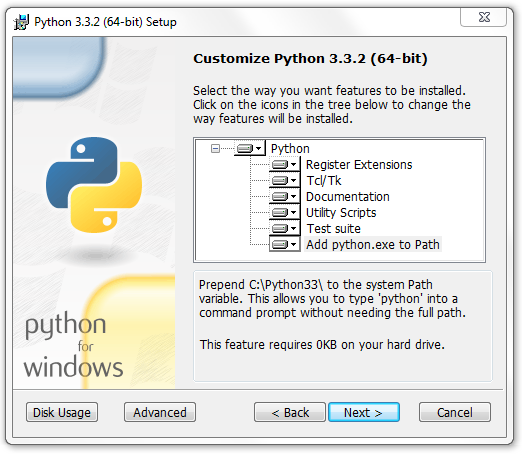
After the installation finishes, you can check that everything worked correctly. Open your computer's command line tool (Terminal on macOS and Linux, Command Prompt or PowerShell on Windows) and type the following command.
python --version
If you see a version number, like Python 3.11.3, you’re all set. If you get an error, you might need to use python3 --version instead, especially on macOS and Linux.
Your First Coding Environment
You can write Python in a simple text file, but it's much easier with an Integrated Development Environment, or IDE. An IDE is a software application that combines a text editor, a code runner, and other helpful tools for programmers. It’s like a workshop specifically designed for building things with code.
For beginners, Thonny is an excellent choice. It was created specifically for learning to code in Python. It has a simple, clean interface and comes with Python built-in, so you don't have to worry about complex configurations.

You can download Thonny from its official website, thonny.org. Just download the version for your operating system and run the installer.
Writing Your First Script
Now that you have everything set up, let's write your first piece of code. The traditional first program for any new language is one that simply prints “Hello, World!” to the screen. It's a simple way to confirm that your entire setup is working.
Open Thonny. You'll see two main parts of the window. The top part is the script editor, where you write your code. The bottom part is the shell, where you see the output of your code. In the script editor at the top, type the following line of code.
print("Hello, World!")
This code tells Python to use its built-in print function to display the text inside the parentheses. Now, click the green “Run current script” button in the toolbar (it looks like a play symbol). Thonny will ask you to save the file first. Save it as hello.py.
Once you save it, the script will run. You should see the output appear in the shell at the bottom.
Hello, World!
Congratulations, you've just written and executed your first Python program! Now let's check your understanding.
When installing Python on Windows, what is the main reason to check the box that says “Add Python to PATH”?
After a successful installation, which command would you use in the terminal to check the installed version of Python?
With your environment set up, you're ready to start exploring the fundamentals of Python.