Introduction to Python Programming
Python Basics
Setting Up Your Workspace
Before you can write Python code, you need a place to write and run it. This is your development environment. The first step is to install Python itself from the official website, python.org. The installation is straightforward and provides you with everything you need to start.
Included with Python is a simple program called IDLE (Integrated Development and Learning Environment). Think of it as a basic text editor and a command window combined, specifically designed for Python. It's a great place to begin because it's simple and comes with the standard installation.
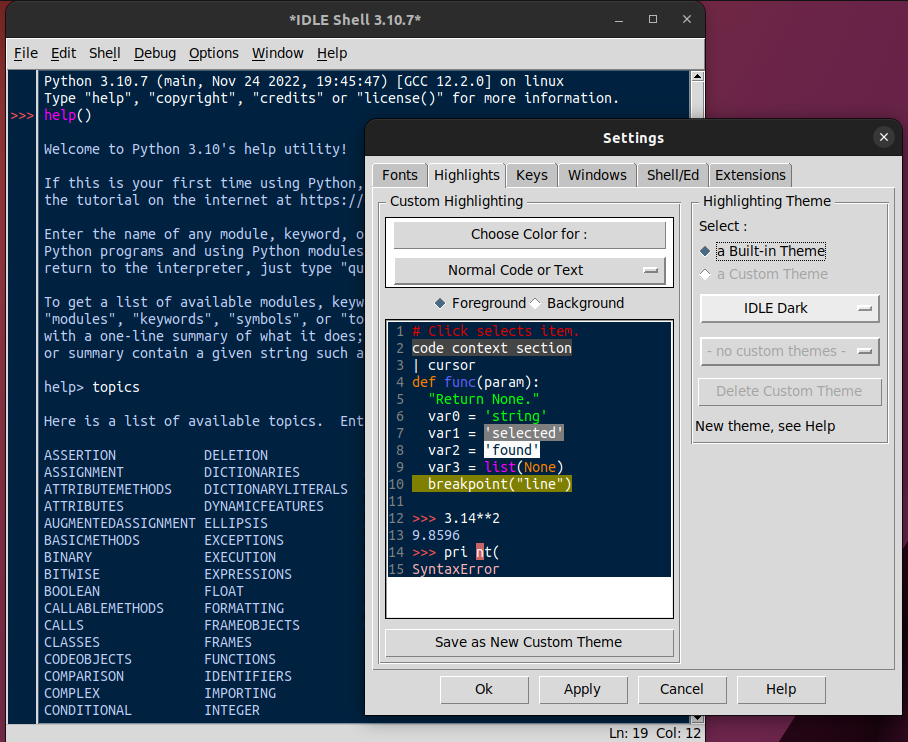
You can write code in two main ways: interactively in the shell or by saving it in a file. The shell is like a live conversation with Python where you type one command at a time and it responds instantly. For anything more than a line or two, you'll save your code in files, typically ending with .py. These files are called scripts.
Writing Your First Program
Let's start with the most traditional first program: displaying the message "Hello, World!" on the screen. In Python, you do this with a built-in function called print().
print("Hello, World!")
Let's break that down. print is the name of the function. The parentheses () are used to pass information to the function. The text inside the parentheses, "Hello, World!", is the information we want to print. This piece of text is called a string, and in Python, strings are always wrapped in quotation marks (either single ' or double ").
When you run this line of code, the output will be the text itself, without the quotes.
Variables and Data Types
Imagine you want to store a piece of information to use later. Instead of typing it out every time, you can store it in a variable. A variable is like a labeled box where you can keep a value.
You create a variable by giving it a name and assigning it a value using the equals sign =.
# Assigning a string to a variable
greeting = "Hello again, Python!"

# Printing the value stored in the variable
print(greeting)
In this example, greeting is the variable name, and it holds the string value "Hello again, Python!". When we pass the variable to the print() function, it prints the value stored inside it.
Variable names must start with a letter or an underscore. They can't start with a number and cannot contain spaces. For multi-word names, the common convention is to use an underscore, like
user_name.
Variables can hold different types of data. The kind of data determines what you can do with it. So far we've seen strings, which are just text. Here are a few other basic types:
| Data Type | Description | Example |
|---|---|---|
str | String (text) | "Hello" or 'Python' |
int | Integer (whole number) | 10, -5, 0 |
float | Floating-point (decimal number) | 3.14, -0.5 |
bool | Boolean (true/false) | True or False |
Python is smart; it automatically figures out the data type when you assign a value. You can even reassign a variable to a different type of data later on.
# An integer variable
year = 2024
print(year)

# A float variable
pi_approx = 3.14
print(pi_approx)

# A boolean variable
is_learning = True
print(is_learning)
Getting User Input
Programs are more interesting when they can interact with a user. Python's input() function lets you pause the program and wait for the user to type something.
The input() function displays a prompt to the user and then returns whatever they type as a string. You'll usually want to store this result in a variable.
# Ask the user for their name and store it
name = input("What is your name? ")

# Greet the user by name
print("Hello, " + name + "!")
Try running that code. It will first display "What is your name? ". After you type your name and press Enter, it will print a personalized greeting.
Notice the + sign in the print() function. When used with strings, it combines them into a single, longer string. This is called concatenation. One important detail: the input() function always returns a string, even if the user types a number.
What is IDLE in the context of Python?
Which line of code will correctly print the message Ready! to the screen?