Introduction to Python Programming
Introduction to Python
Getting Python on Your Machine
Before you can write Python code, you need the Python interpreter. This is the program that understands and runs your Python instructions. We'll be using Python 3, the modern and actively developed version of the language. If you ever see code for Python 2, just know it's an older version and might not work the same way.
The best place to get Python is from the official source: python.org. Go to the downloads page and grab the latest version for your operating system.
For Windows: Run the installer you downloaded. Make sure to check the box that says "Add Python to PATH." This small step makes it much easier to run Python from the command line later on. Just click through the rest of the options, and the installation will handle itself.

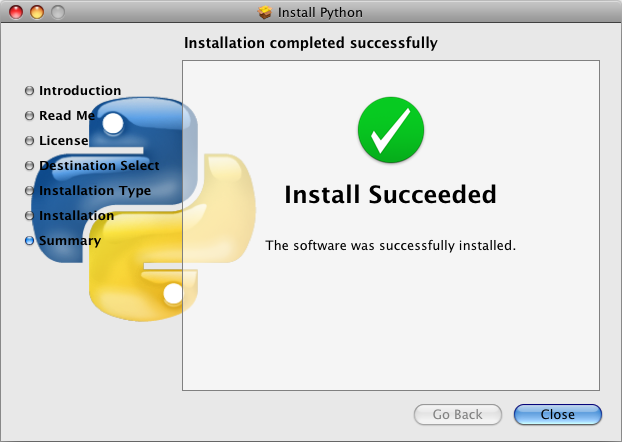
For macOS: macOS often comes with an older version of Python already installed. It's still a good idea to install the latest version from python.org so you have access to the newest features. The process is similar to Windows: download the installer package, open it, and follow the on-screen instructions.
The Interactive Interpreter
Once Python is installed, you can start using its interactive interpreter, also known as the Python shell or REPL (Read-Eval-Print Loop). Think of it as a powerful calculator that lets you type one line of Python code at a time and see the result immediately.
To open it, go to your computer's command line application. On Windows, this is Command Prompt or PowerShell. On macOS, it's called Terminal. Type python3 and hit Enter. You should see a prompt that looks like >>>. This means Python is waiting for your command.
>>> 2 + 2
4
>>> 50 - 5 * 6
20
>>> (50 - 5 * 6) / 4
5.0
You can do more than just math. The most basic command in Python is print(), which displays text to the screen. The text you want to print goes inside the parentheses and must be wrapped in quotes.
>>> print("Hello, world!")
Hello, world!
The interpreter is fantastic for testing small ideas or exploring how a command works. To exit the interpreter, you can type exit() and press Enter.
Writing Your First Script
While the interpreter is great for single lines of code, you'll want to save your work for anything more complex. A Python script is just a plain text file containing Python code. By convention, these files end with a .py extension.
You can write a script in any plain text editor, like Notepad on Windows or TextEdit on macOS. Create a new file and type a line of Python code.
# This is my first script, saved as hello.py
print("This is my first Python script.")
print("It has more than one line!")
Save this file as hello.py. Now, navigate to the folder where you saved the file using your command line (the cd command, for "change directory," is your friend here). Once you're in the right directory, you can run the script by typing python3 followed by the filename.
$ python3 hello.py
This is my first Python script.
It has more than one line!
The computer executes every line in the file, from top to bottom. This is how all complex programs are built: by saving a series of instructions in a file and telling the interpreter to run it.
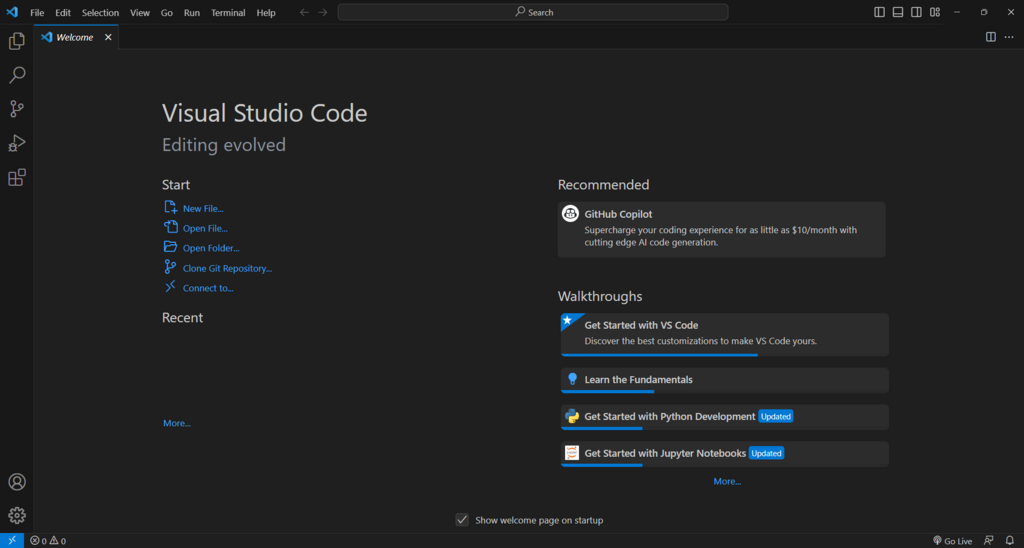
As you write more code, you might want a more powerful tool than a basic text editor. Integrated Development Environments (IDEs) like VS Code, PyCharm, and Thonny combine a text editor, a file browser, and a terminal into one application, making it easier to write and run your code.
What is the primary role of the Python interpreter?
The Python interactive shell is also known as the REPL. This stands for Read-Eval-Print Loop.
You've taken the first steps: setting up Python and running code in two different ways. Now you have the tools to start building.