Introduction to Python Programming
Python Setup
Setting Up Your Workspace
Before you can start writing Python code, you need to set up your digital workspace. This is like a chef preparing their kitchen before cooking. You'll need the main ingredient, Python itself, and a good countertop to work on, which is your code editor or Integrated Development Environment (IDE).
Installing Python
First things first, let's get Python onto your computer. While macOS and some Linux distributions come with a version of Python, it might be outdated. It's always best to install the latest stable version directly from the source.
Head over to the official Python website at python.org. You'll see a prominent downloads link. The site automatically detects your operating system (like Windows or macOS) and suggests the correct installer for you. Download it and run the file to start the installation process.

The installation wizard will guide you through the steps. For the most part, the default settings are fine.
If you're installing on Windows, there's one crucial step: make sure to check the box that says "Add Python to PATH" or "Add python.exe to PATH." This allows you to run Python from your command prompt from any directory, which is incredibly useful.
Meeting the Interpreter
Once Python is installed, you have a new tool on your computer: the Python interpreter. Think of an interpreter as a live translator. You give it one line of Python code, and it immediately translates and executes that command for the computer. This is great for testing small snippets of code without having to save a file first.
To access it, open your computer's terminal (on macOS or Linux) or Command Prompt (on Windows). Type python or python3 and press Enter.
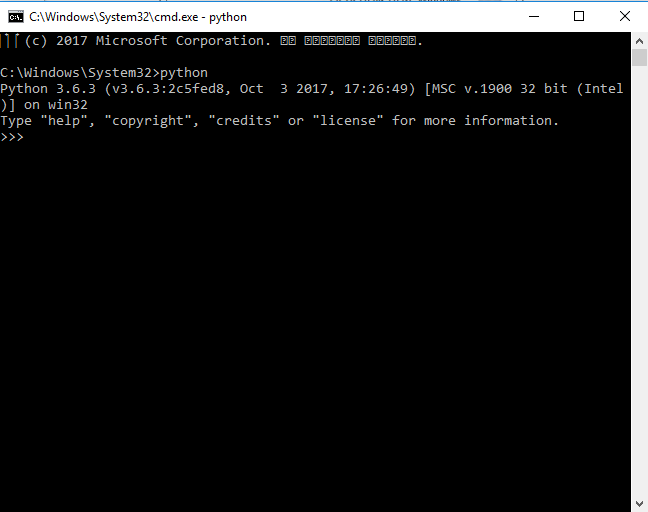
You'll know it's working when you see a prompt that looks like >>>. This is the interpreter waiting for your commands. You can type exit() or press Ctrl+Z (on Windows) or Ctrl+D (on Mac/Linux) to leave the interpreter and return to your regular command prompt.
Choosing a Code Editor
Work on gaining a better understanding of the basics, like what text editors and Integrated Development Environments, or IDEs, are, and how you use them to work with Python.
While the interpreter is handy for quick tests, you'll write most of your code in files using an Integrated Development Environment, or IDE. An IDE is much more than a simple text editor. It's a powerful application designed specifically for writing code. It helps you by highlighting your code in different colors, pointing out errors, and managing your project files.
Two of the most popular IDEs for Python are Visual Studio Code (VS Code) and PyCharm.
IDE
noun
Stands for Integrated Development Environment. It's a software application that provides comprehensive facilities to computer programmers for software development. An IDE normally consists of at least a source code editor, build automation tools, and a debugger.
Visual Studio Code is a free, lightweight, and highly customizable editor from Microsoft. It doesn't come with Python support out of the box, but you can easily install the official Python extension from its marketplace. This makes it a versatile choice for many programmers who work in multiple languages.
PyCharm, made by JetBrains, is an IDE built specifically for Python. It has deep knowledge of the language and offers excellent features for code completion and analysis. It comes in a free Community edition, which is perfect for beginners, and a paid Professional edition with more advanced features.
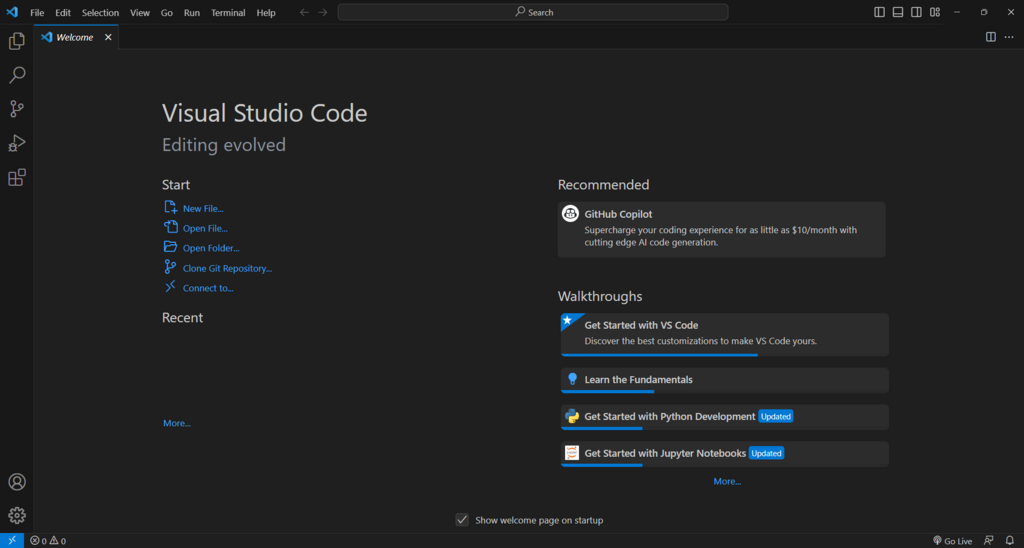
For now, just pick one, download it from its official website, and install it. We won't dive into advanced features yet. The goal is simply to have a place to write and save your Python code. Your chosen IDE will be your primary workspace for all future projects.
Why is it generally recommended to install Python from python.org, even if a version is already on your computer?
What is the primary function of the Python interpreter, accessed via the command line?
With Python and an IDE installed, your development environment is ready to go. You have everything you need to start writing your first programs.