Introduction to Python 3
Python Installation
Getting Python on Your Machine
Before you can write any Python code, you need to install the Python interpreter. This is the program that understands and runs your Python scripts. The best place to get it is from the official source, python.org.
Head to the downloads page and grab the latest stable version of Python 3. The website usually detects your operating system (like Windows, macOS, or Linux) and suggests the correct installer.

Run the installer and follow the on-screen instructions. There's one important step for Windows users: on the first screen of the installer, make sure to check the box that says "Add Python to PATH." This allows you to run Python from your computer's command line, which is something we'll do in a moment.
Your Coding Workspace
You can write Python code in any plain text editor, like Notepad on Windows or TextEdit on a Mac. But it's not the most efficient way to work. Most developers use a specialized tool to write code.
IDE
noun
An Integrated Development Environment is a software application that provides comprehensive facilities to computer programmers for software development. An IDE normally consists of at least a source code editor, build automation tools, and a debugger.
An IDE makes your life easier. It highlights your code in different colors to make it more readable, suggests code as you type, and helps you find and fix errors. It’s like the difference between writing a novel with a basic typewriter versus a modern word processor with spell check and formatting tools.
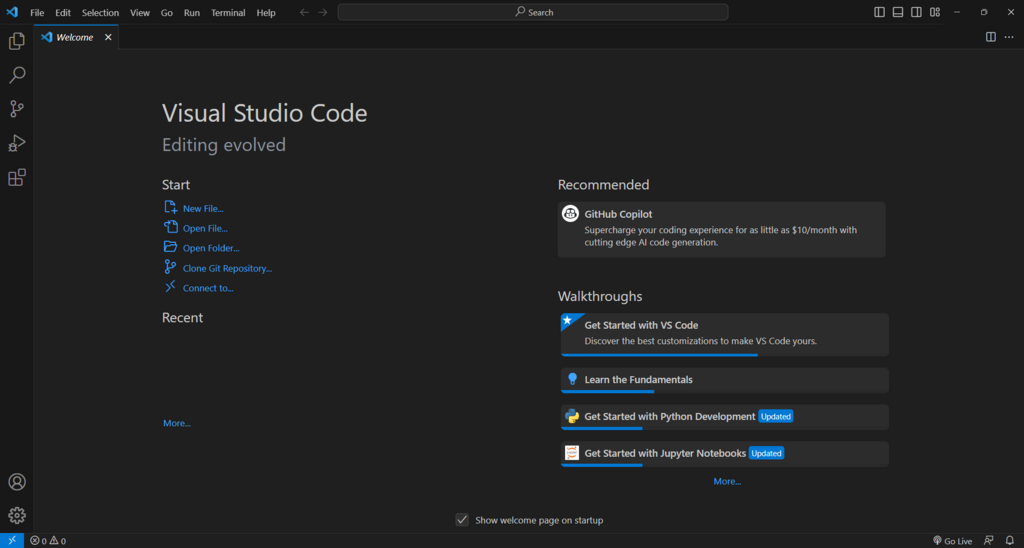
Two of the most popular IDEs for Python are Visual Studio Code (VS Code) and PyCharm. Both are excellent choices for beginners. For now, just pick one, download it from its official website, and install it. You can always switch later.
Instant Gratification with REPL
Sometimes you just want to test a tiny snippet of code without creating a whole file. For this, Python provides an interactive shell, also known as a REPL.
REPL stands for Read-Eval-Print Loop. It reads the code you type, evaluates (runs) it, prints the result, and then loops back to wait for your next command.
To open the REPL, open your computer's terminal (or Command Prompt on Windows) and type python or python3 and press Enter. You should see a prompt that looks like >>>.
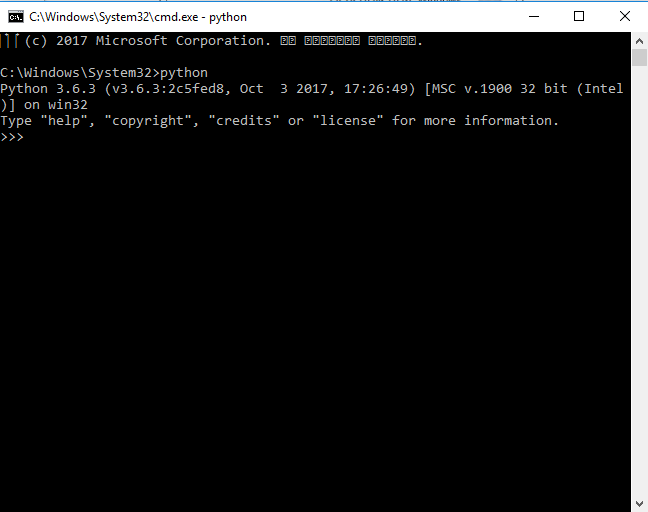
Now you can type Python code directly and see the result immediately. Try typing a simple math expression:
>>> 5 + 3
8
Or even a classic print statement:
>>> print('Hello, Python!')
Hello, Python!
The REPL is a great tool for quick experiments and for getting a feel for how different Python commands work. To exit the REPL, you can type exit() and press Enter.
What is the official, recommended source for downloading the Python interpreter?
When installing Python on Windows, what is the crucial checkbox to select to make Python easily accessible from the command line?
You've now got Python installed and know two different ways to run code: through an IDE and directly in the interactive shell. You're all set to start writing your first real programs.