Introduction to MATLAB
MATLAB Interface
Getting Around MATLAB
Opening MATLAB for the first time reveals a desktop environment with several panes. This layout is designed to help you write code, see your results, and manage your files all in one place. The default layout usually shows three main windows: the Command Window, the Workspace, and the Current Folder.
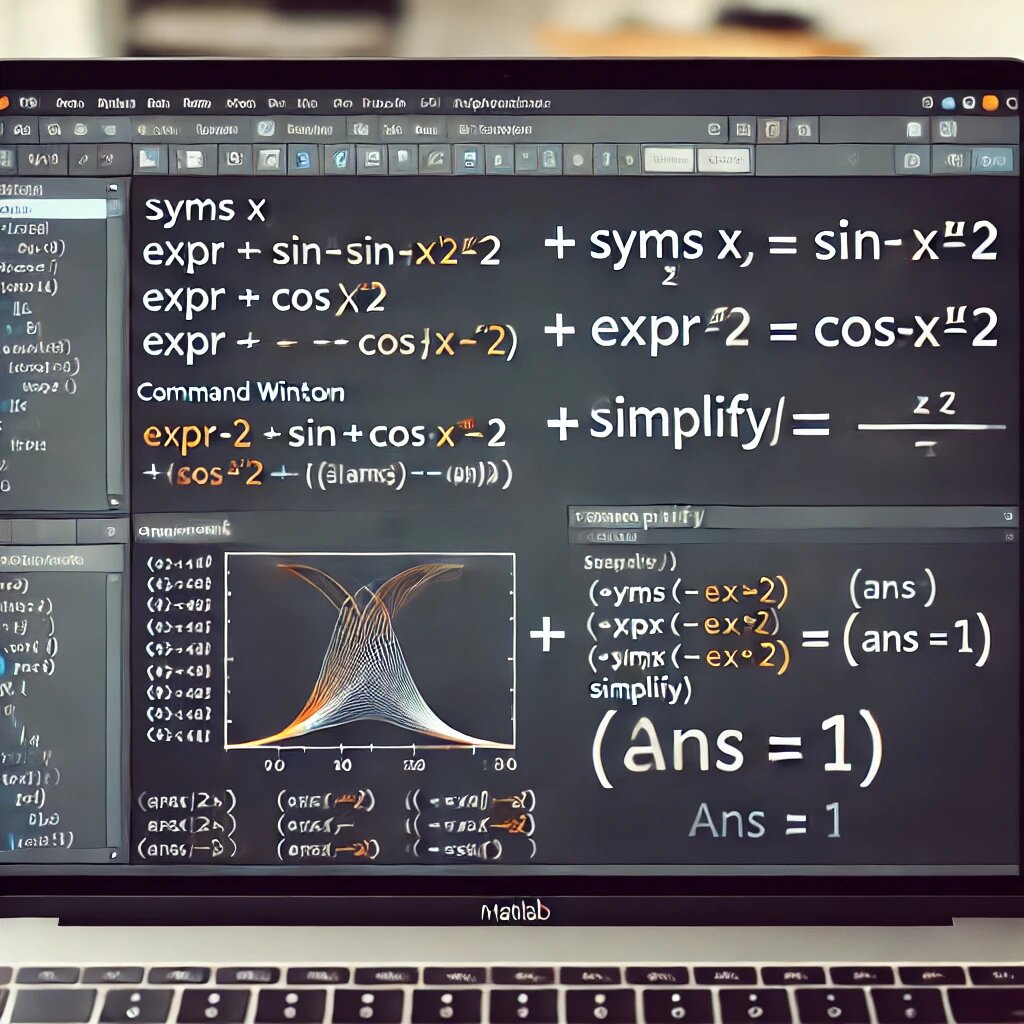
Think of this as your main control panel. Let's look at each part and what it does.
The Command Window
The Command Window is the most direct way to interact with MATLAB. You can type commands at the prompt ( >> ) and press Enter to execute them immediately. It works like a powerful calculator.
Try typing
5 * 10and pressing Enter. MATLAB will immediately compute the answer and displayans = 50.
This is great for quick calculations or testing a single line of code. You can also use the up and down arrow keys to scroll through your previous commands, which saves a lot of retyping.
Workspace and Variables
When you perform a calculation or assign a value to a name, you create a variable. The Workspace pane shows you all the variables you have created in your current session. It's a live inventory of your data.
For example, go back to the Command Window and type a = 25. You've just created a variable named a with the value 25. Look over at your Workspace pane. You'll see a listed there, along with its value.
If you double-click a variable in the Workspace, MATLAB opens it in the Variables editor, which looks like a spreadsheet. This is handy for inspecting large arrays or tables of data without having to display them in the Command Window.
The Editor and Files
The Command Window is great for simple tasks, but for anything more complex, you'll want to save your commands in a file. This is where the Editor comes in. The Editor is a text editor where you write and save sequences of MATLAB commands as scripts.
Scripts are simple text files that end with a .m extension. They allow you to run many lines of code at once, save your work, and easily make changes. To create a new script, you can click the "New Script" button in the toolbar.
% My first MATLAB script

% Create some data
price = [10, 15, 12, 18, 20];

% Calculate the average price
average_price = mean(price);

% Display the result
disp('The average price is:')
disp(average_price)
After writing your code in the Editor, you save it (e.g., as calculate_price.m). You can then run the entire script by clicking the green "Run" button in the Editor's toolbar or by typing the script's name (calculate_price) in the Command Window.
Finally, the Current Folder pane shows you the files in the directory you're currently working in. For MATLAB to run your script, the .m file must be saved in the Current Folder or in a folder on MATLAB's search path. This is a common stumbling block for beginners, so always make sure your files are in the right place!
Which part of the MATLAB desktop allows you to type single commands and see the results immediately?
After you execute the command x = 10 * 5 in the Command Window, where can you see the variable x and its value listed?
Getting comfortable with these windows is the first step to using MATLAB effectively. You now know how to execute commands, manage variables, and write scripts.