Introduction to Coding and Web Development
Introduction to HTML
The Skeleton of the Web
Every website you visit, from a simple blog to a massive online store, is built on a foundation of HTML. HTML stands for HyperText Markup Language, and its job is to give a webpage its structure. Think of it like the skeleton of a body. It defines where the head is, where the arms go, and where the legs are, but it doesn't control the skin color, hair style, or clothing. That's a job for other technologies we'll explore later.
HTML uses elements, which are represented by tags, to label pieces of content like "this is a heading," "this is a paragraph," or "this is a link."
HTML provides the basic structure of sites, which is enhanced and modified by other technologies like CSS and JavaScript.
Let's look at the basic structure of any HTML document. It’s a bit like a template you'll use every time you start a new page.
<!DOCTYPE html>
<html>
  <head>
    <title>My First Webpage</title>
  </head>
  <body>
    <!-- Content goes here -->
  </body>
</html>
Here’s a quick breakdown of that structure:
<!DOCTYPE html>: This tells the browser that the document is an HTML5 page. It's always the very first thing in your file.<html></html>: This is the root element. Everything else in the document is nested inside it.<head></head>: This section contains meta-information about the page that isn't displayed directly on the page itself. Things like the page's title (which appears in the browser tab) and links to other files go here.<body></body>: This is where all the visible content of your webpage goes—the headings, paragraphs, images, and links.
Building with Blocks
Once you have the basic structure, you can start adding content using different tags. The most common building blocks for any webpage are headings and paragraphs.
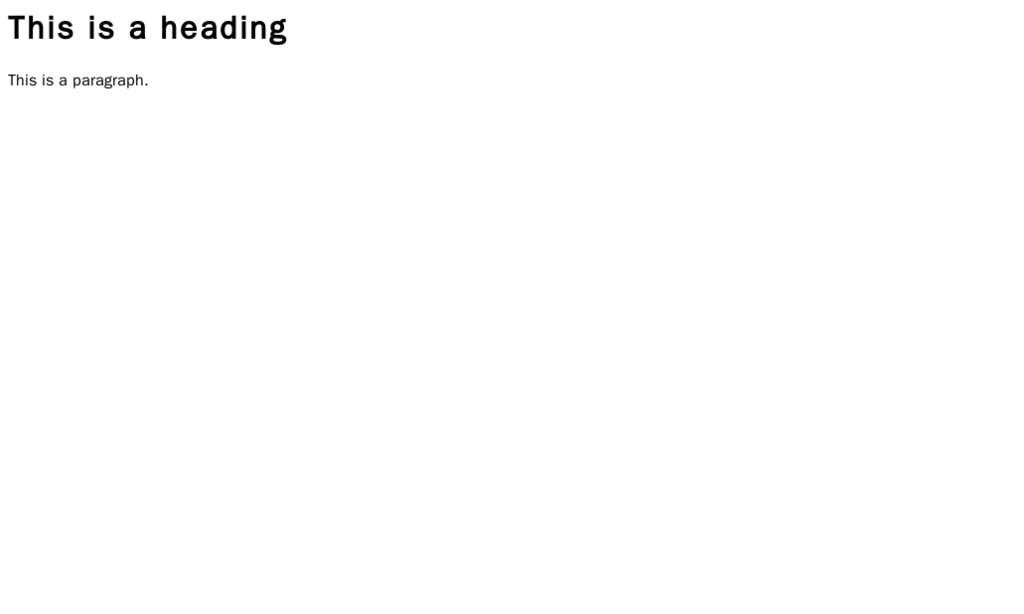
Headings are used to structure your content and are defined with <h1> through <h6> tags. <h1> is the most important heading, usually the main title of the page, while <h6> is the least important. It's a good practice to use headings in their correct order to help search engines and screen readers understand your content's hierarchy.
Paragraphs are for blocks of text and are created with the <p> tag. The browser automatically adds some space before and after each paragraph.
<h1>This is the main title</h1>
<p>This is the first paragraph of text. It introduces the topic.</p>

<h2>This is a subtitle</h2>
<p>This paragraph provides more detail under the subtitle.</p>
Lists are another common way to organize information. There are two main types: unordered lists (<ul>), which use bullet points, and ordered lists (<ol>), which use numbers. In both cases, each list item is defined with an <li> tag.
<ul>
  <li>Apples</li>
  <li>Oranges</li>
  <li>Bananas</li>
</ul>

<ol>
  <li>First, gather ingredients.</li>
  <li>Second, mix them together.</li>
  <li>Third, bake in the oven.</li>
</ol>
Connecting Pages and Media
The web wouldn't be a web without links. Hyperlinks allow us to connect pages to each other. We create them with the anchor tag, <a>.
The most important part of an anchor tag is the href attribute, which stands for "hypertext reference." This is where you put the URL of the page you want to link to. The text between the opening <a> and closing </a> tags is what becomes the clickable link.
<a href="https://www.example.com">Visit Example.com</a>
Adding images is just as straightforward. We use the <img> tag. This is a self-closing tag, meaning it doesn't need a separate closing tag like <p></p>. It requires two attributes:
src: The source attribute, which is the path or URL to the image file.alt: The alternative text attribute. This provides a text description of the image for screen readers and also displays if the image fails to load.
Always include
alttext for your images. It's crucial for web accessibility.
<img src="images/cute-cat.jpg" alt="A fluffy orange cat sleeping on a sunny windowsill">
Writing with Meaning
You could build an entire website using just <div> tags for every section, but that would be like writing a book with no chapters or paragraphs. It would be hard to understand.
Semantic HTML means using tags that describe the meaning of the content they contain. This makes your code easier for other developers, search engines, and assistive technologies to understand.
Instead of using a generic <div> for everything, you can use more descriptive tags:
<header>: For introductory content, like a site logo and navigation.<nav>: To contain the main navigation links.<main>: For the primary content of the page.<article>: For self-contained content, like a blog post or news story.<aside>: For secondary content, like a sidebar.<footer>: For the bottom of the page, often containing copyright info and contact links.
Using these tags doesn't change how the page looks by default, but it provides a clear, meaningful structure that is beneficial for everyone.
Now you have the foundational knowledge to build a simple webpage. Let's test what you've learned.
What does HTML stand for?
In which section of an HTML document is the main visible content, like paragraphs and images, placed?