Introduction to C# Programming
Introduction to C#
Meet C#
C# (pronounced “C sharp”) is a programming language created by Microsoft. It’s known for being powerful yet relatively straightforward to learn, mixing the best parts of other languages like C++ and Java.
C# (C Sharp) is an object-oriented programming language that enables developers to build a variety of secure and robust applications that run on the .NET Framework.
Think of it as a versatile tool. With C#, you can build all sorts of things. It’s the engine behind many Windows desktop applications, dynamic websites using ASP.NET, and even mobile apps for iOS and Android through a framework called Xamarin. It's also the language of choice for Unity, one of the most popular game development engines in the world.
At its core, C# is an object-oriented language. You don't need to master this concept right away, but the main idea is that it helps organize code into reusable, modular blocks, much like building with LEGOs. This makes programs easier to manage and scale.
Setting Up Your Workspace
To start writing C#, you need a place to work. We'll use Visual Studio Code (VS Code), a popular, free code editor. It’s lightweight but can be customized with extensions to handle almost any programming task.
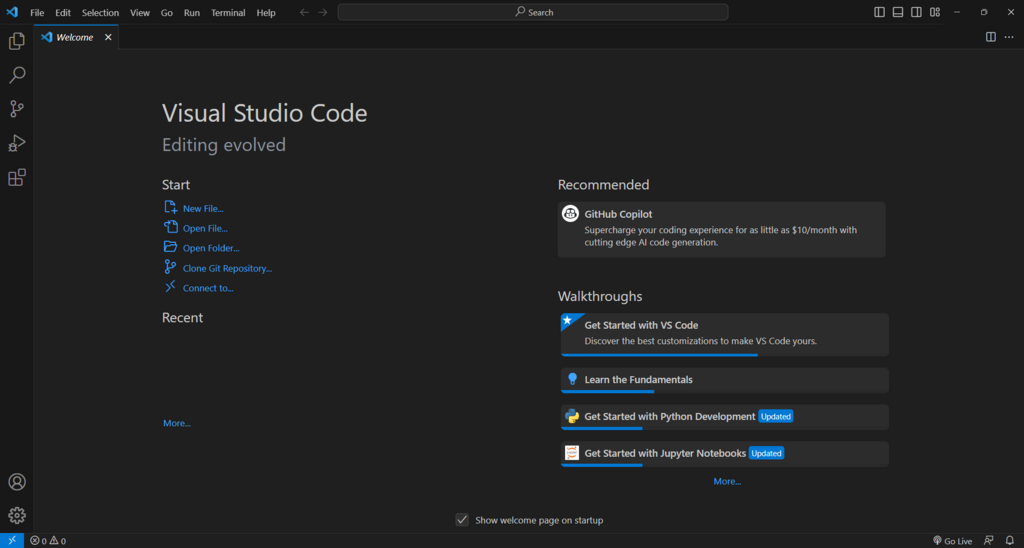
Here’s how to get set up:
- Install Visual Studio Code. If you don't have it, download it from the official website and follow the installation instructions for your operating system (Windows, macOS, or Linux).
- Install the C# Dev Kit. Open VS Code and go to the Extensions view (click the icon with four squares on the sidebar). Search for "C# Dev Kit" and click Install. This extension pack gives VS Code the tools to understand, write, and debug C# code.
- Install the .NET SDK. The C# Dev Kit might prompt you to install this. If not, you can download it directly from Microsoft's website. The SDK, or Software Development Kit, is what actually compiles and runs your C# code. Without it, you’re just typing text.
Your First C# Program
With your environment ready, it's time to write your first program. It’s a tradition in programming to start with a simple application that just prints "Hello, World!" to the screen. This confirms that everything is set up correctly.
First, create a new folder on your computer where you'll store your project. Call it something like
MyFirstApp. Then, open this folder in VS Code by going toFile > Open Folder....
Next, open the integrated terminal in VS Code. You can do this from the menu by selecting Terminal > New Terminal. A command-line panel will appear at the bottom of the editor.
In the terminal, type the following command and press Enter:
dotnet new console
This command tells .NET to create a new, basic console application. You’ll see a few files appear in your folder. The most important one is Program.cs. The .cs extension stands for C Sharp. This is where your code lives.
Click on Program.cs to open it. It will already contain some code:
// See https://aka.ms/new-console-template for more information
Console.WriteLine("Hello, World!");
Let's break this down. The first line starting with // is a comment. It's just a note for humans; the computer ignores it. The second line is the actual instruction. Console.WriteLine() is a command that tells the computer to write a line of text to the console. The text you want to write goes inside the parentheses and quotation marks.
To run your program, go back to the terminal and type:
dotnet run
After a moment, you should see the output appear directly in your terminal:
Hello, World!
That's it! You've successfully written and run your first C# program.