Introduction to Autodesk Fusion 360
Introduction to Fusion 360
Getting Started with Fusion 360
Autodesk Fusion 360 is more than just a 3D modeling tool. It’s a single platform that combines several powerful capabilities. You can design a product (CAD), prepare it for manufacturing (CAM), test its performance digitally (CAE), and even design its printed circuit boards (PCB). Because it's cloud-based, all your files are accessible from anywhere, and collaborating with a team is straightforward.
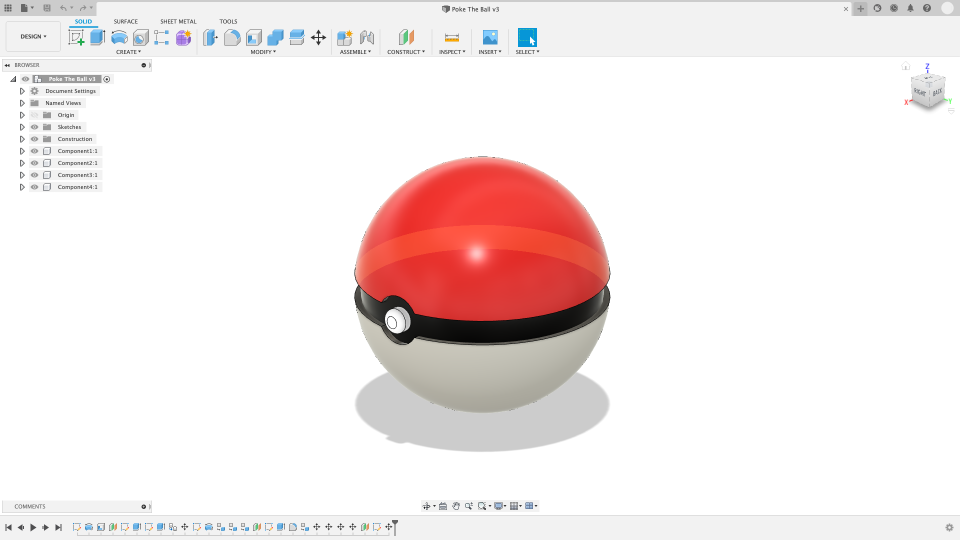
Navigating the Workspace
When you first open Fusion 360, the interface can seem complex, but it's organized logically. The main area is your Canvas, where you'll create and view your models. Let's break down the other key parts you'll use constantly.
Here’s a quick tour:
- Toolbar: At the top, this contains all your primary tools for creating and modifying designs, grouped by function like Solid, Surface, and Sheet Metal.
- Browser: On the left, this lists all the objects in your design, like components, sketches, and construction planes. It helps you select and organize your model.
- ViewCube: In the upper-right corner of the canvas, this tool lets you easily orbit your model or switch to standard views (top, front, right).
- Timeline: At the bottom, this is one of Fusion 360’s most powerful features. It records every action you take, allowing you to go back and edit any step in your design process.
The timeline is one of the most important tools in Fusion 360.
Your First Project
All your work in Fusion 360 is organized in the Data Panel. This is your hub for file management. You can hide or show it by clicking the grid icon in the top-left corner.
To start, you’ll want to create a project. Think of a project as a top-level folder for a specific design you're working on. Inside, you can organize designs, drawings, and other related files.
To create a new project:
- Open the Data Panel.
- Click the 'New Project' button.
- Give your project a memorable name.
- Press Enter. Your new project folder is now ready.
Once inside a project, you can save your current design by going to File > Save or using the Ctrl/Cmd + S shortcut. Give your file a name and it will be saved into the active project folder. Since Fusion 360 is cloud-based, this also uploads it to your account, creating a version history you can always refer back to.