Intermediate Linux System Mastery
Advanced File Management
The Anatomy of a Linux System
When you manage a Linux server, you're not just dealing with individual files. You're interacting with a highly organized system. This structure is defined by the Filesystem Hierarchy Standard (FHS), which provides a predictable layout for where programs, data, and configurations live. It's the reason you can switch between Ubuntu, Fedora, or CentOS and still have a good idea of where to find things.
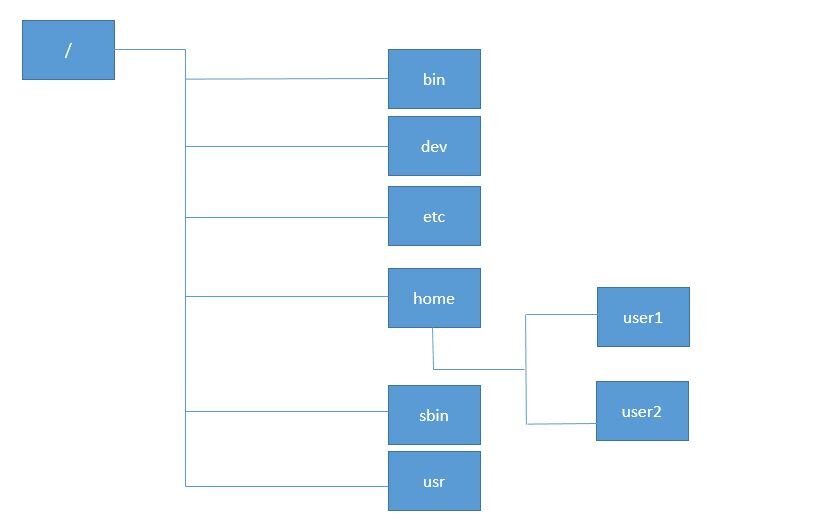
Think of it as a city plan. You know where to find the business district, residential areas, and public services, regardless of the specific city. In Linux, three key "districts" you'll constantly work with are /etc, /usr, and /var.
| Directory | Purpose | Common Contents |
|---|---|---|
/etc | System-wide configuration files | passwd, fstab, ssh/sshd_config |
/usr | User-accessible programs and data | Binaries (/usr/bin), libraries (/usr/lib), docs (/usr/share/doc) |
/var | Variable data that changes during operation | Logs (/var/log), web content (/var/www), mail spools (/var/mail) |
Understanding this layout is crucial for server administration. When a service fails, you check /var/log. When you need to change a setting, you edit a file in /etc. When you install new software, its components are placed in /usr.
Files, Names, and Inodes
In Linux, a file's name is just a label. The operating system identifies files not by their name or path, but by a unique number called an inode. The inode stores all the metadata about a file: its permissions, owner, size, timestamps, and, most importantly, the location of the actual data on the disk. A directory is essentially a special file that contains a list of filenames and their corresponding inode numbers.
inode
noun
A data structure on a filesystem that stores all the information about a file object except its name and its actual data.
This separation of name and metadata allows for a powerful feature: links. There are two main types of links: hard links and symbolic (or soft) links.
A hard link is a new filename for an existing inode. Since both names point to the same inode, they are indistinguishable from each other. Deleting one name doesn't delete the data; it only decreases the inode's link count. The data is only removed when the link count drops to zero. A key limitation is that hard links cannot span across different filesystems (or partitions).
A symbolic link, or symlink, is a new file that contains a path to another file. It's a pointer to a filename, not an inode. If you delete the original file, the symlink becomes a "dangling" or broken link. However, symlinks are more flexible and can point to files on any filesystem.
# Create a file
echo "some data" > original.txt

# Create a hard link
ln original.txt hardlink.txt

# Create a symbolic link
ln -s original.txt symlink.txt

# Show inode numbers (-i) and link counts (-l)
ls -li
Finding Files and Analyzing Space
As a system runs, files can get lost in the sprawling directory tree. The find command is an indispensable tool for locating files based on complex criteria. It recursively searches directories and lets you filter by name, type, size, modification time, and more.
# Find all .log files in /var/log modified in the last 7 days
find /var/log -name "*.log" -mtime -7

# Find all directories named 'config' under the home directory
find ~ -type d -name "config"

# Find all files larger than 100MB
find / -type f -size +100M
Simply finding files is often just the first step. What if you want to perform an action on the results, like deleting them or changing permissions? Chaining find with the xargs command allows you to build powerful, one-line operations. xargs takes the list of files from find and passes them as arguments to another command.
# Find all .tmp files and delete them safely
find /tmp -name "*.tmp" -print0 | xargs -0 rm

# Find all shell scripts and make them executable
find . -name "*.sh" -print0 | xargs -0 chmod +x
The
-print0and-0flags are crucial for handling filenames that contain spaces or special characters. They use a null character to separate filenames instead of a newline.
Managing storage is another core task. Two essential commands for this are df (disk free) and du (disk usage).
dfshows the big picture: total space, used space, and free space for each mounted filesystem.duprovides a granular view, summarizing the disk usage of individual files and directories.
# Show disk usage in human-readable format (GB, MB, KB)
df -h

# Show disk usage for directories in /var, one level deep
du -h --max-depth=1 /var

# Find the top 10 largest files/directories in the current path
du -ah . | sort -rh | head -n 10
Mastering these commands allows you to diagnose space issues, perform bulk file operations, and navigate the filesystem with confidence, bridging the gap from a casual user to a competent system administrator.
Time to test your knowledge.
According to the Filesystem Hierarchy Standard (FHS), if a service is failing and you need to check its logs, which directory is the most appropriate place to look?
In the Linux filesystem, what is an inode?
By understanding the FHS, the role of inodes, and powerful tools like find, du, and df, you can manage any Linux server environment effectively.